Stay Up To Date
We believe in keeping you in the loop with all the latest happenings in our courses and system. On this page, you'll find a comprehensive log of all the exciting changes, improvements, and additions we make to our courses and system. Whether it's a new feature, a course enhancement, or a system update, we've got you covered. Bookmark this page and check back regularly. We're committed to ensuring that your learning experience remains exceptional and that you have all the information you need to succeed.

New Features

New Updates

Resources & Tools

Important Updates
Here are some of the most recent updates we thought would be helpful to take note of
New Feature: Conversations SLA Trigger & Permissions Management
Until now, you had to manually look for conversations that were about to breach or had missed their SLA targets. Now, you can use workflows to automate conversations when SLAs are due soon, overdue, or manually dismissed. Let’s learn how to use it!
⭐️ How To Use The Conversations SLA Trigger?
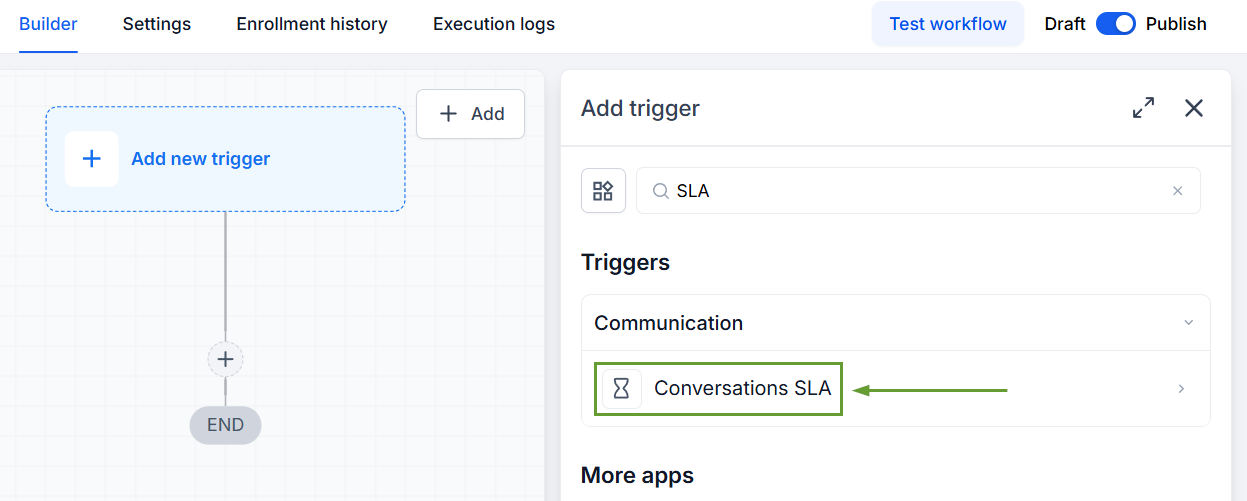
Create a new workflow and select Conversation SLA as the trigger.
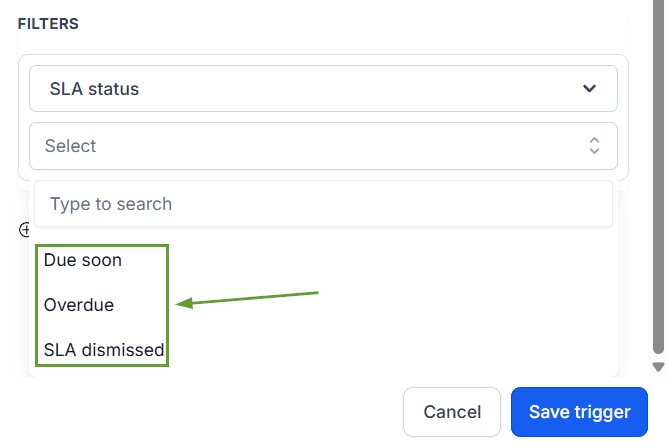
Choose the SLA event; you can pick between Due Soon, Overdue, or SLA Dismissed.
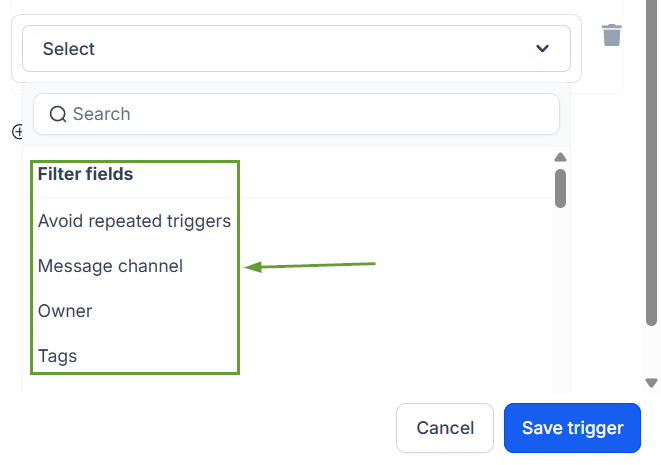
You can also add optional filters such as message channel, tags, owner, or custom fields.
⭐️ How To Manage SLA Dismissal Permissions?
Go to Conversations Settings.
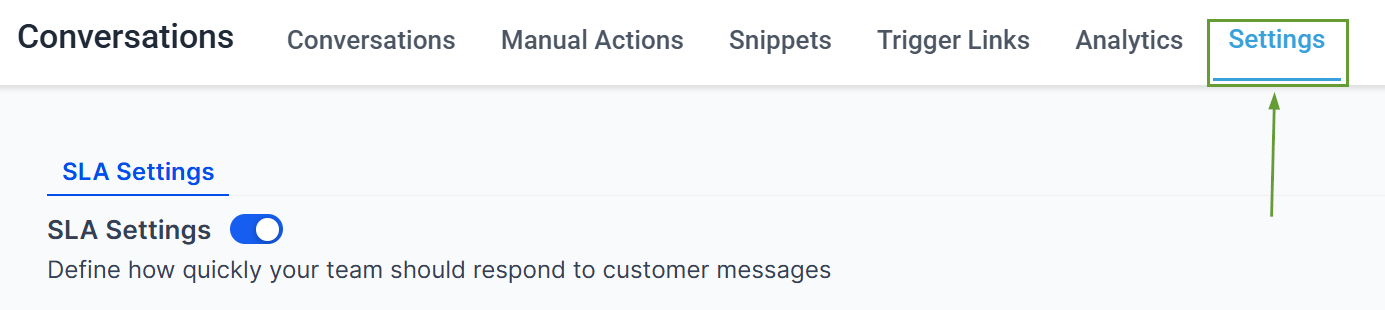
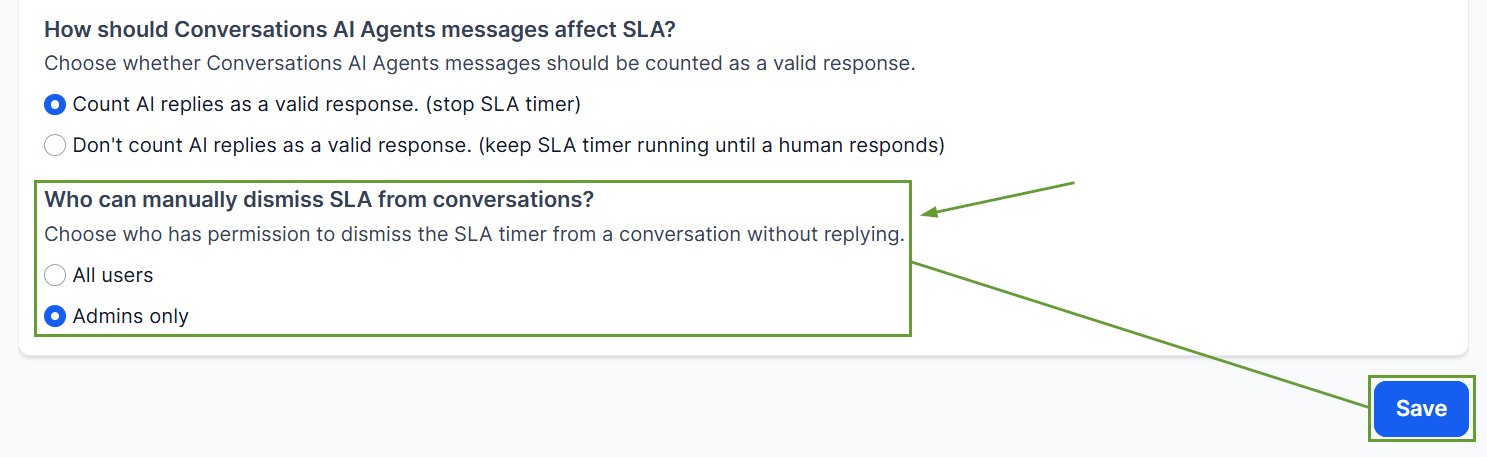
Under “Who can manually dismiss SLA from conversations?” select “All users” or “Admins only,” then save your changes.
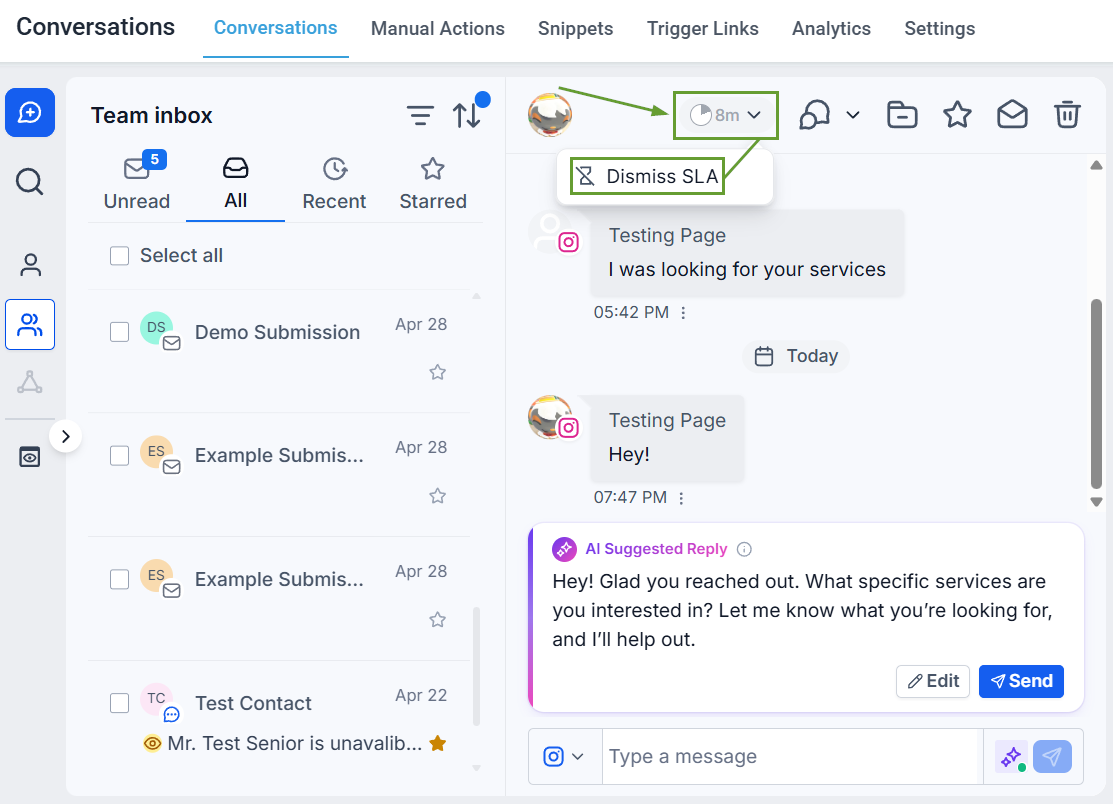
Any user with access to dismiss the SLA can click the timer in the center panel to do so.
Instead of relying on users or managers to monitor SLA timers, define exactly what should happen when these events occur, without excessive notifications using the Avoid Repeated Triggers option. Ensuring conversations are properly dismissed without harming customer satisfaction. We hope you enjoy it!