Stay Up To Date
We believe in keeping you in the loop with all the latest happenings in our courses and system. On this page, you'll find a comprehensive log of all the exciting changes, improvements, and additions we make to our courses and system. Whether it's a new feature, a course enhancement, or a system update, we've got you covered. Bookmark this page and check back regularly. We're committed to ensuring that your learning experience remains exceptional and that you have all the information you need to succeed.

New Features

New Updates

Resources & Tools

Important Updates
Here are some of the most recent updates we thought would be helpful to take note of
Improved Feature: Workflow AI Assistant
Answers that used to mean digging through execution logs now come back in seconds, in plain language, off live data. These updates to the Assistant help you directly understand how the workflow performs without leaving the builder. Let's check the changes!
⭐️How Do These Changes Affect You?
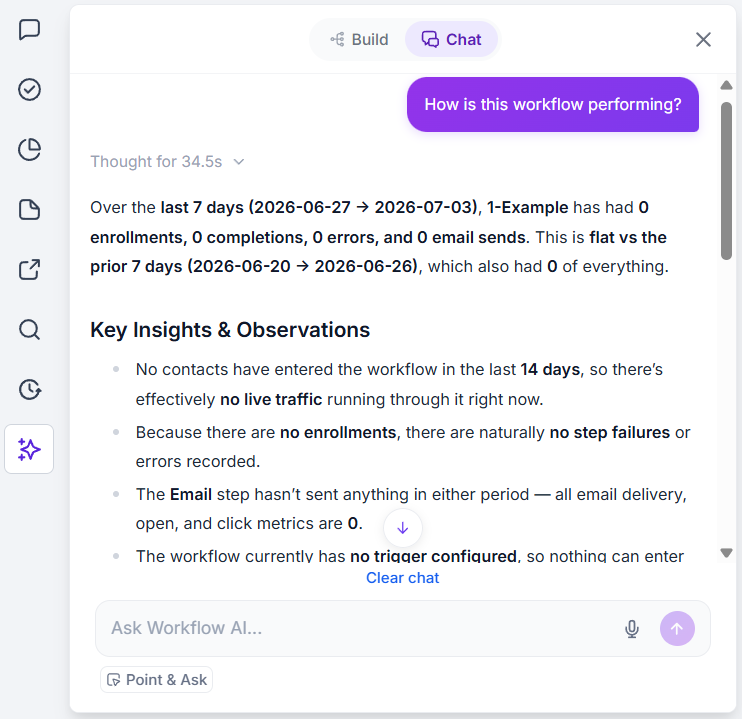
Performance Insights: Ask how a workflow is doing and get entries over any period, a status breakdown, completion rate, goal conversions, and where contacts drop off.
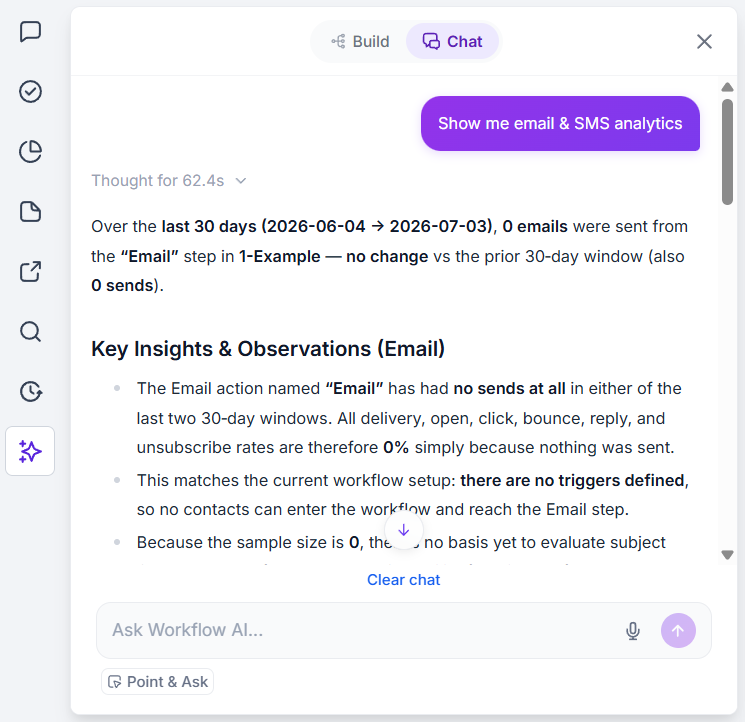
Email and SMS Results: Pull delivery and engagement metrics for any email or SMS step with detailed breakdowns of their response types.
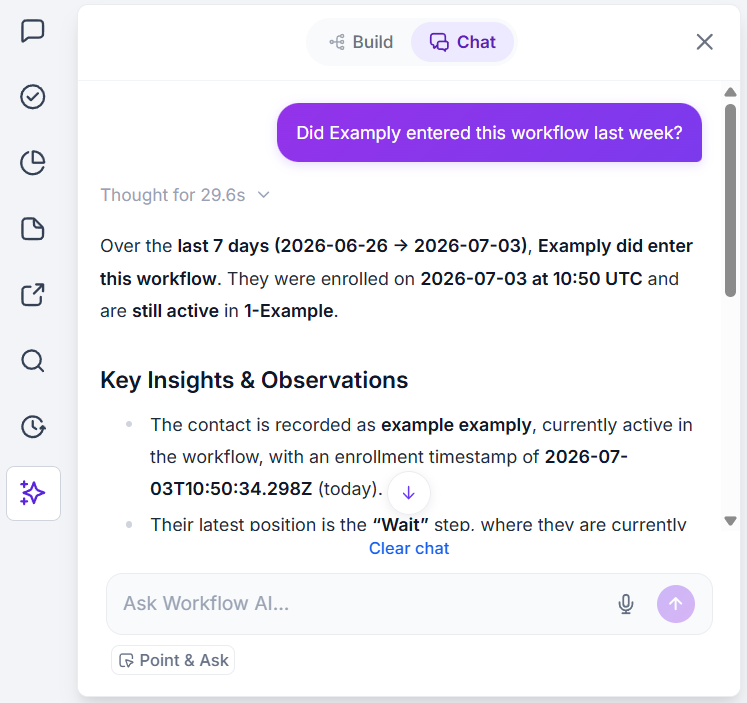
Contact Tracking: Check whether a person completed, failed, or is still active; when they entered; how long they took; and where they are now. This helps you put names to the numbers by asking clarifying questions.
Workflow Search: Search every workflow by name, status, tags, the triggers or actions it contains, allowing you to ask about data across workflows and get an answer at once.
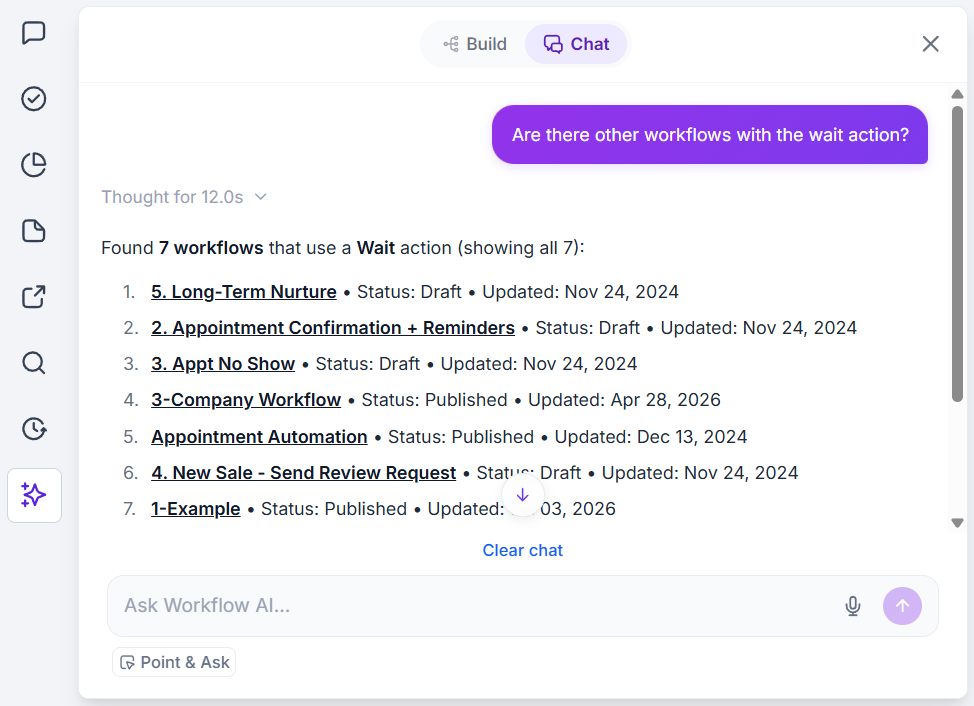
⭐️How To Use The Workflow AI Assistant?
Let’s go over how to access the Workflow AI Assistant and use it with regular questions!
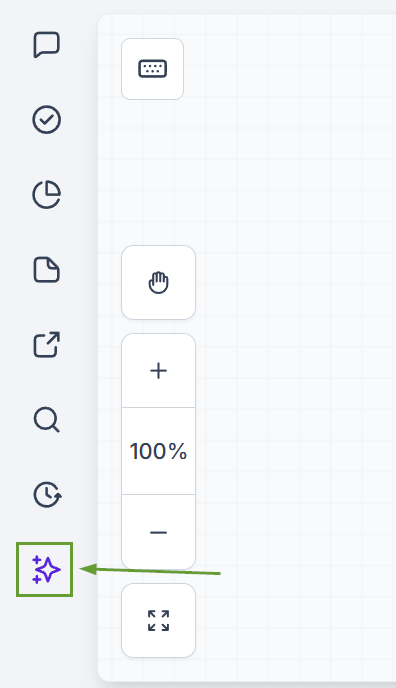
Locate the Workflow AI chat icon in the bottom left corner of the workflow builder.
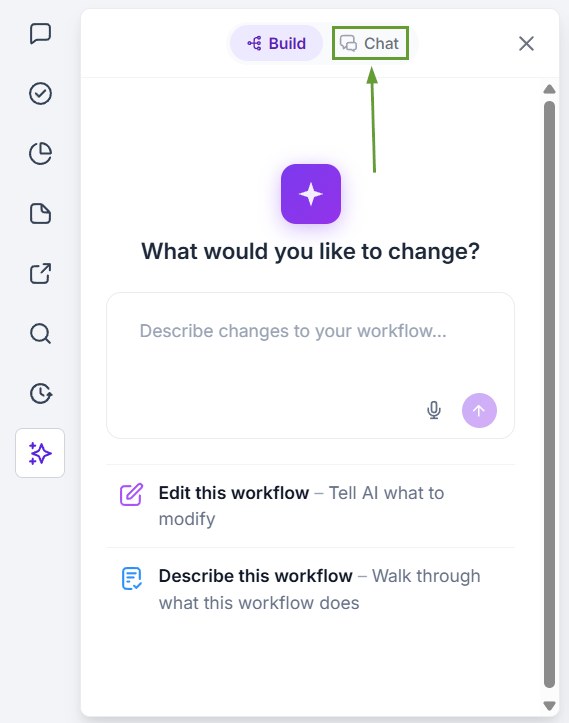
Select Chat Mode to talk to and ask questions of the workflow's AI.
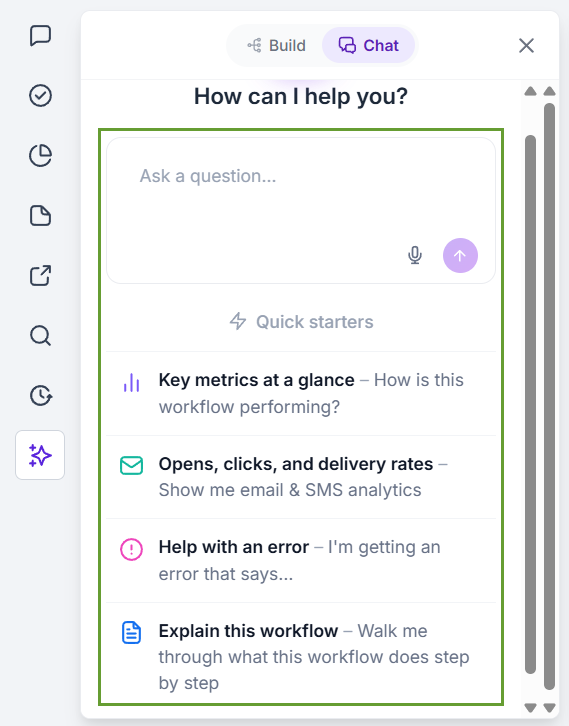
Use the AI Assistant to get commonly used data on your workflow by selecting one of the quick action prompts or typing in your query.
Ask in plain language to get a structured answer based on live data from your account. On top of that, you can ask it to find any workflow in your account, giving you a single window to work from inside. We hope you enjoy it!
