Stay Up To Date
We believe in keeping you in the loop with all the latest happenings in our courses and system. On this page, you'll find a comprehensive log of all the exciting changes, improvements, and additions we make to our courses and system. Whether it's a new feature, a course enhancement, or a system update, we've got you covered. Bookmark this page and check back regularly. We're committed to ensuring that your learning experience remains exceptional and that you have all the information you need to succeed.

New Features

New Updates

Resources & Tools

Important Updates
Here are some of the most recent updates we thought would be helpful to take note of
Improved Feature: Wait Step Now Supports User Replies
Many automations need to react to your team's actions, not just customer activity. This update to the Wait step helps kick off the next step immediately after a team member responds, making it easier to follow up on their activity. Let’s learn how it works!
⭐️How Do These Changes Affect You?
Contact Advancement: The contact resumes either when a user replies or when the configured timeout is reached. If not configured, the workflow waits until a user reply is received.
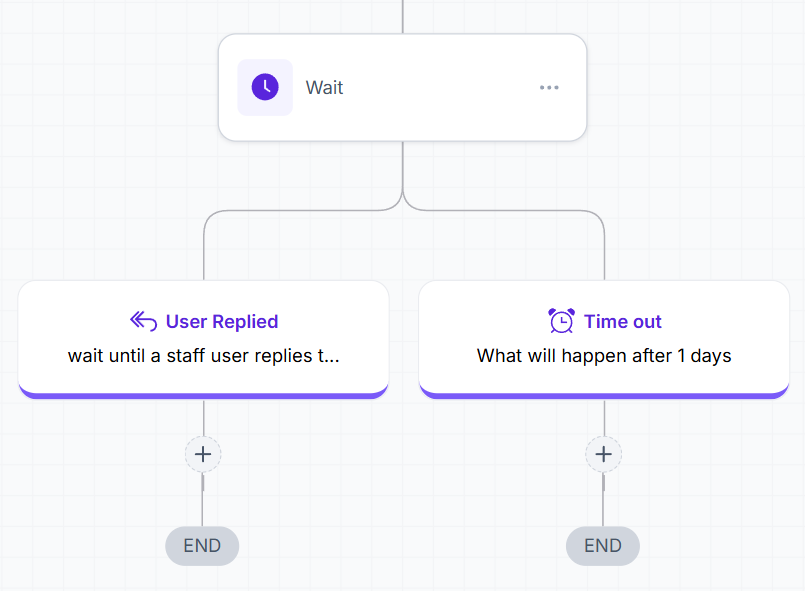
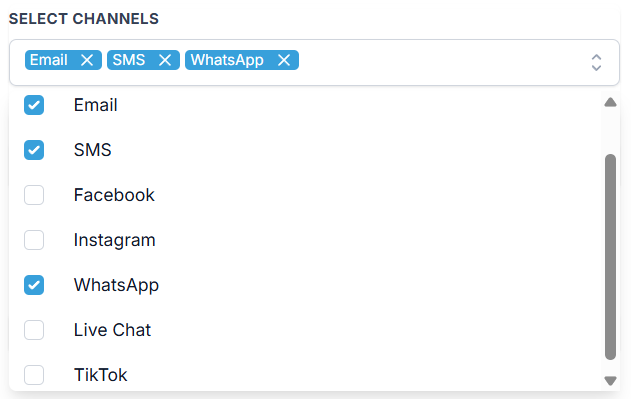
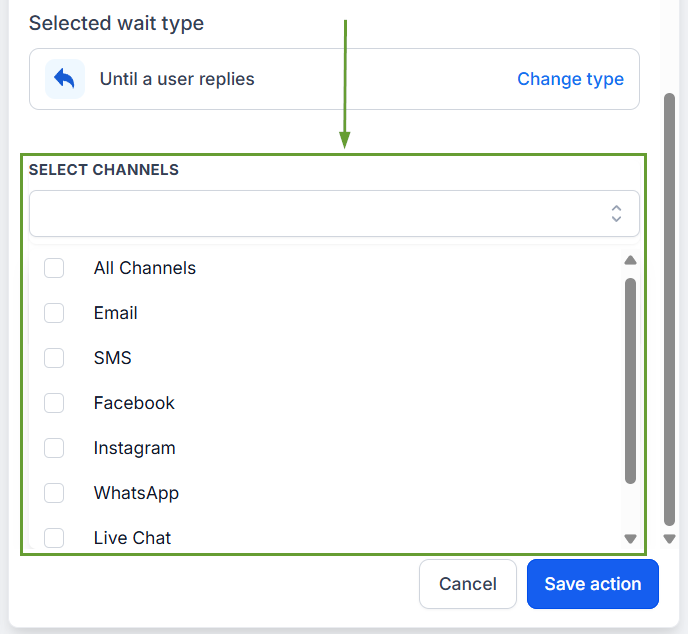
Multi-Channel Support: Pick between all or specific response channels, checking the box next to as many channels as you’d like to include.
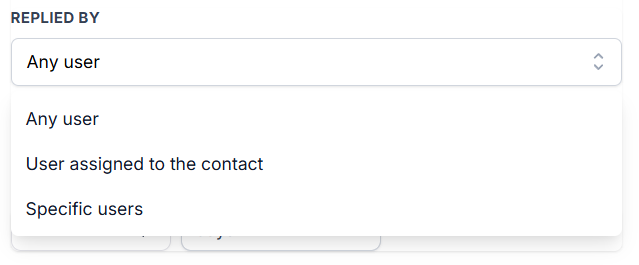
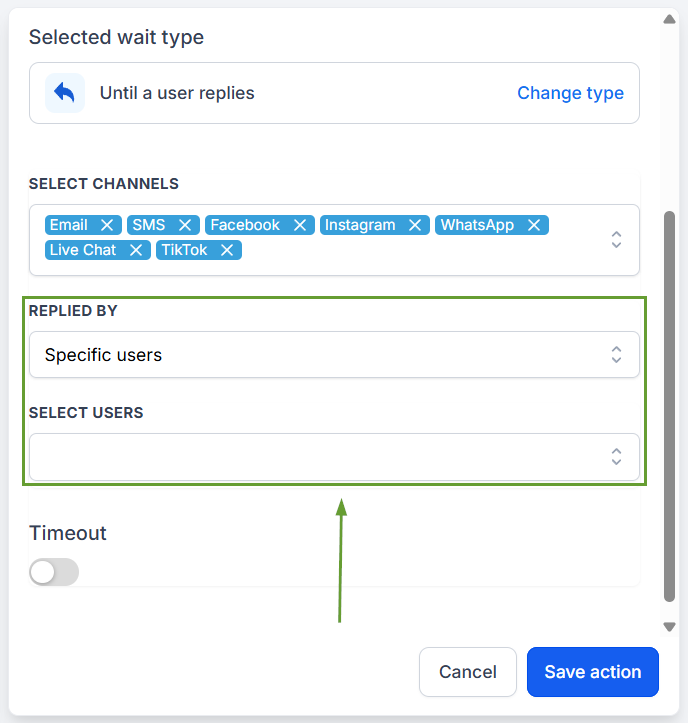
User Selection: This type allows you to specify the user who must have responded to the contact, supporting responses from any, assigned, or specific users.
⭐️How To Use The Until A User Replies Wait Type?
Let’s go over how to configure the User Reply option in your Wait step!
Add a Wait action to your workflow.
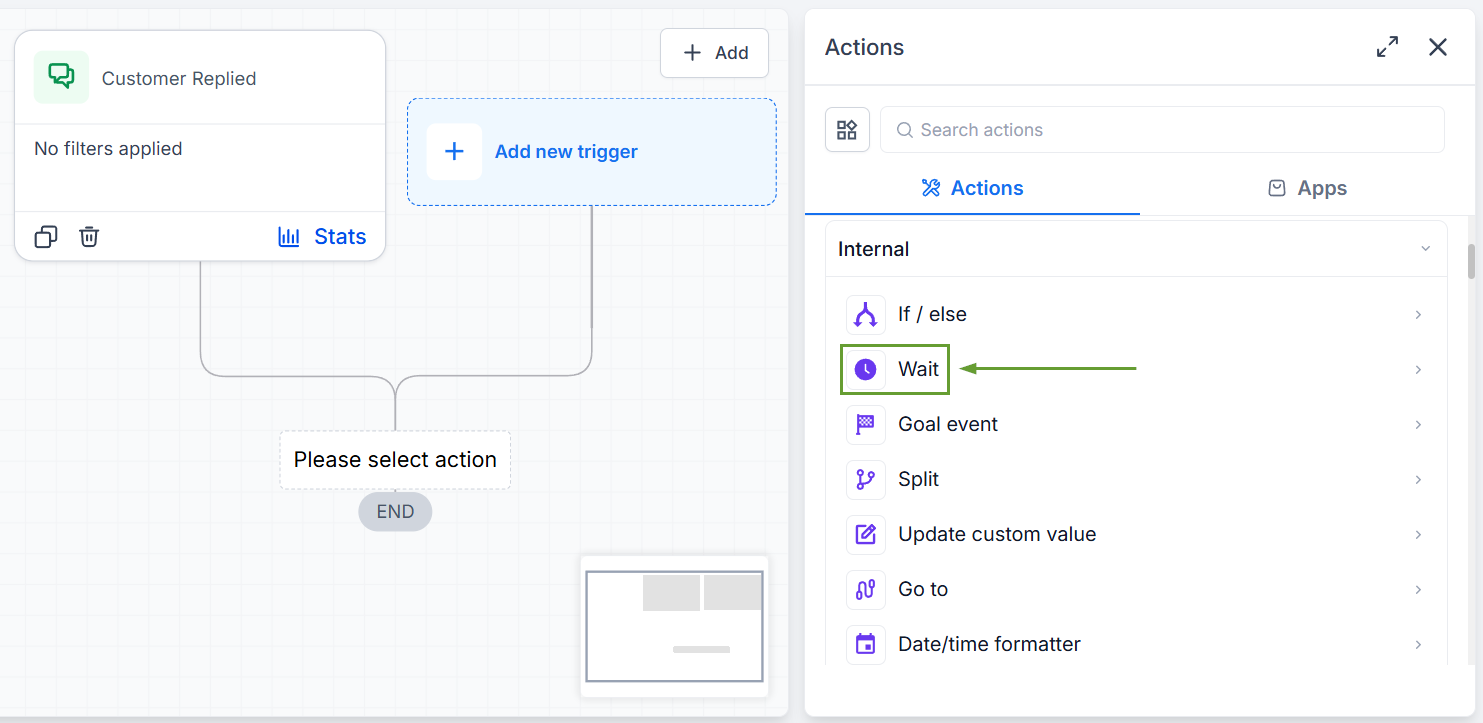
Select User Replied.
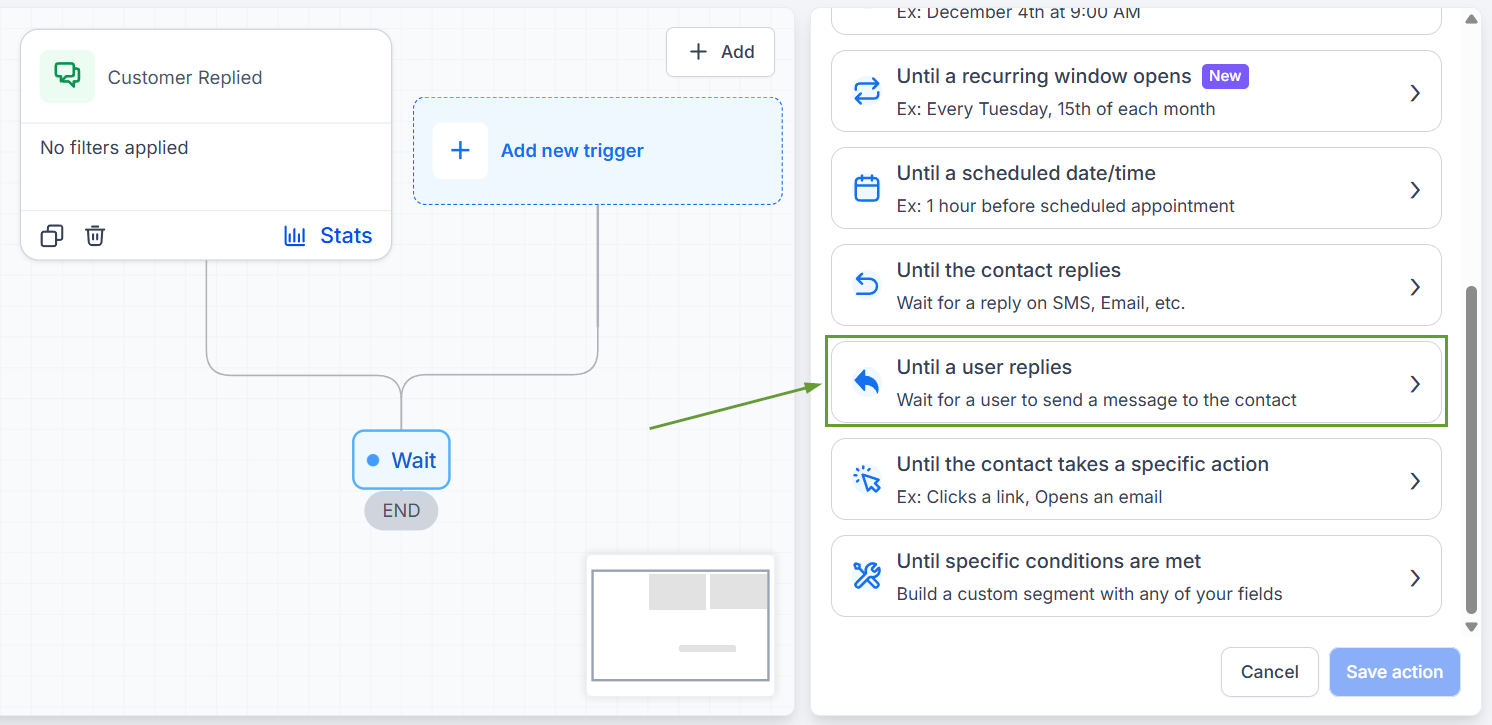
First, select the response channel.
Then pick the user type you want to include, and if selecting “Specific Users,” select the team members you want to include.
Once a user replies to a contact through a supported conversation channel, the next steps run automatically, advancing the contact when their inquiry has been addressed. We hope you enjoy it!