Stay Up To Date
We believe in keeping you in the loop with all the latest happenings in our courses and system. On this page, you'll find a comprehensive log of all the exciting changes, improvements, and additions we make to our courses and system. Whether it's a new feature, a course enhancement, or a system update, we've got you covered. Bookmark this page and check back regularly. We're committed to ensuring that your learning experience remains exceptional and that you have all the information you need to succeed.

New Features

New Updates

Resources & Tools

Important Updates
Here are some of the most recent updates we thought would be helpful to take note of
New Feature: User Replied Trigger
Many automations need to react to your team's actions, not just customer activity. This new trigger helps you build workflows that kick off the next step immediately after a team member responds, making it easier to follow up on their activity. Let’s learn how to use it!
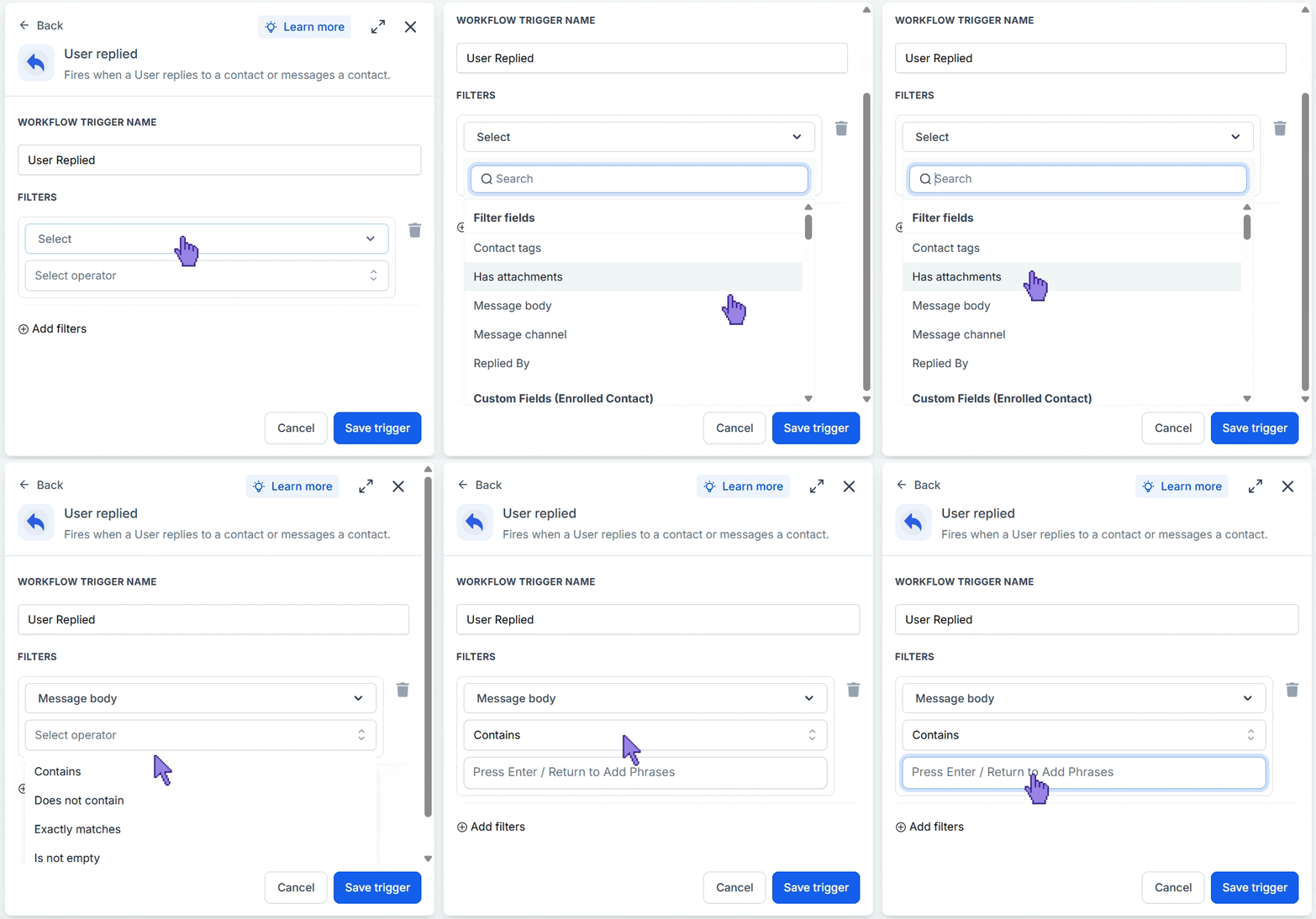
⭐️ How To Use The User Replied Trigger?
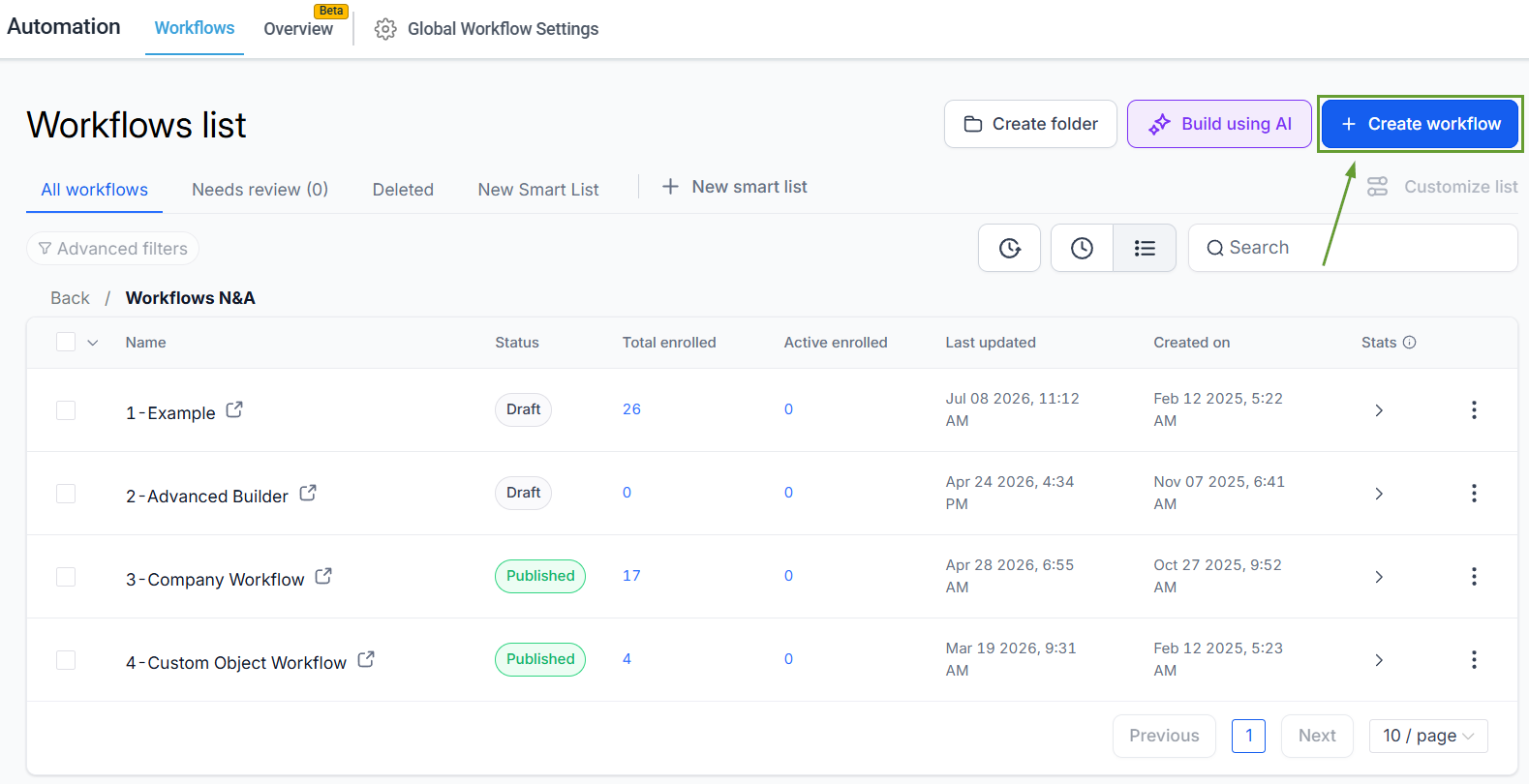
Navigate to the Workflows tab inside the Automation section and create a new workflow.
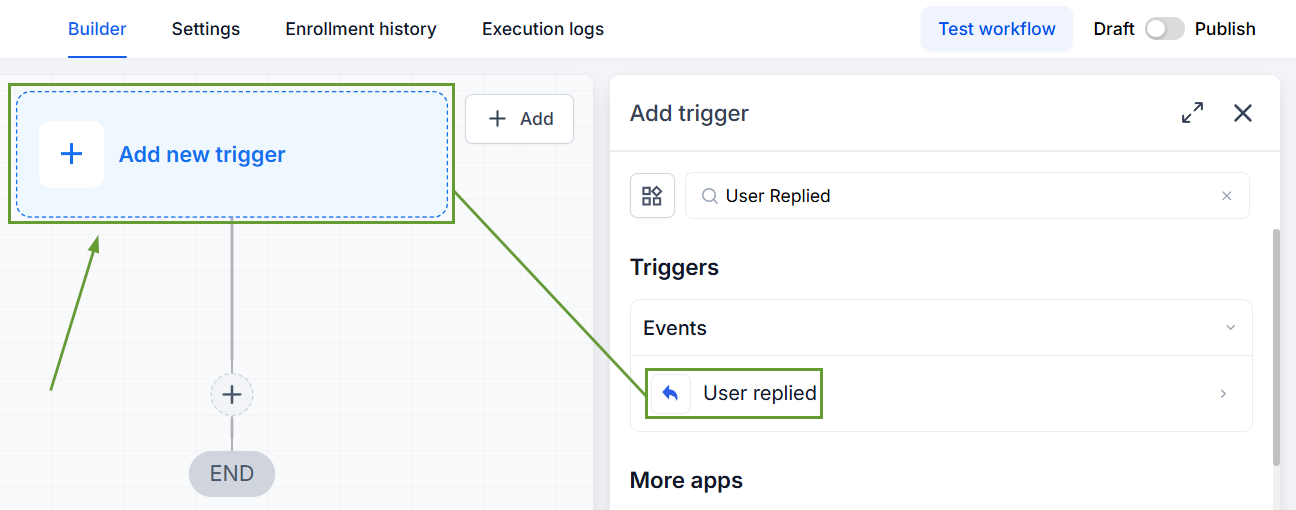
Add the trigger User Replied.
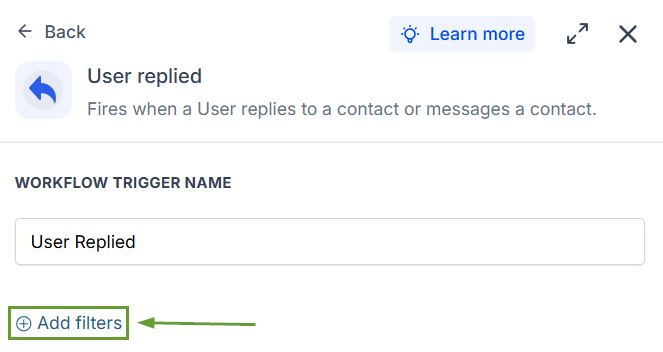
Click “+ Add Filter” to configure any requirements for your workflow.
Select your filter fields, then select an operator and enter a value.
⭐️Why Is This Feature Beneficial To Your Company?
Internal Processes Streamlining: This improves how your management team handles SOP adherence and performance reviews by automating notifications.
Improved Onboarding: Use this trigger to create automated pipelines that move customers and notify managers once a customer has been contacted.
Customer Care Follow-Ups: Create automated follow-ups to ensure customers’ needs are satisfied, establishing check-in points after a team member completes a support request or special inquiry.
Once a user replies to a contact through a supported conversation channel, the workflow runs automatically and can continue with actions such as notifications, tagging, assignments, or follow-up automations. We hope you enjoy it!