Stay Up To Date
We believe in keeping you in the loop with all the latest happenings in our courses and system. On this page, you'll find a comprehensive log of all the exciting changes, improvements, and additions we make to our courses and system. Whether it's a new feature, a course enhancement, or a system update, we've got you covered. Bookmark this page and check back regularly. We're committed to ensuring that your learning experience remains exceptional and that you have all the information you need to succeed.

New Features

New Updates

Resources & Tools

Important Updates
Here are some of the most recent updates we thought would be helpful to take note of
Improved Feature: Opportunity Owners & Followers in If/Else Action
Assigning owners and followers to opportunities is a part of sales and account management, helping to keep your team accountable. Until now, workflows could not branch based on these assignments. This update makes it possible to use opportunity ownership data in automation. Let's check the changes!
⭐️How Do These Changes Affect You?
Opportunity Owners Filter: When evaluating an opportunity, the branch checks the Opportunity Owners and routes contacts down the appropriate branch based on the user.
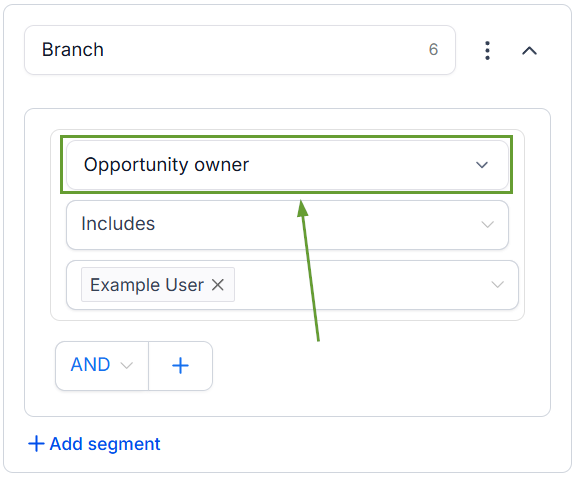
Opportunity Followers Field: When evaluating an opportunity, the branch checks the Opportunity Followers and routes the contact based on the assigned users.
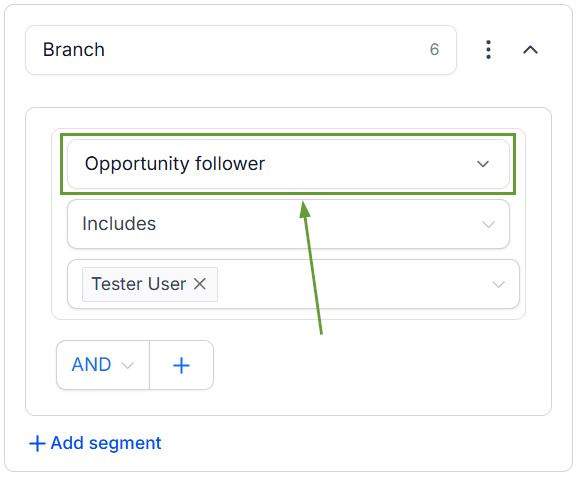
⭐️How To Use Opportunity Owner or Followers Conditions in If/Else Actions?
Let’s go over how to use these new filters in your branches!
Create or edit a workflow in the Automations section.
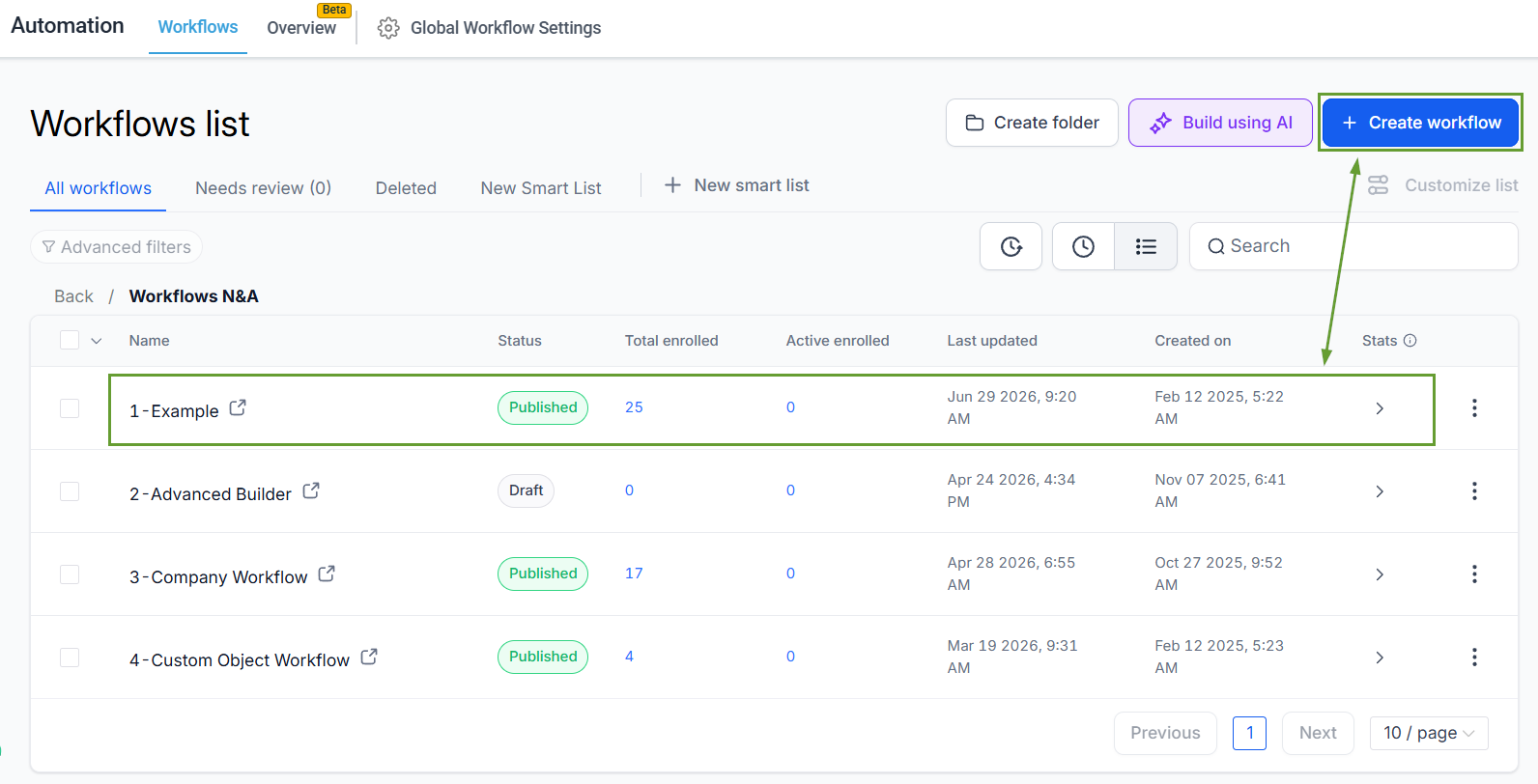
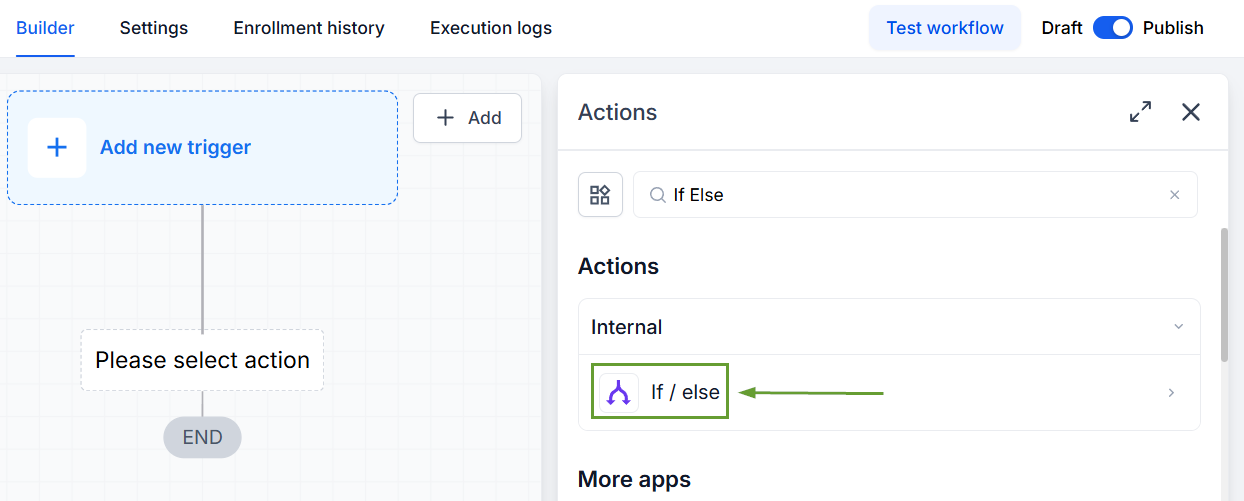
Add or edit an If/Else action in your workflow.
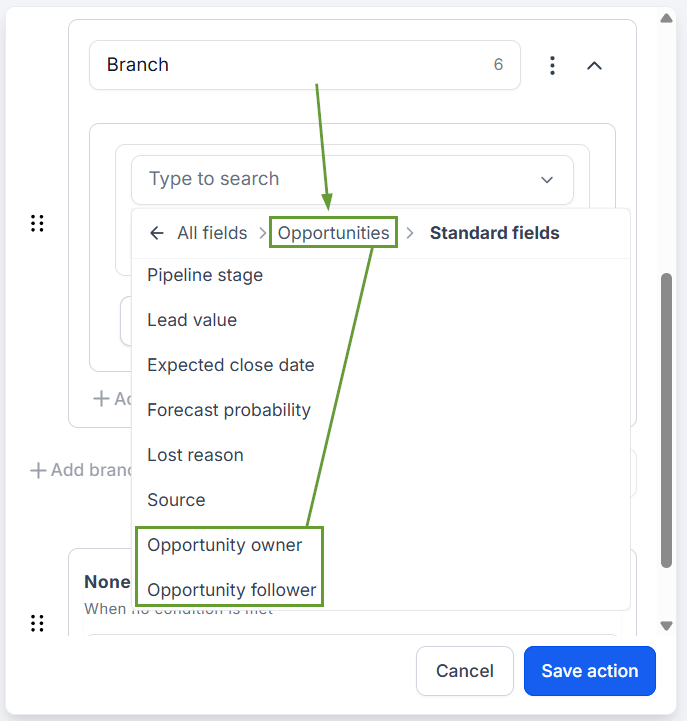
Select "Opportunity Owners" or "Opportunity Followers" as the condition field.
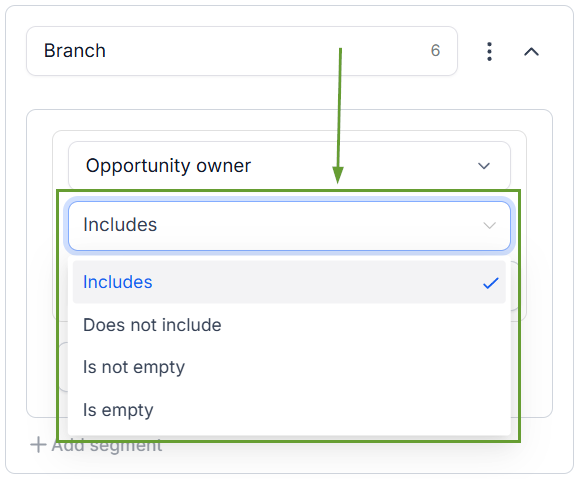
Configure your condition by selecting an operator and a value, then save the workflow.
This lets you route contacts based on their assigned owners or followers, removing a previous limitation where these fields were not available for branching logic and increasing the automated management capabilities of your workflows. We hope you enjoy it!
