Stay Up To Date
We believe in keeping you in the loop with all the latest happenings in our courses and system. On this page, you'll find a comprehensive log of all the exciting changes, improvements, and additions we make to our courses and system. Whether it's a new feature, a course enhancement, or a system update, we've got you covered. Bookmark this page and check back regularly. We're committed to ensuring that your learning experience remains exceptional and that you have all the information you need to succeed.

New Features

New Updates

Resources & Tools

Important Updates
Here are some of the most recent updates we thought would be helpful to take note of
Improved Feature: Notify Followers & Opportunity Owners with Workflows
Teams often collaborate on contacts and opportunities they do not own. So, keeping associated users notified of relevant changes is essential for efficient communications. Thanks to this update, you have a wider range of users to select when setting Internal Notifications. Let’s learn what these changes include.
⭐️How Do These Changes Affect You?
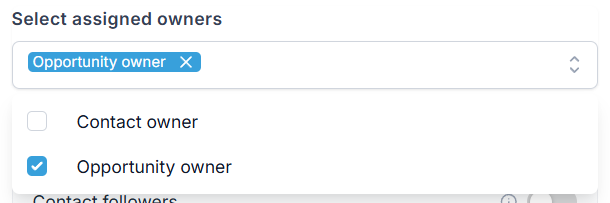
Opportunity Owner Inclusion: If you are using an opportunity trigger and “Assigned Owner” is your user type, you can include Opportunity Owners.
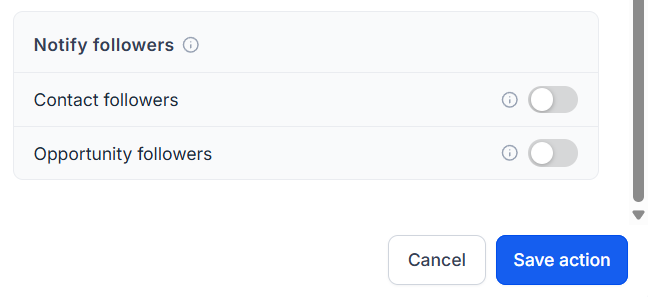
Notify Followers: Turn on notifications for Contact, Opportunity followers, or both in addition to the main recipient.
⭐️How To Notify Opportunity Owners?
Let’s learn how to configure your workflow to include opportunity owners in Internal Notifications!
Select your trigger from the Opportunities options.
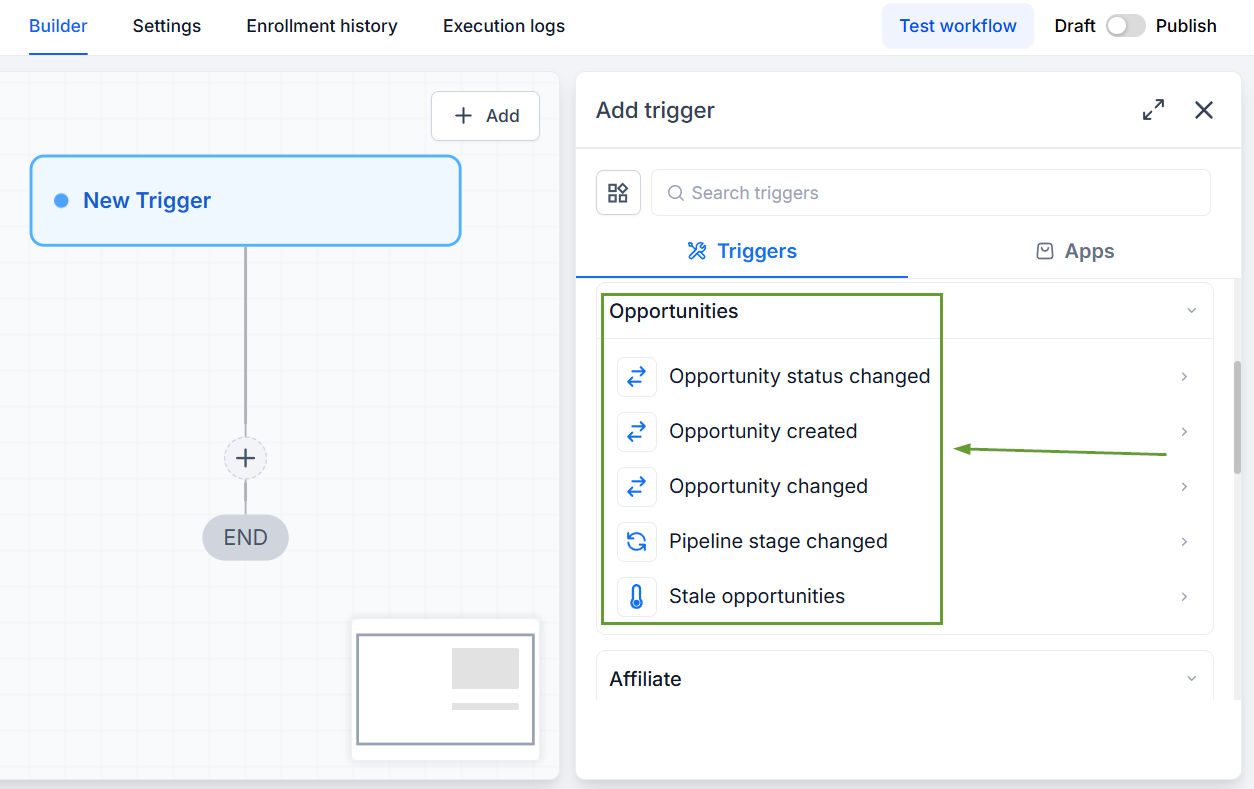
Add an Internal Notification action in the workflow.
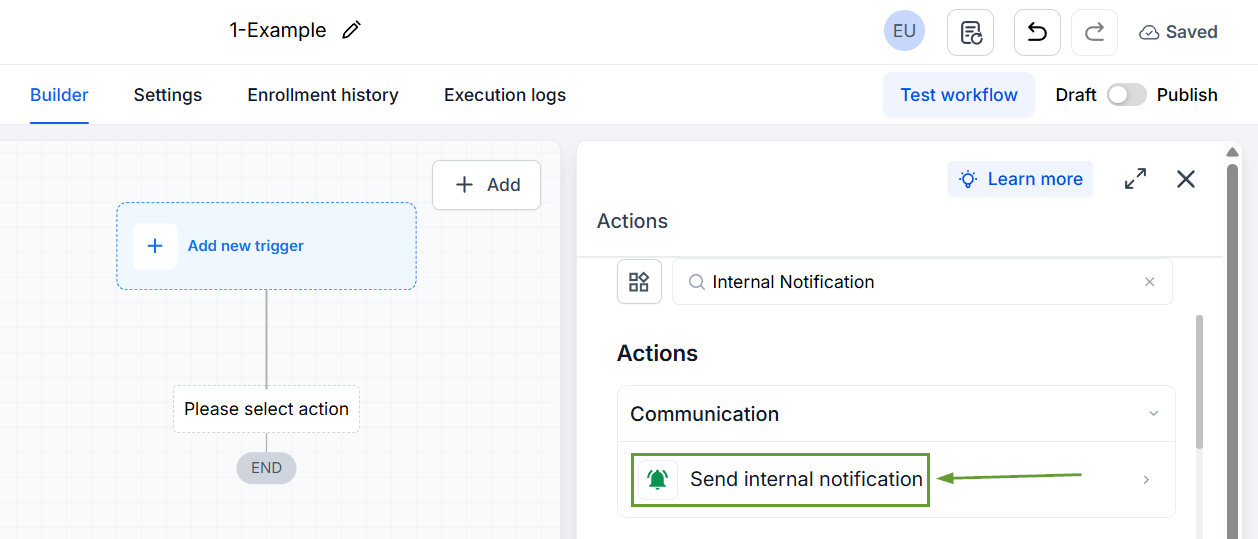
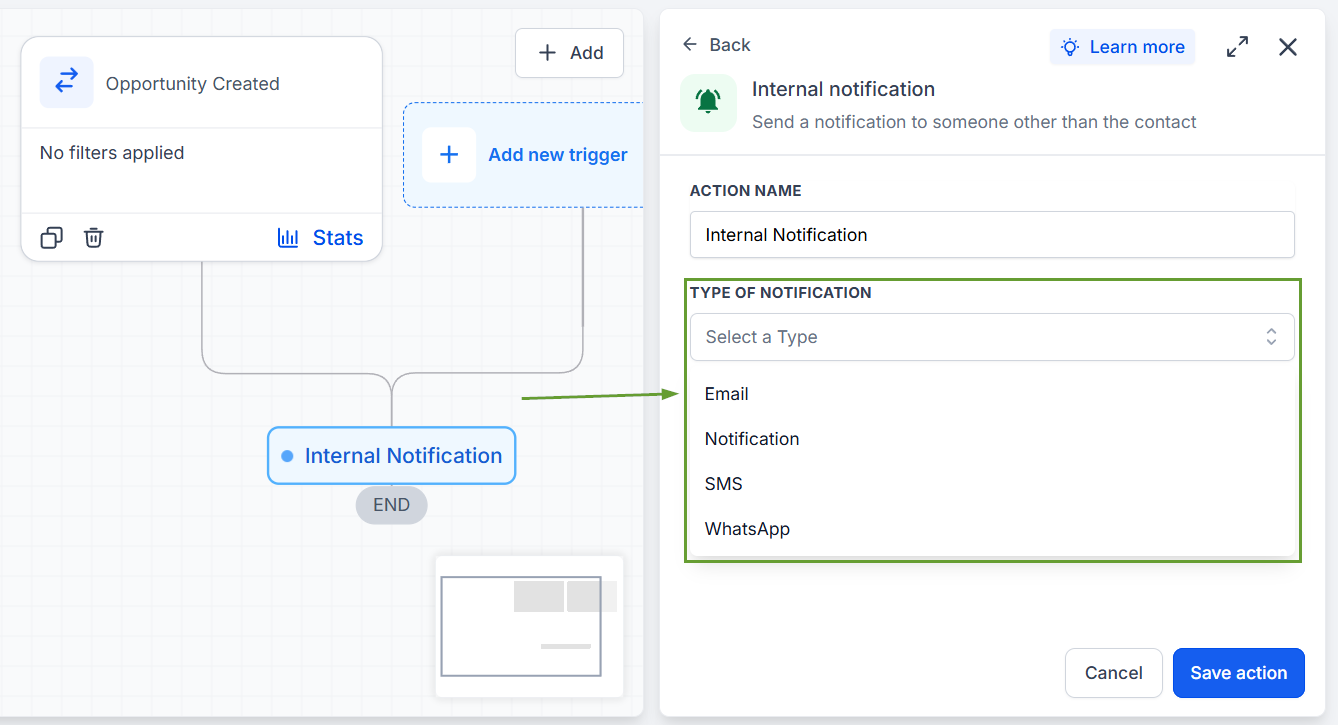
Set your Notification type.
Set the User Type to “Assigned Owner,” then check the box next to your desired owner type.
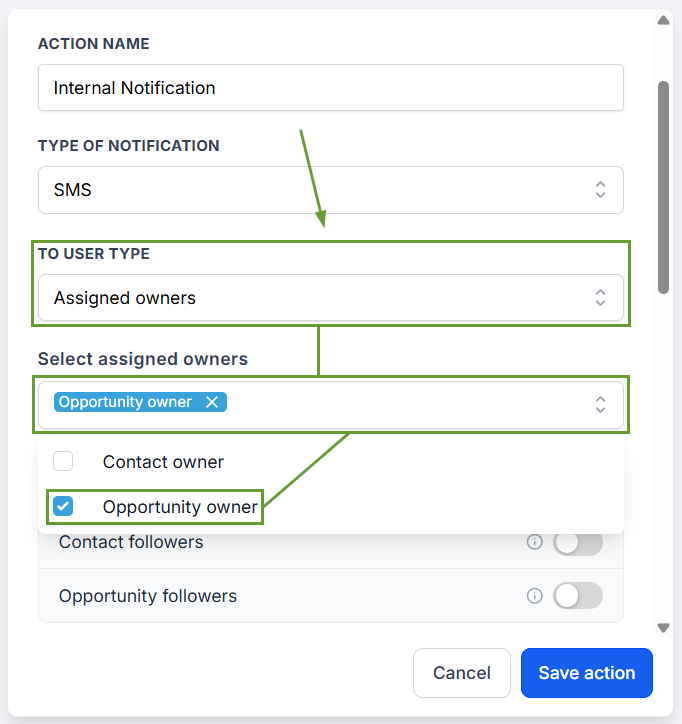
Now you can notify contact owners and followers, opportunity owners and followers, or all from the Internal Notification workflow action. This makes it easier to keep all teammates informed without manual mentions or extra workflow branches. We hope you enjoy it!