Stay Up To Date
We believe in keeping you in the loop with all the latest happenings in our courses and system. On this page, you'll find a comprehensive log of all the exciting changes, improvements, and additions we make to our courses and system. Whether it's a new feature, a course enhancement, or a system update, we've got you covered. Bookmark this page and check back regularly. We're committed to ensuring that your learning experience remains exceptional and that you have all the information you need to succeed.

New Features

New Updates

Resources & Tools

Important Updates
Here are some of the most recent updates we thought would be helpful to take note of
New Feature: Inbound Email Trigger
Every inbound email is a potential lead, support request, or deal moving forward, so responding to them fast is key to ensuring customer satisfaction. So, we’ve added the Inbound Email Trigger to help you automate responses to inquiries. Let’s learn how to use it!
⭐️ How To Set The Inbound Email Trigger?
Head to the Workflows tab inside the Automation section and create a new build.
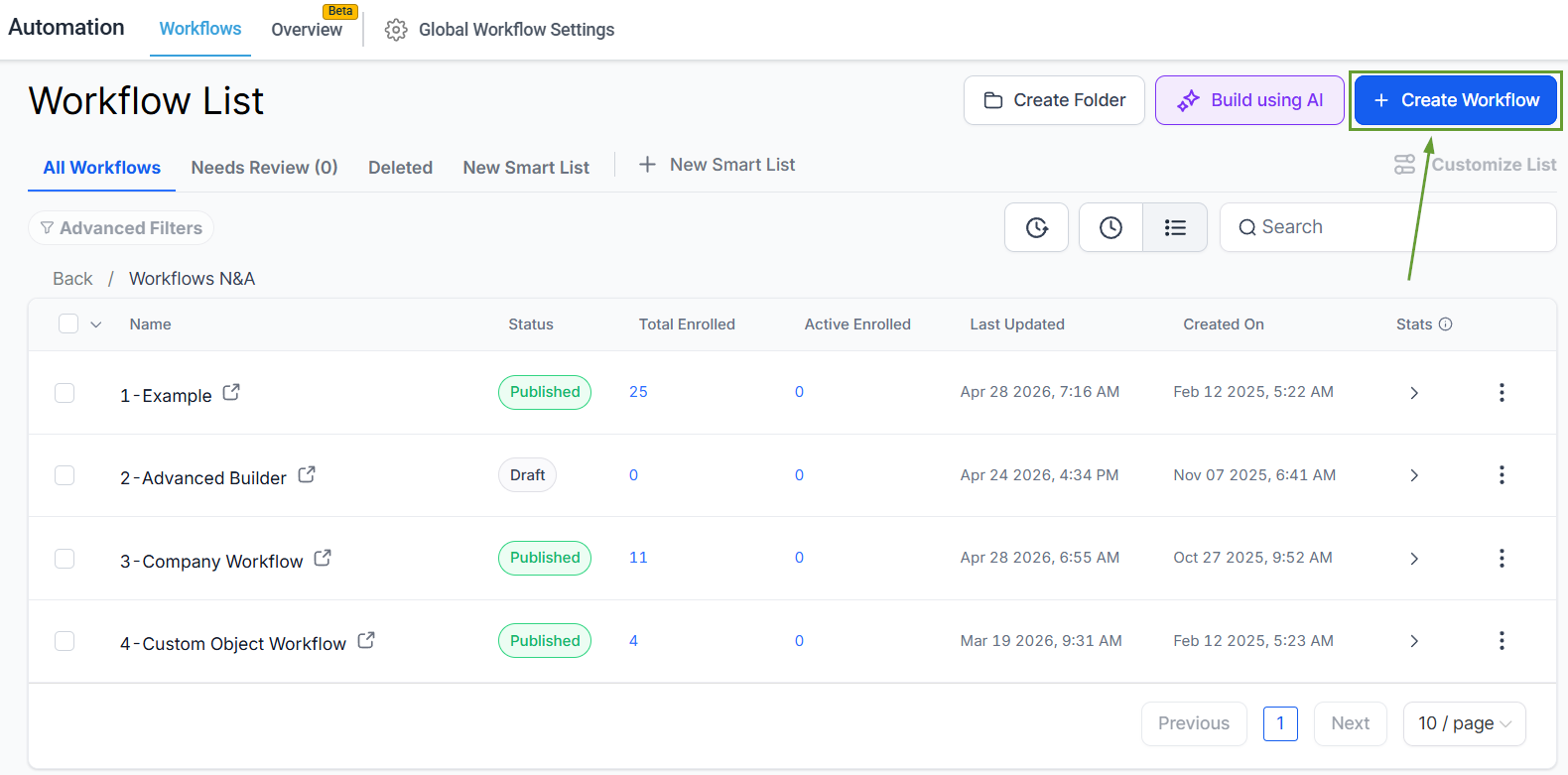
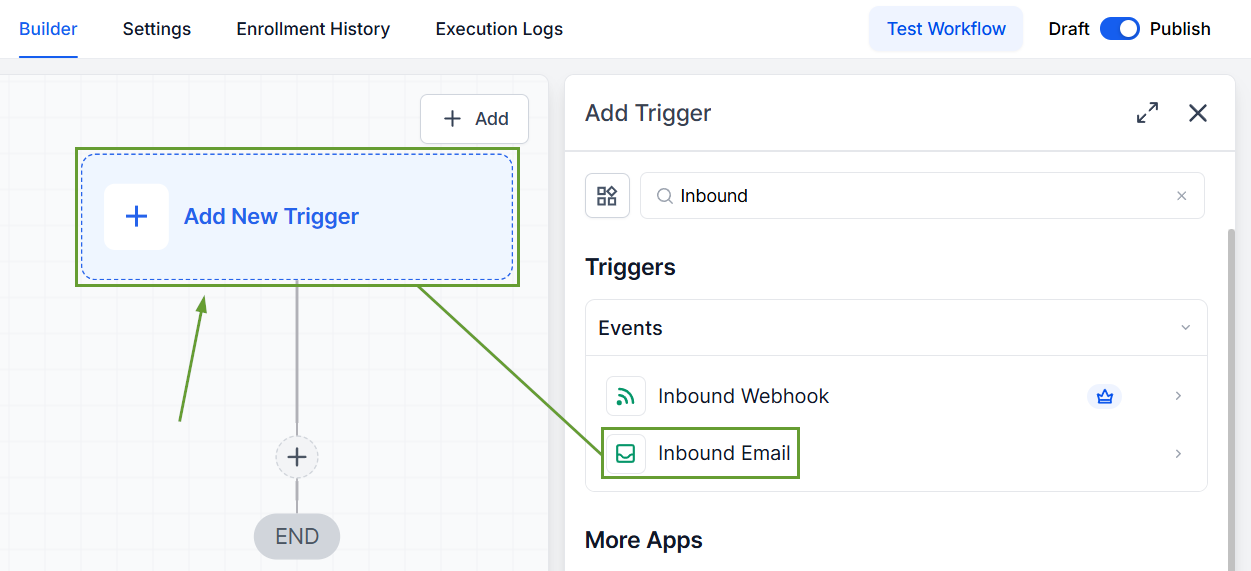
Click “Add New Trigger” and select Inbound Email.
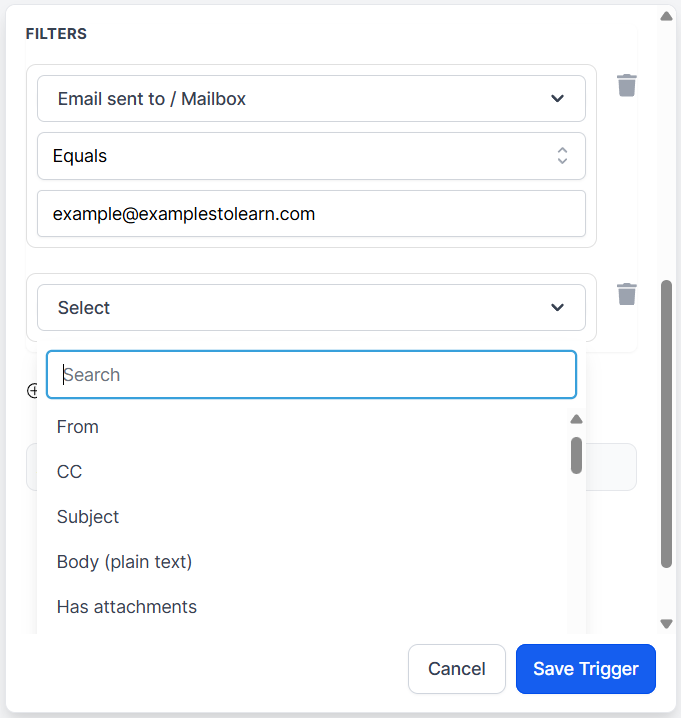
Add your desired filters to narrow down when the workflow should be triggered.
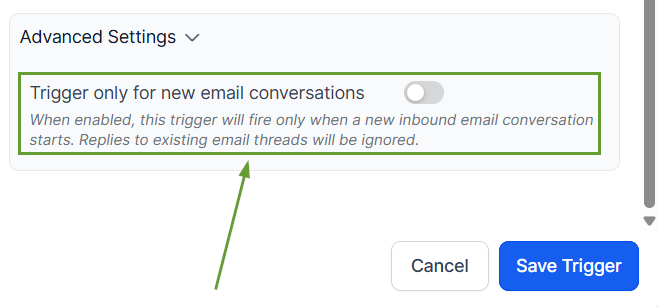
In advanced settings, you can toggle "Trigger only for new email conversations" to exclude replies to existing email threads.
⭐️Why Is This Feature Beneficial To Your Company?
Simplified Automation: This new trigger captures emails the moment they land, including first-touch messages from people who aren't in your CRM yet, and smooths your response process.
Dynamic Triggering: You can use native filters such as “From,” “Subject,” or “Replied to Workflow” to customize your workflow and create standardized responses to manage frequent inquiries.
Custom Value Picker: Using this trigger, you can access custom values from the incoming email, such as the full body content, including reply threads, to fine-tune your responses and better target your customers’ needs.
Now, you can start a workflow whenever an inbound email enters your mailbox. Helping you covers cold emails from brand-new senders, warm emails from existing contacts, and, if you allow it, replies inside existing threads. We hope you enjoy it!
