Stay Up To Date
We believe in keeping you in the loop with all the latest happenings in our courses and system. On this page, you'll find a comprehensive log of all the exciting changes, improvements, and additions we make to our courses and system. Whether it's a new feature, a course enhancement, or a system update, we've got you covered. Bookmark this page and check back regularly. We're committed to ensuring that your learning experience remains exceptional and that you have all the information you need to succeed.

New Features

New Updates

Resources & Tools

Important Updates
Here are some of the most recent updates we thought would be helpful to take note of
New Feature: Find and Replace in Workflows
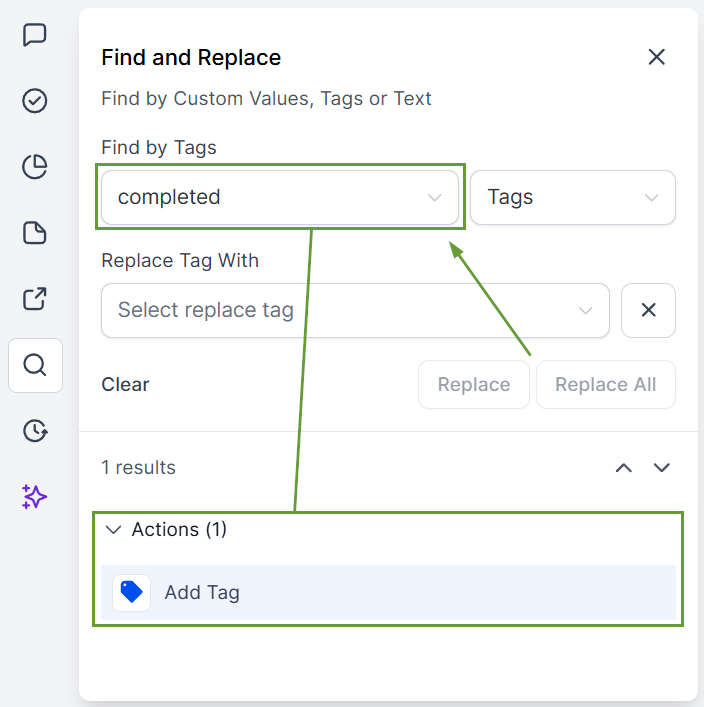
Large workflows are hard to scan when you need to find one value, one tag, or one step used in multiple places. So, we’ve added the Find & Replace function to help you quickly locate and update what matters most by using custom values, tags, or text as search points. Let’s learn how to use it!
⭐️ How To Use Find And Replace In Workflows?
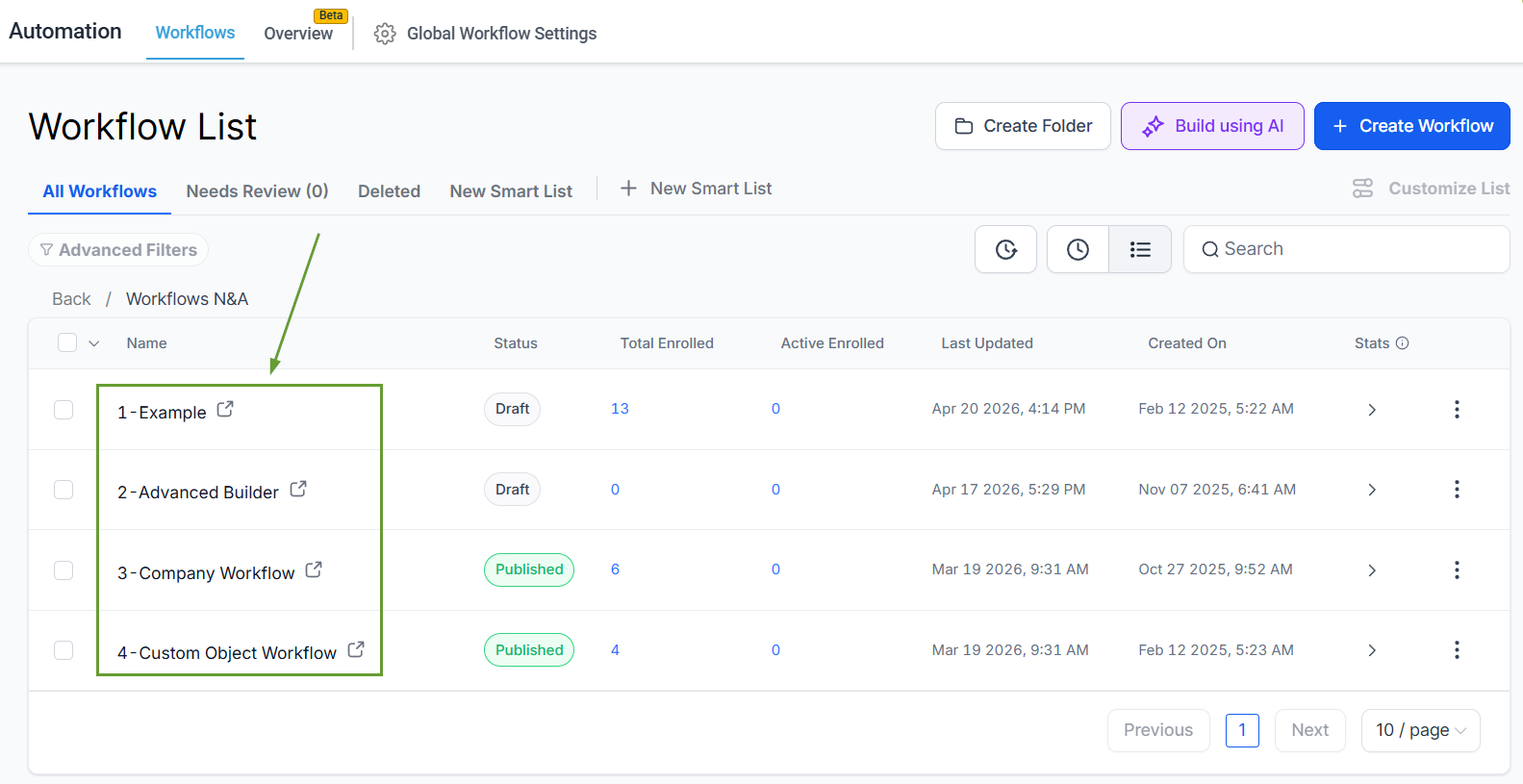
Head to the Workflows tab inside the Automation section and access any already existing workflow.
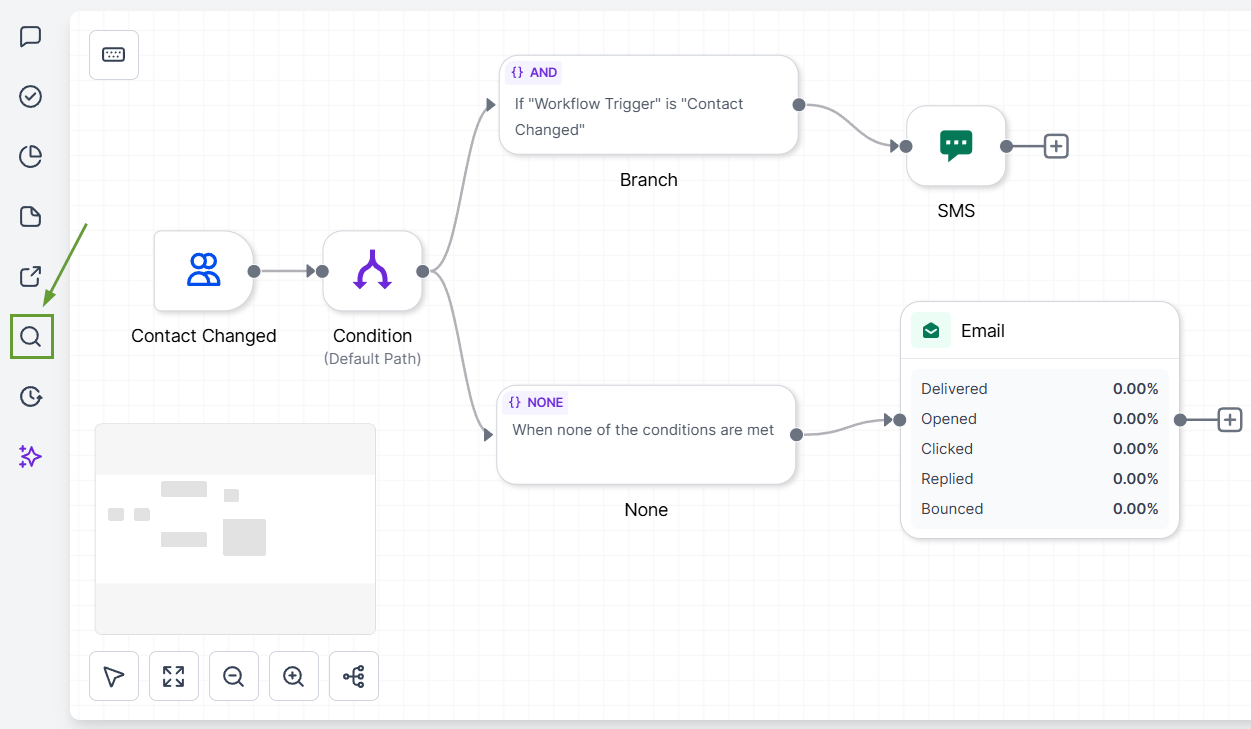
Click Find, or press Alt+F for Windows or Option+F for Mac.
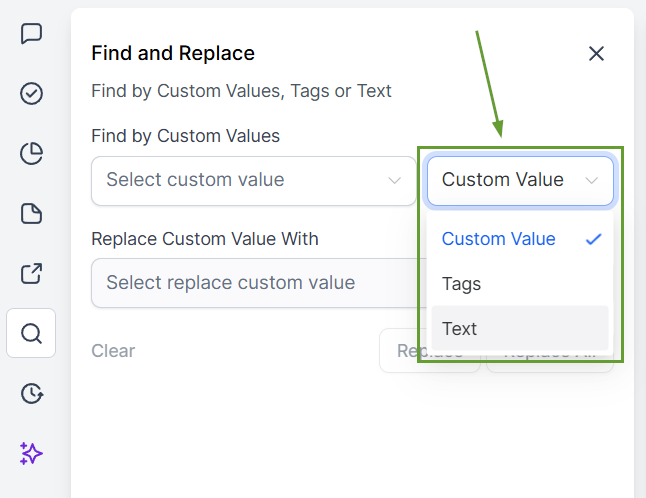
Choose whether you want to look up custom values, tags, or text.
Enter what you want to find and move through the results.
⭐️Why Is This Feature Beneficial To Your Company?
Simplified Navigation: This feature makes it easy to find specific actions, allowing you to add, edit, or remove them while viewing their location in the workflow.
Speedy Value Replacement: Use Replace or Replace All to swap supported custom values or tags with your desired value.
Targeted Results: Search operates within a single workflow, supports partial matches, and is case-insensitive, giving you precise results and minimizing confusion.
This makes updates faster, reduces manual hunting, and helps you update workflows without opening every action one by one, instantly giving you matching results that automatically move the view to the selected node for contextualized reviewing. We hope you enjoy it!
