Stay Up To Date
We believe in keeping you in the loop with all the latest happenings in our courses and system. On this page, you'll find a comprehensive log of all the exciting changes, improvements, and additions we make to our courses and system. Whether it's a new feature, a course enhancement, or a system update, we've got you covered. Bookmark this page and check back regularly. We're committed to ensuring that your learning experience remains exceptional and that you have all the information you need to succeed.

New Features

New Updates

Resources & Tools

Important Updates
Here are some of the most recent updates we thought would be helpful to take note of

Improved Feature: Custom Values in Workflows
Custom values can be difficult to spot or validate when mixed with static text. So, we’ve refreshed the text interface and expanded management capabilities to make dynamic content easier to spot and edit. Let’s learn how it works!
⭐️How Do These Changes Affect You?:
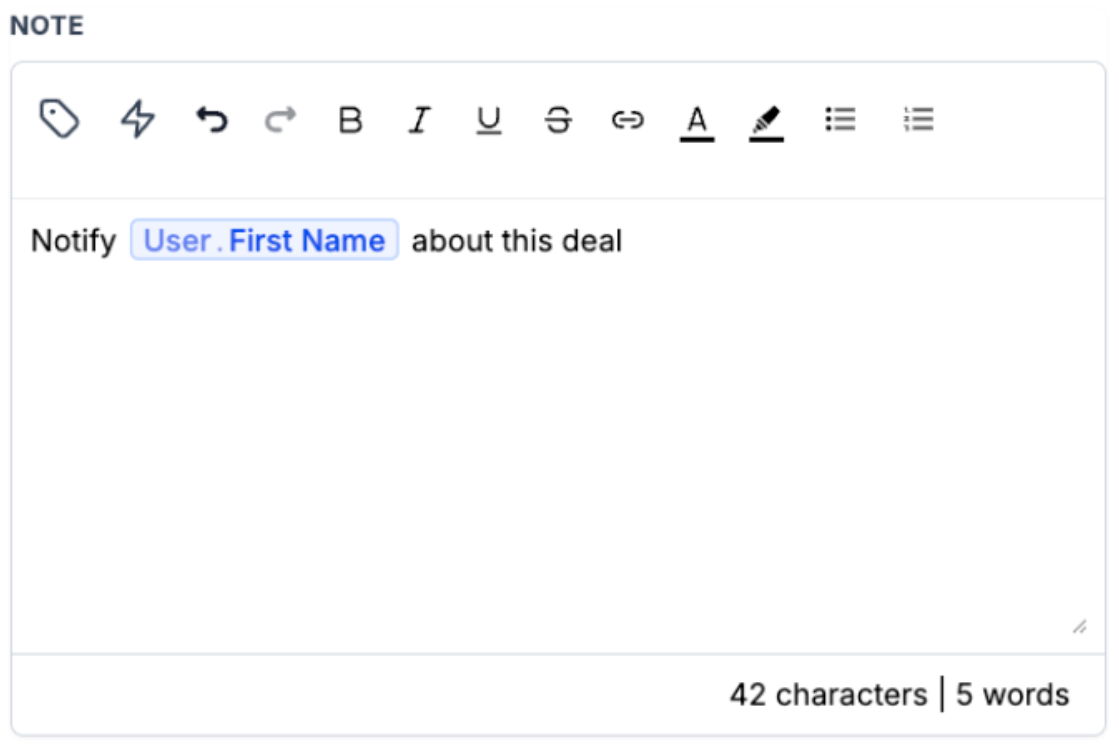
Redesigned Interface: Only the in-text appearance changes for existing custom values. Otherwise unaffected, they are rendered and resolved the same way when a workflow runs.
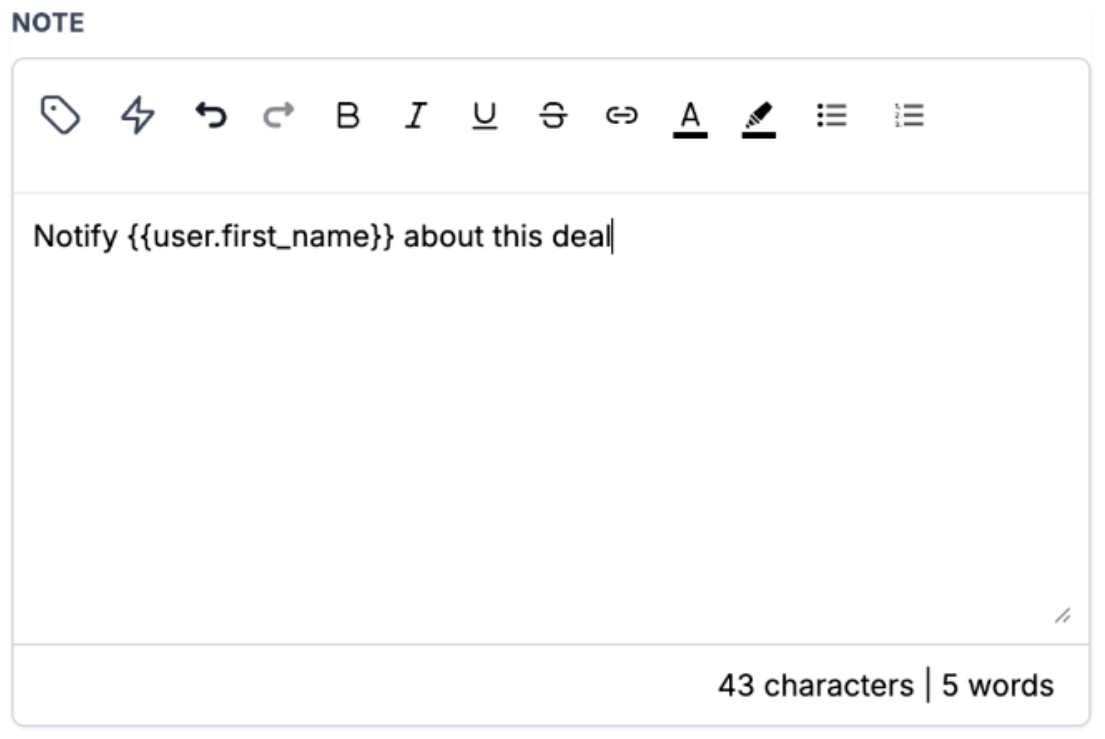
Quick Value Location: Valid custom values appear as blue chips for easier management, and you can easily add them by using a “/” sign.
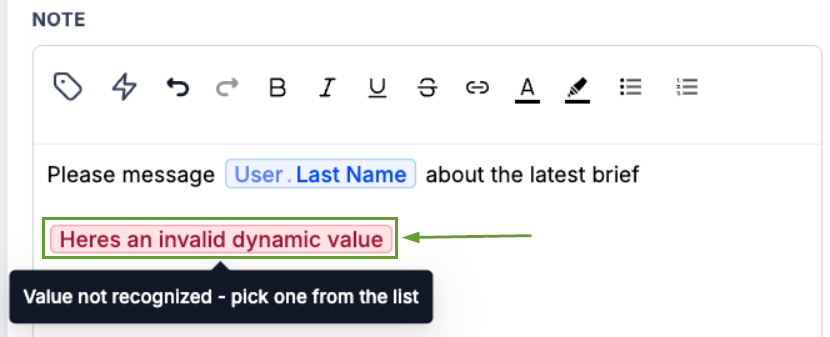
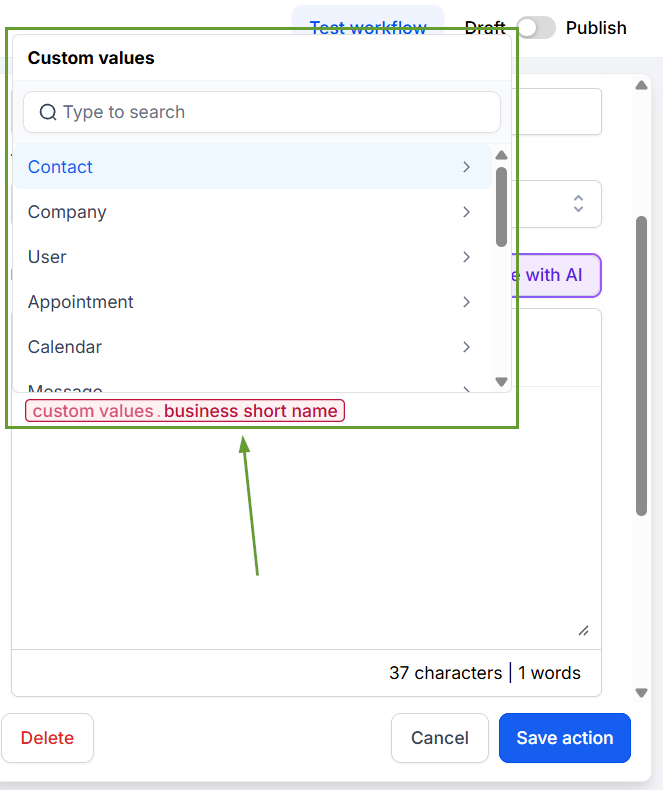
Invalid Value Highlight: Stale or unrecognized values are highlighted in red so you can quickly spot and fix them; clicking them allows you to replace them with any other listed value.
⭐️ How To Use Custom Values In Workflows?
Create or edit a workflow inside the Automation section.
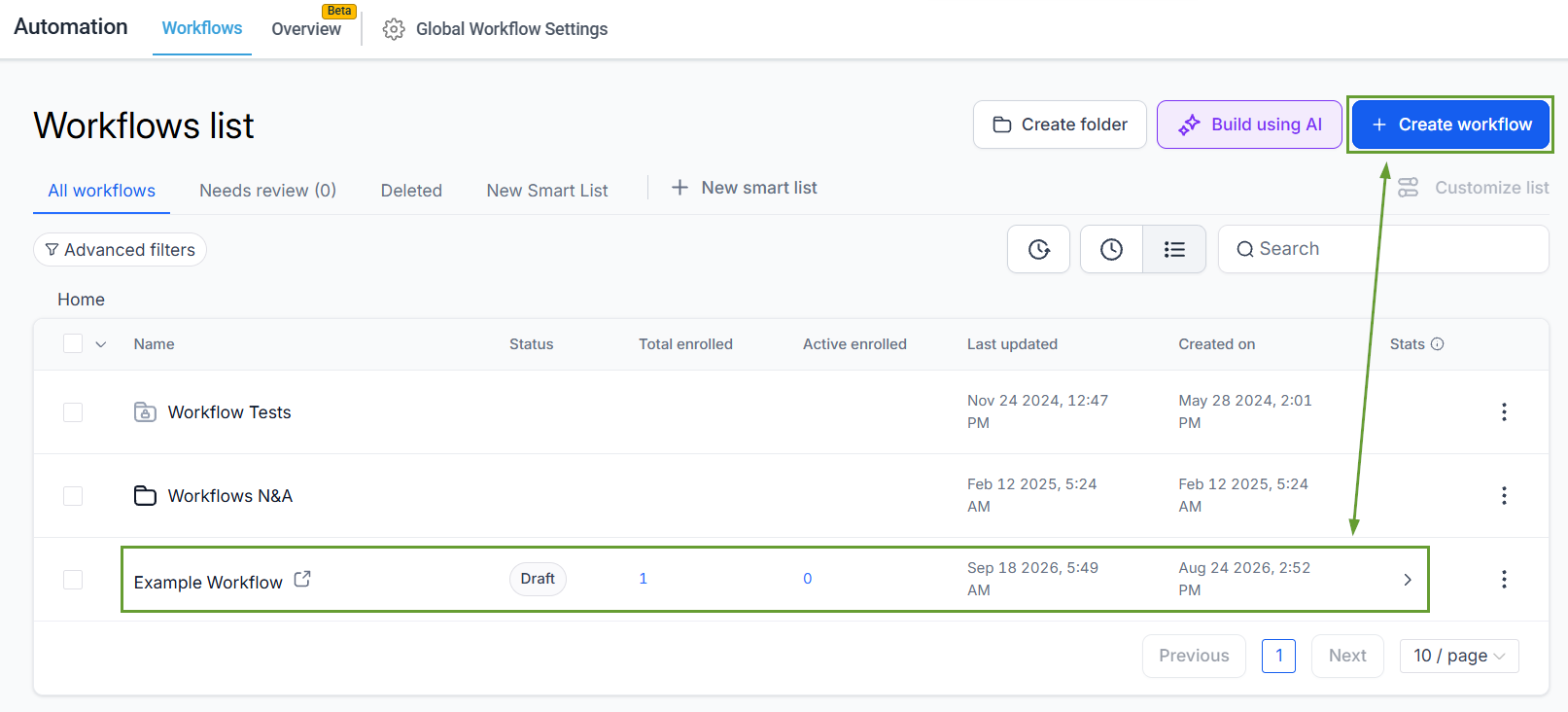
Type '/' inside a workflow text field to search for and insert a custom value.
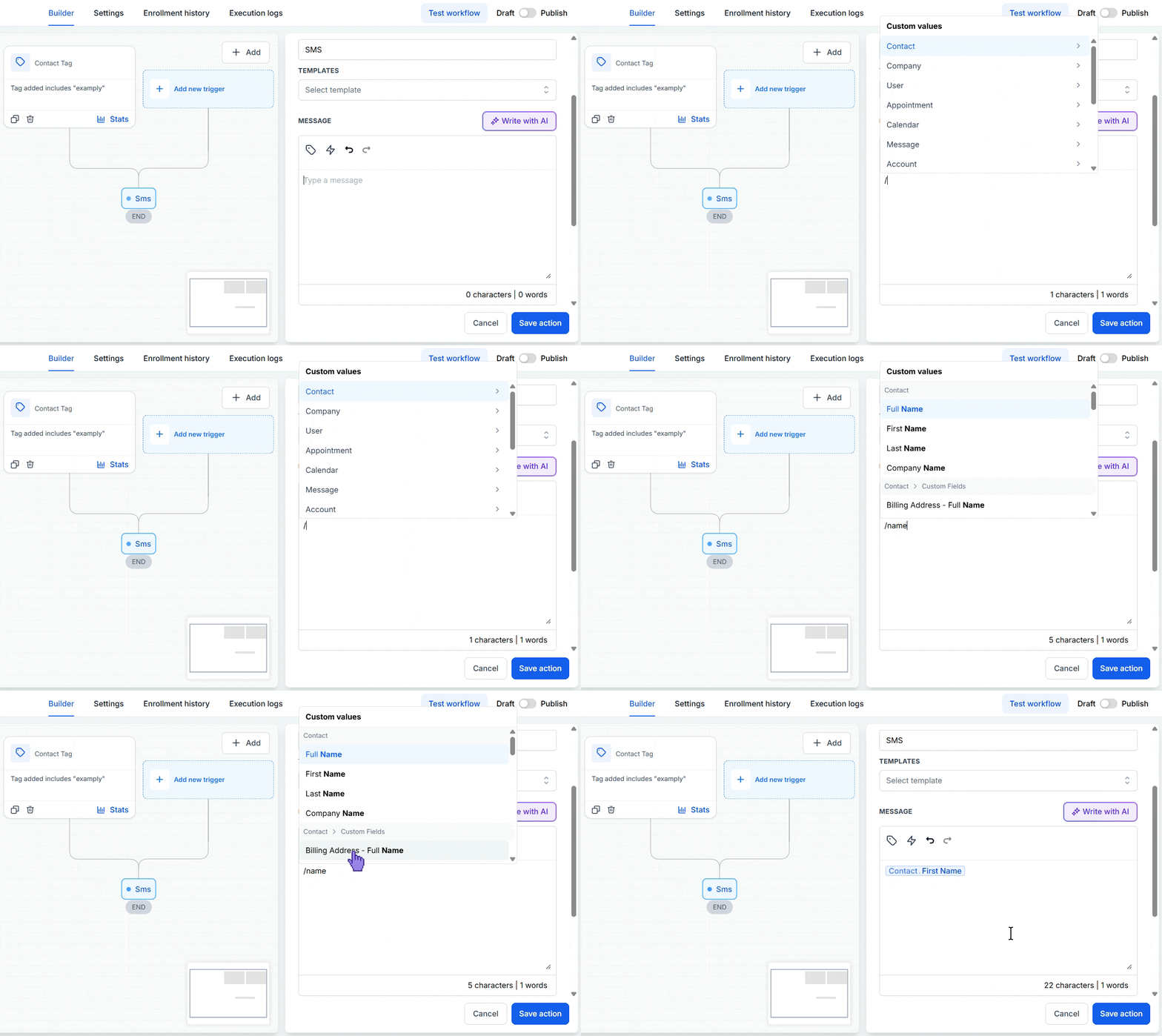
Click an existing custom value chip to replace it with another value in the same place.
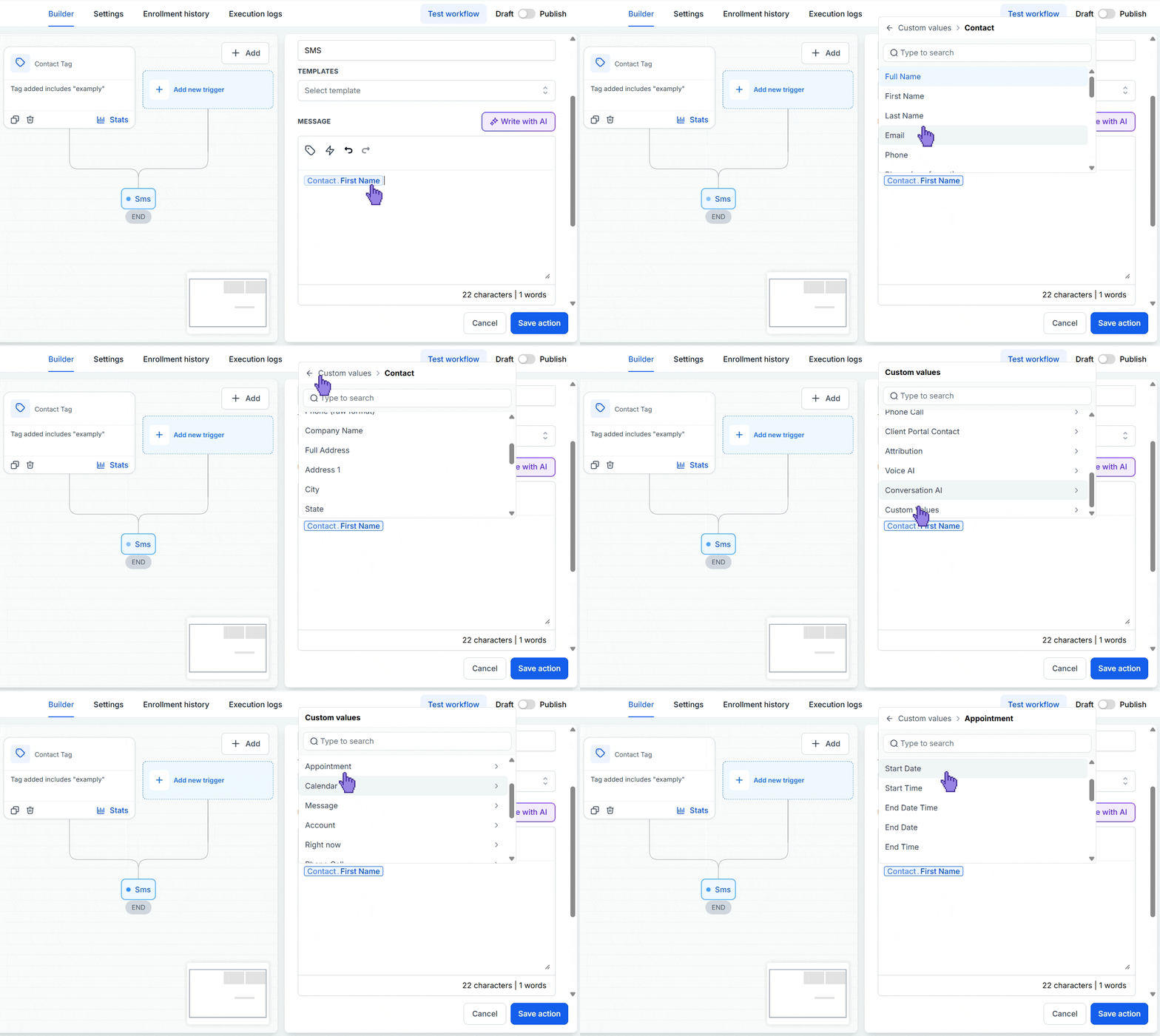
If a value appears in red, replace it with a valid custom value from the list.
The new interface makes dynamic content easier to identify, speeds up editing, and clearly flags values that are no longer valid. Leading to more efficient management that ensures clear communication. We hope you enjoy it!