Stay Up To Date
We believe in keeping you in the loop with all the latest happenings in our courses and system. On this page, you'll find a comprehensive log of all the exciting changes, improvements, and additions we make to our courses and system. Whether it's a new feature, a course enhancement, or a system update, we've got you covered. Bookmark this page and check back regularly. We're committed to ensuring that your learning experience remains exceptional and that you have all the information you need to succeed.

New Features

New Updates

Resources & Tools

Important Updates
Here are some of the most recent updates we thought would be helpful to take note of
Improved Feature: Custom Fields & Folders UI Revamp
Custom fields are an essential tool to gather specific customer information that goes beyond standard data points. To help you make the most out of this tool, we’ve made some improvements to how the fields are organized, created, and managed. Let's check the changes!
⭐️How Will These Changes Affect You?:
Improved UI Design: a cleaner interface and new visual indicators to identify unique and searchable fields for better usability and faster navigation.
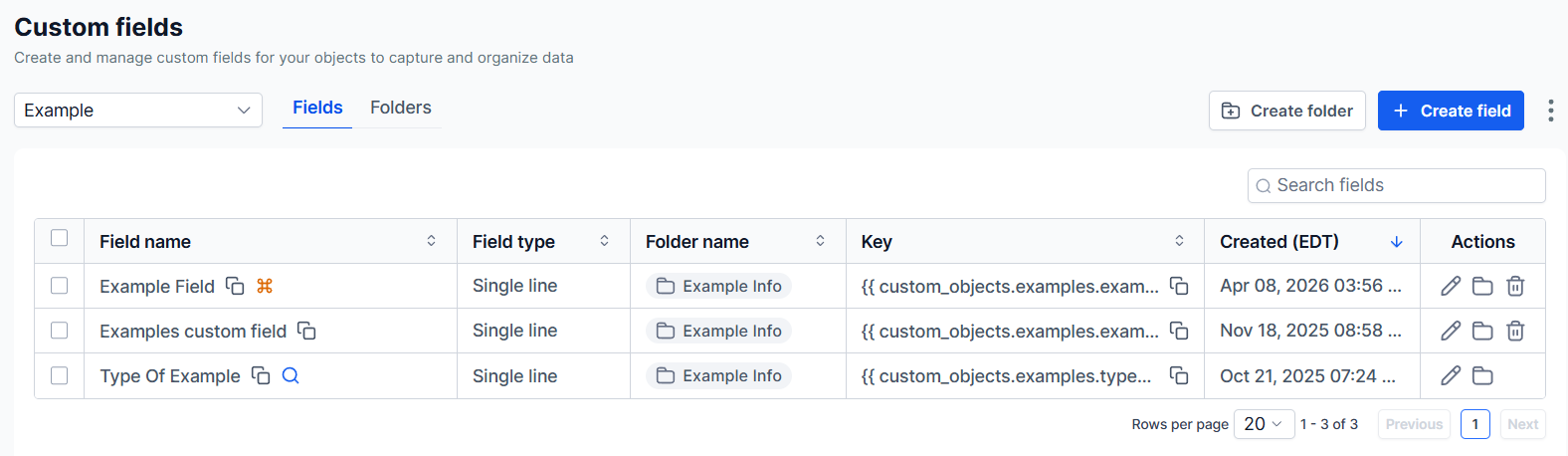
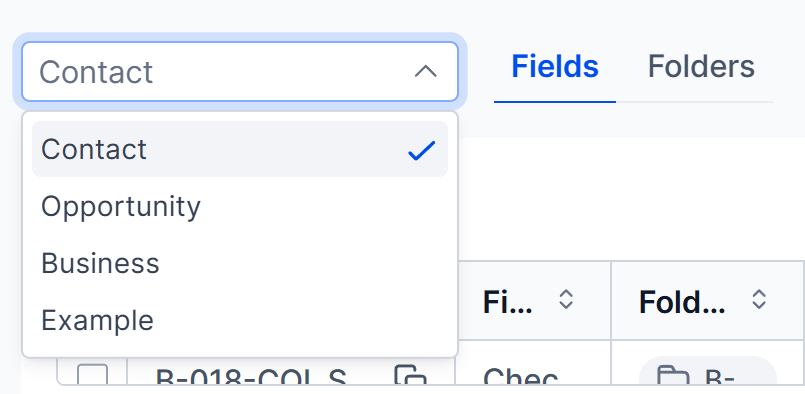
Object-Based View Selection: easily switch between different object views, such as Contacts or Opportunities, using the top dropdown.
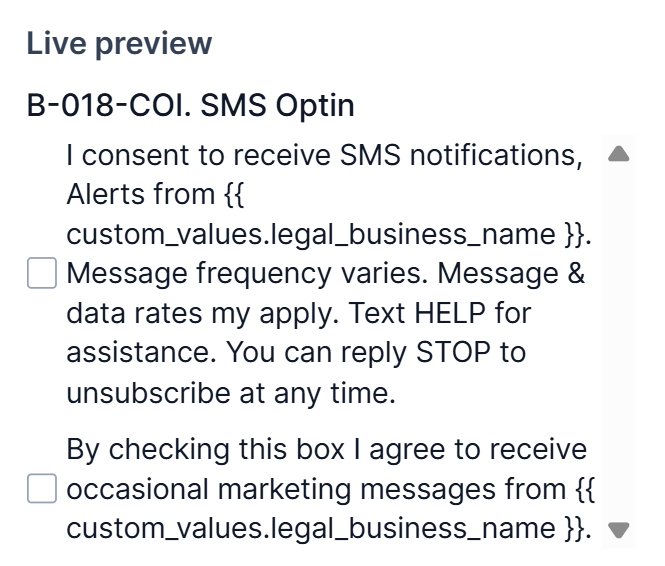
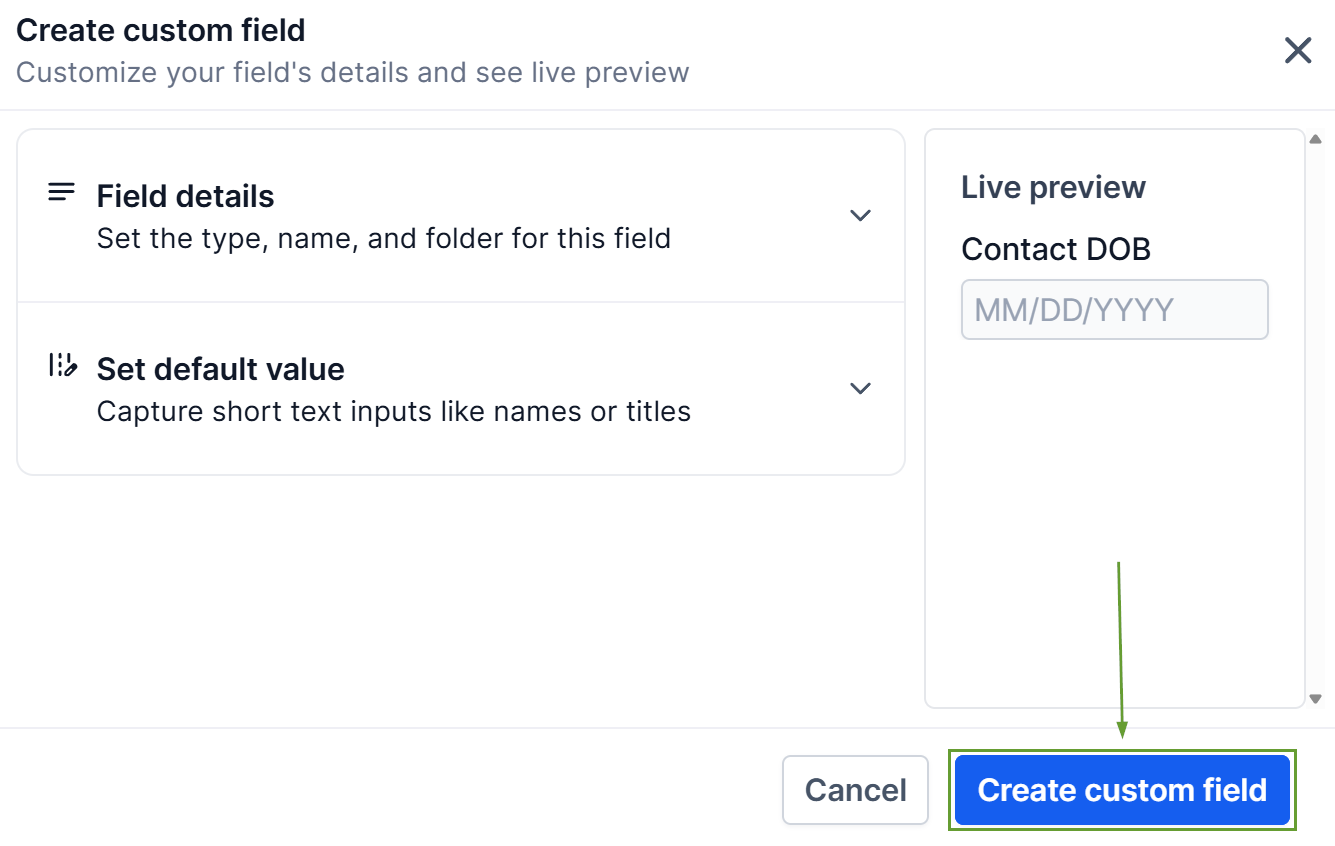
Live Preview Window: instantly see how a custom field will appear on the contact page, helping you configure fields with more confidence.
⭐️How To Add A Custom Field?
Let's learn how to create a custom field from scratch with these improvements.
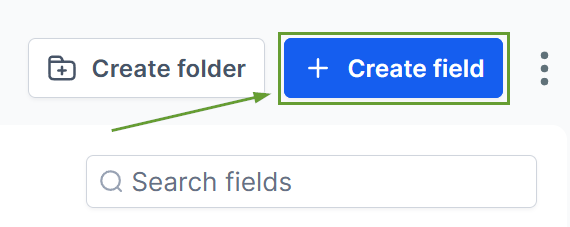
Begin by selecting the “Create Field” button in the Custom Fields Settings.
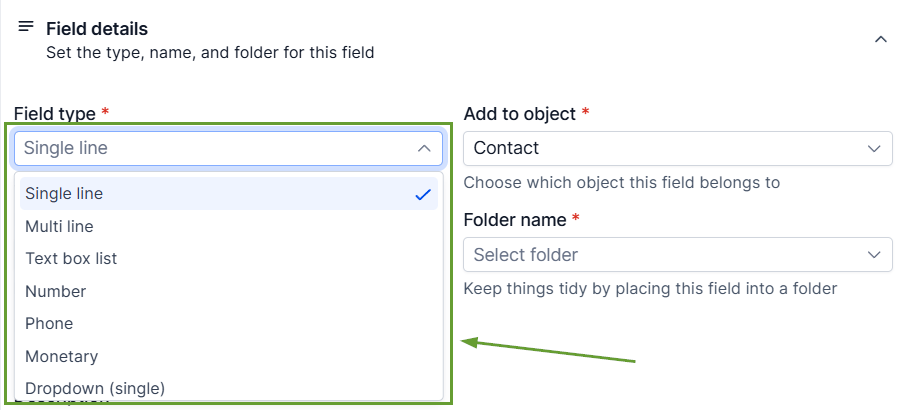
Select the type of field this should be.
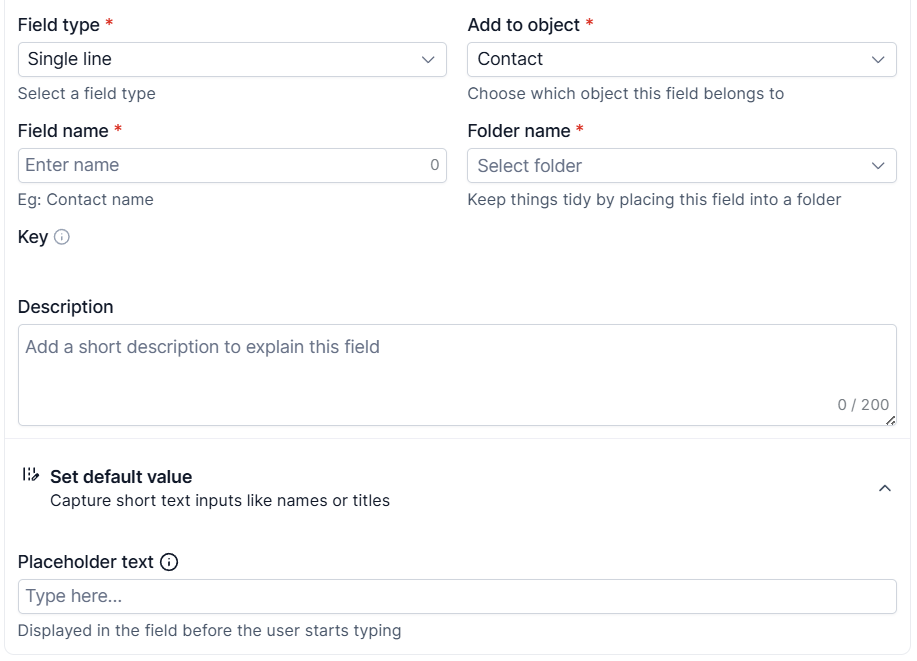
Fill out the name, folder, and associated object fields as well as any other desired details.
Confirm the addition by clicking the “Create custom field” button.
By reducing friction and improving clarity, this update helps teams work faster, make fewer errors, and manage data more efficiently at scale. Keeping your lists organized, search fields usable, and information clear. We hope you enjoy it!
