Stay Up To Date
We believe in keeping you in the loop with all the latest happenings in our courses and system. On this page, you'll find a comprehensive log of all the exciting changes, improvements, and additions we make to our courses and system. Whether it's a new feature, a course enhancement, or a system update, we've got you covered. Bookmark this page and check back regularly. We're committed to ensuring that your learning experience remains exceptional and that you have all the information you need to succeed.

New Features

New Updates

Resources & Tools

Important Updates
Here are some of the most recent updates we thought would be helpful to take note of
New Feature: Audit Logs for Deleted Sites Assets
Managing a big team requires clear visibility into their actions. Which was missing from the site management. So, we’re glad to inform you that we’ve added them to the Audit Logs. Let's learn how to view them!
⭐️How to View Audit Logs for Deleted Sites Assets?
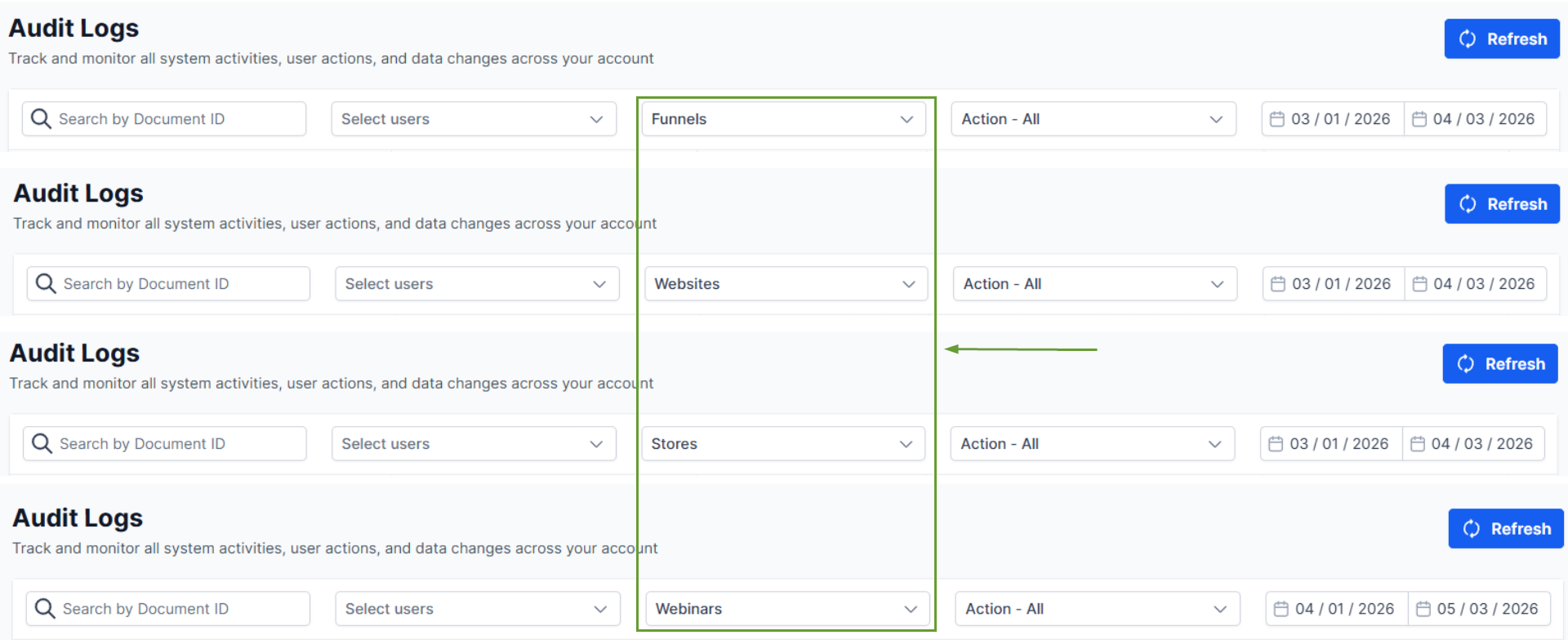
Head to the Audit Logs section inside your account settings and use the Module filter.

Select Funnels, Websites, Stores, or Webinars.
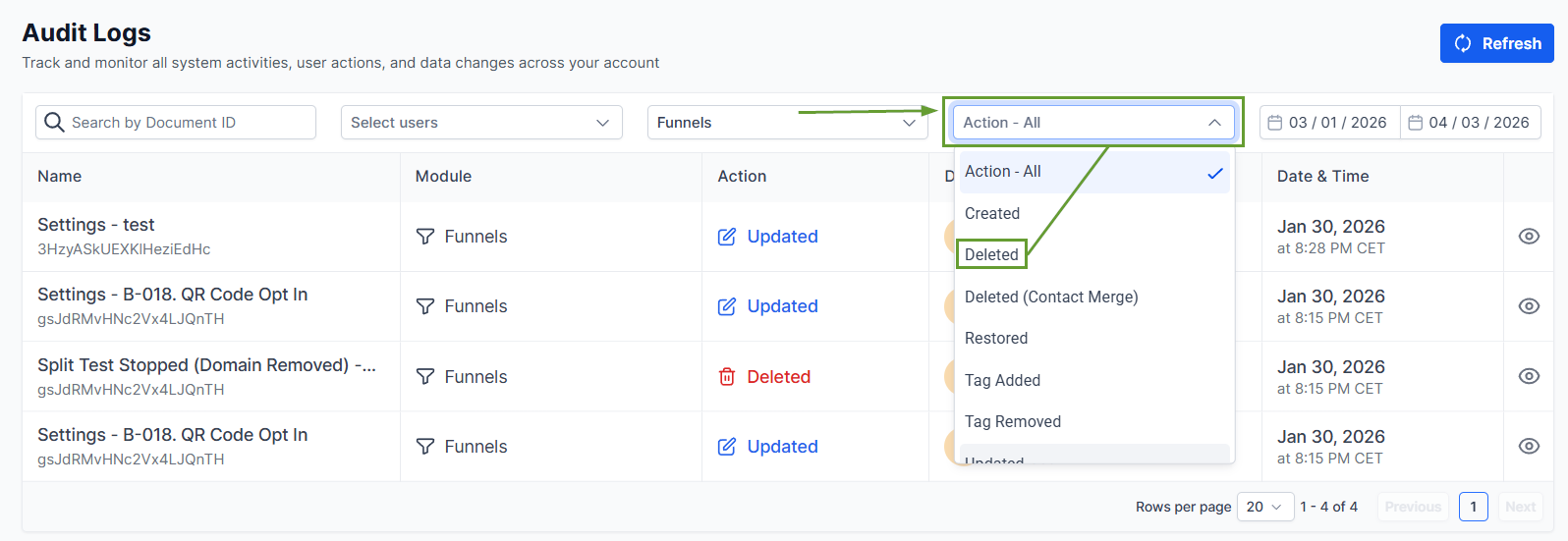
Select “Deleted” in the Action filter.
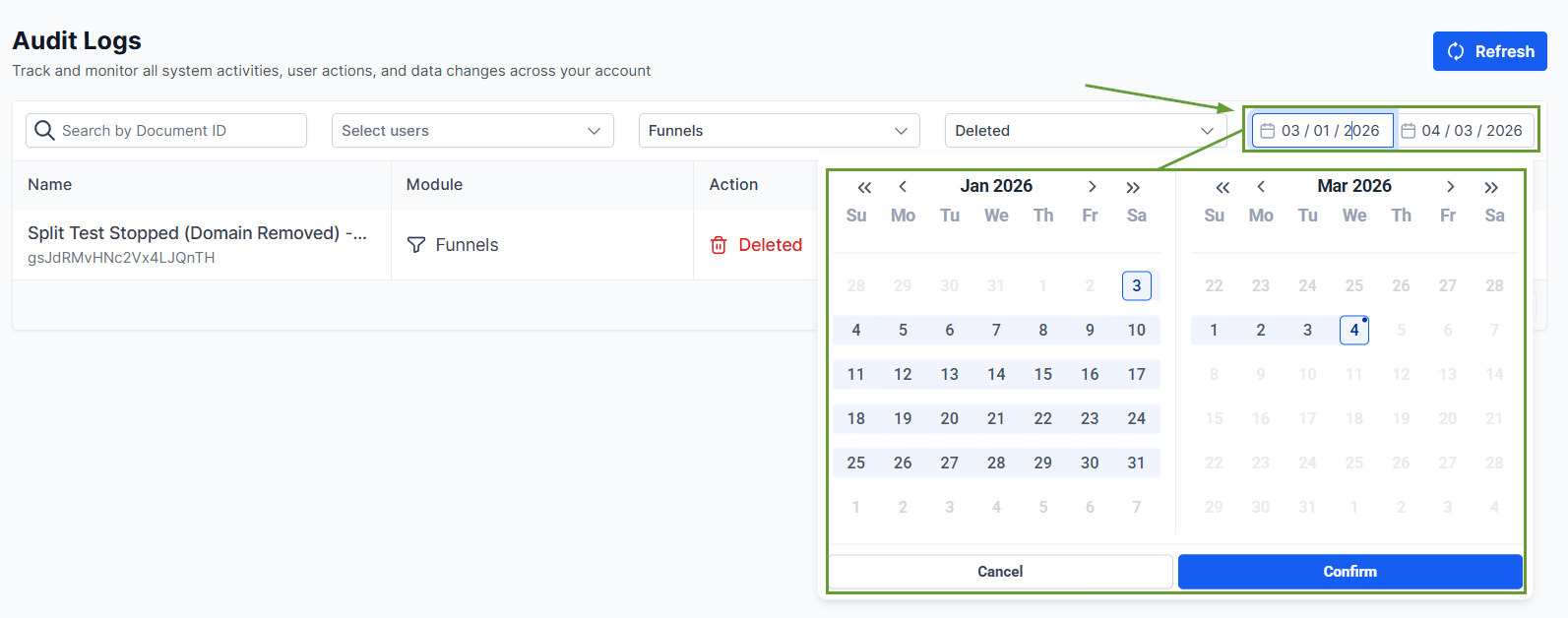
Set the time frame you want to view and review your results.
⭐️Why Is This Feature Beneficial To Your Company?
Enhanced Record Keeping: Audit logs are now created for Section Templates, Global Sections, Universal Sections, Element Templates, and Universal Element Templates.
Sites Asset Management: If any of the assets above are deleted, a “Deleted” audit log entry is created with the asset name and ID, allowing for easy review.
Simplified Accountability: This helps you ensure nothing gets removed without a trace, making it easier to identify what was deleted and when it happened, so you can quickly investigate missing assets.
Improve accountability with your team by easily tracking any permanent asset deletion, thanks to the clear visibility. We hope you enjoy it!
