Stay Up To Date
We believe in keeping you in the loop with all the latest happenings in our courses and system. On this page, you'll find a comprehensive log of all the exciting changes, improvements, and additions we make to our courses and system. Whether it's a new feature, a course enhancement, or a system update, we've got you covered. Bookmark this page and check back regularly. We're committed to ensuring that your learning experience remains exceptional and that you have all the information you need to succeed.

New Features

New Updates

Resources & Tools

Important Updates
Here are some of the most recent updates we thought would be helpful to take note of
Improved Feature: Communities UI
We’ve rebuilt Communities in the Unified Client Portal and GoKollab, delivering a faster, more seamless experience that keeps all assets connected. And Community settings have been reorganized into dedicated sections, making groups easier to configure and manage. Let’s learn how the changes work!
⭐️How Do These Changes Affect You?:
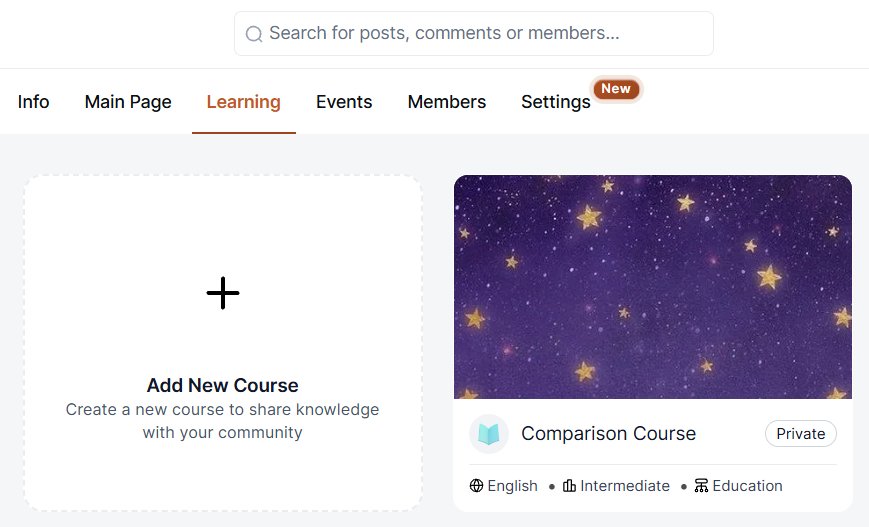
Unified Communities and Courses: Members can move between community discussions and courses without leaving the unified portal, with progress preserved when switching between courses and discussions.
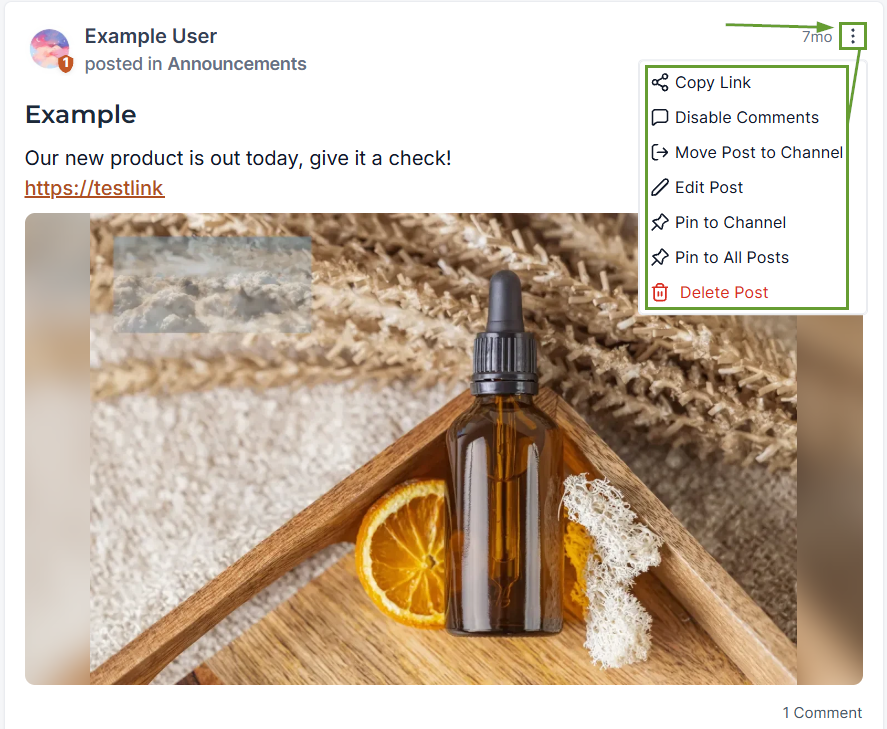
Community Admin Controls: The enhanced three-dot menu lets you manage posts, comments, users, and media recordings directly from the post in the discussion tab.
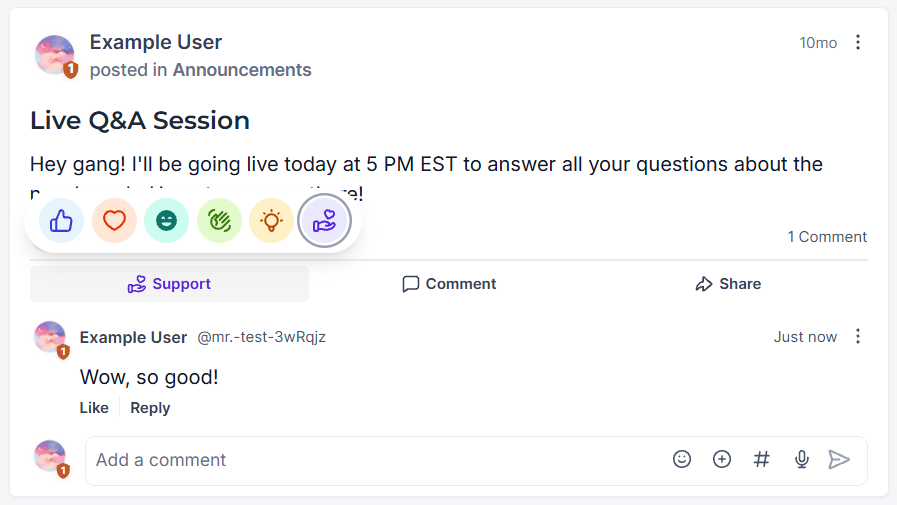
Reimagined Discussion Experience: The discussion feed has been redesigned to make content easier to discover, read, and engage with. It includes reactions, direct response display, attachments, events, and quick profile overviews.
⭐️ How To Filter and Manage Group Posts?
Let’s learn how to use the Content Moderation section of your improved Community Settings.
Head to the improved Settings section of your Community and select Content Moderation.
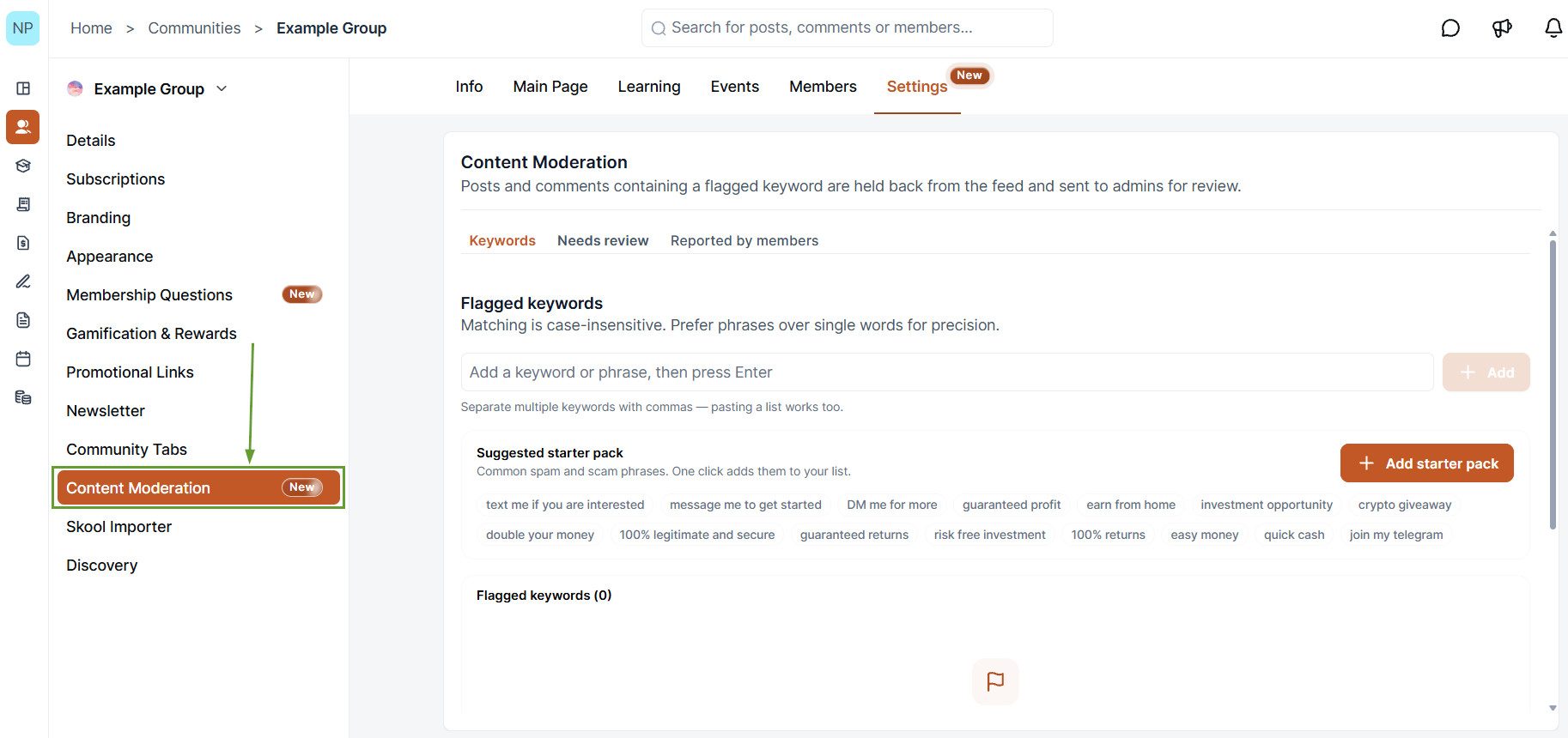
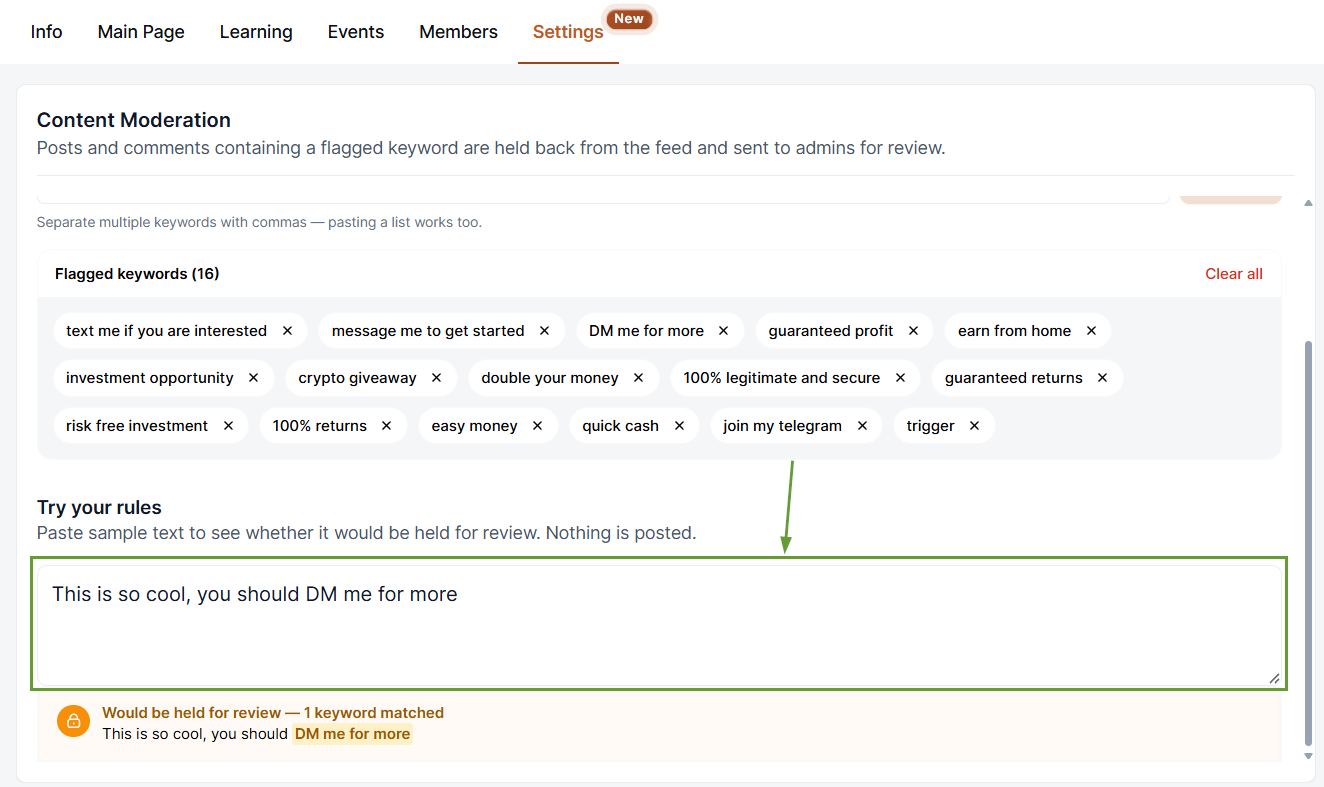
Add any keywords you want to flag automatically, then test them in the space below.
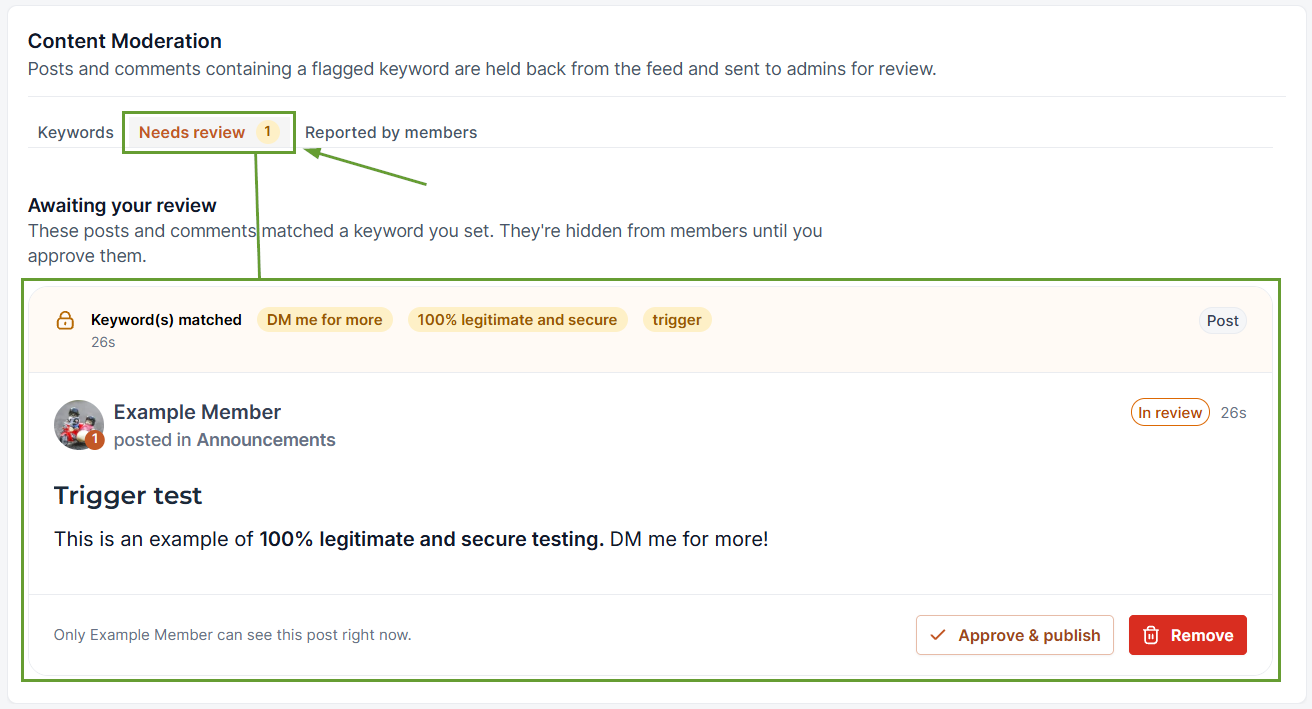
Wherever a post is flagged, you can find it under “Needs review,” where you can approve or delete it as needed.
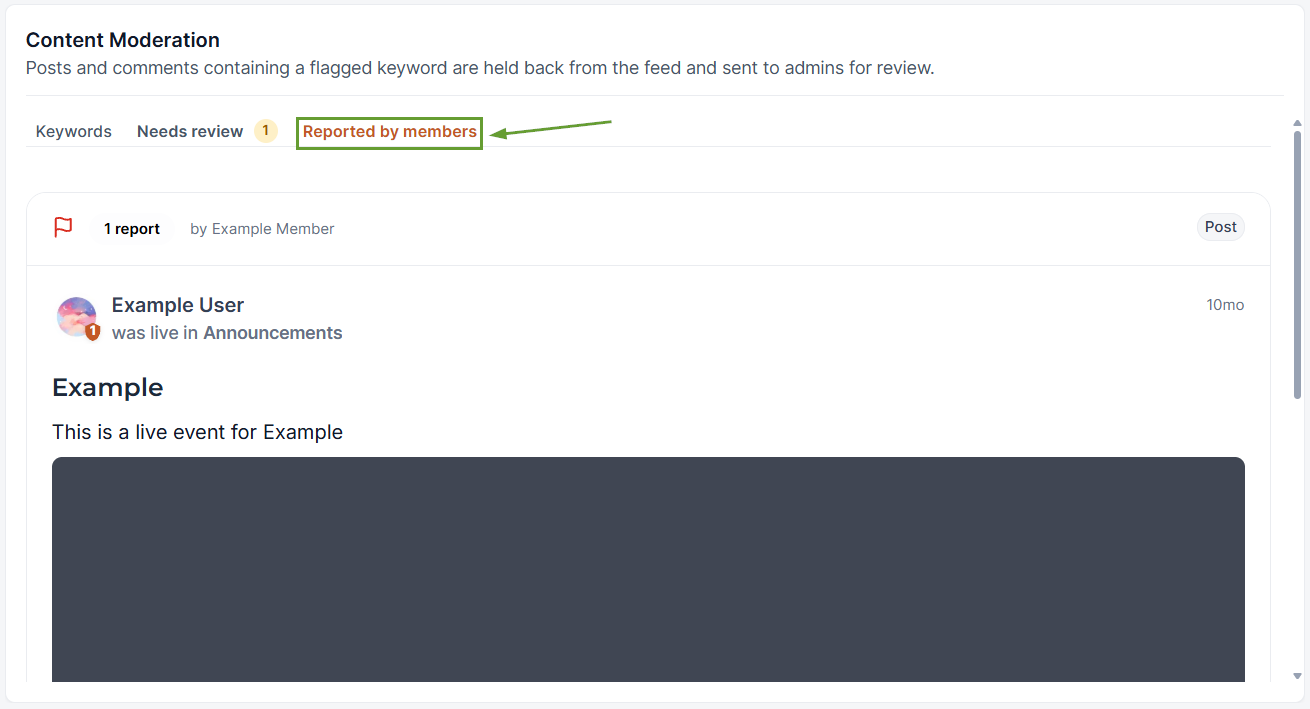
Any post flagged by community members will be placed under the “Reported by members” tab for review.
This new, integrated UI requires no migration. Your existing community content, members, courses, and settings will automatically carry over. Allowing you to enjoy the ease of management right away. We hope you enjoy it!