Stay Up To Date
We believe in keeping you in the loop with all the latest happenings in our courses and system. On this page, you'll find a comprehensive log of all the exciting changes, improvements, and additions we make to our courses and system. Whether it's a new feature, a course enhancement, or a system update, we've got you covered. Bookmark this page and check back regularly. We're committed to ensuring that your learning experience remains exceptional and that you have all the information you need to succeed.

New Features

New Updates

Resources & Tools

Important Updates
Here are some of the most recent updates we thought would be helpful to take note of
New Feature: Custom Values in Ad Copy
Some details, such as your business location, have to remain the same across multiple offers. Earlier, these details had to be added manually in every campaign, creating extra work. So, to help you get those creative juices flowing without worrying about consistency or efficiency, we’ve added support for custom values in the Ad Copy. Let’s learn how to use it!
⭐️ How To Use Custom Values in Ad Copy?
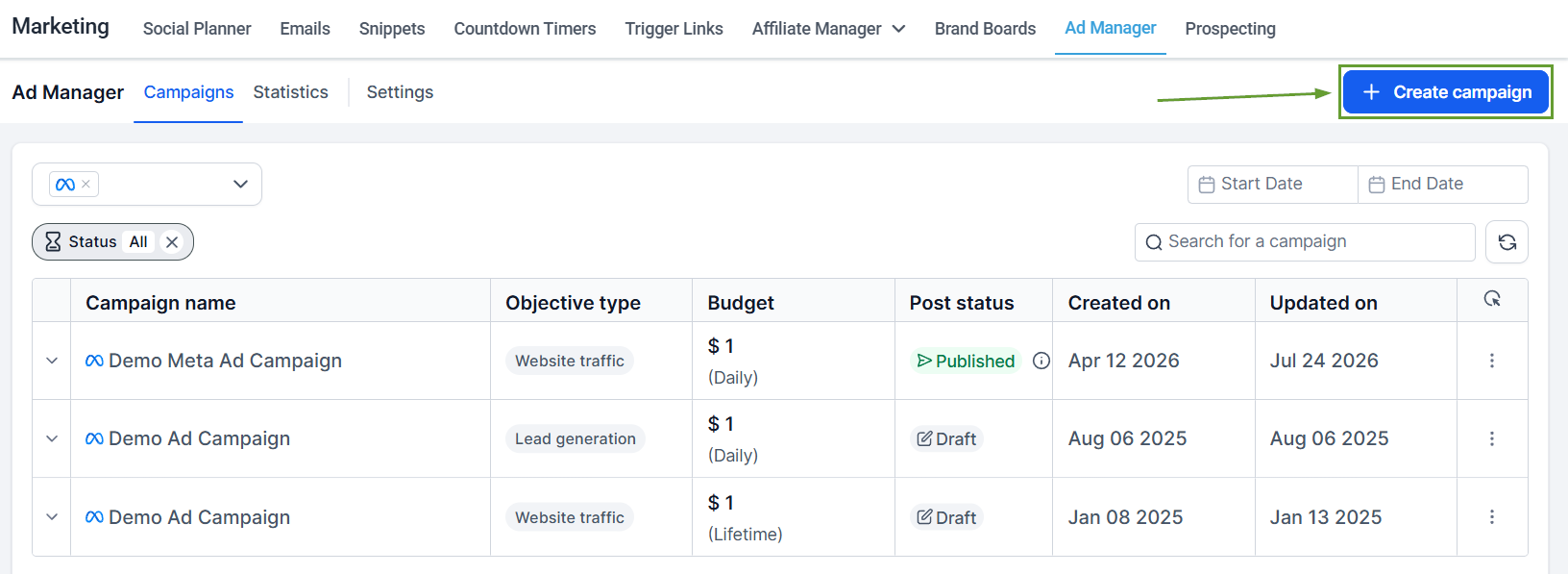
Navigate to the Ad Manager tab inside the Marketing section and create a new campaign.
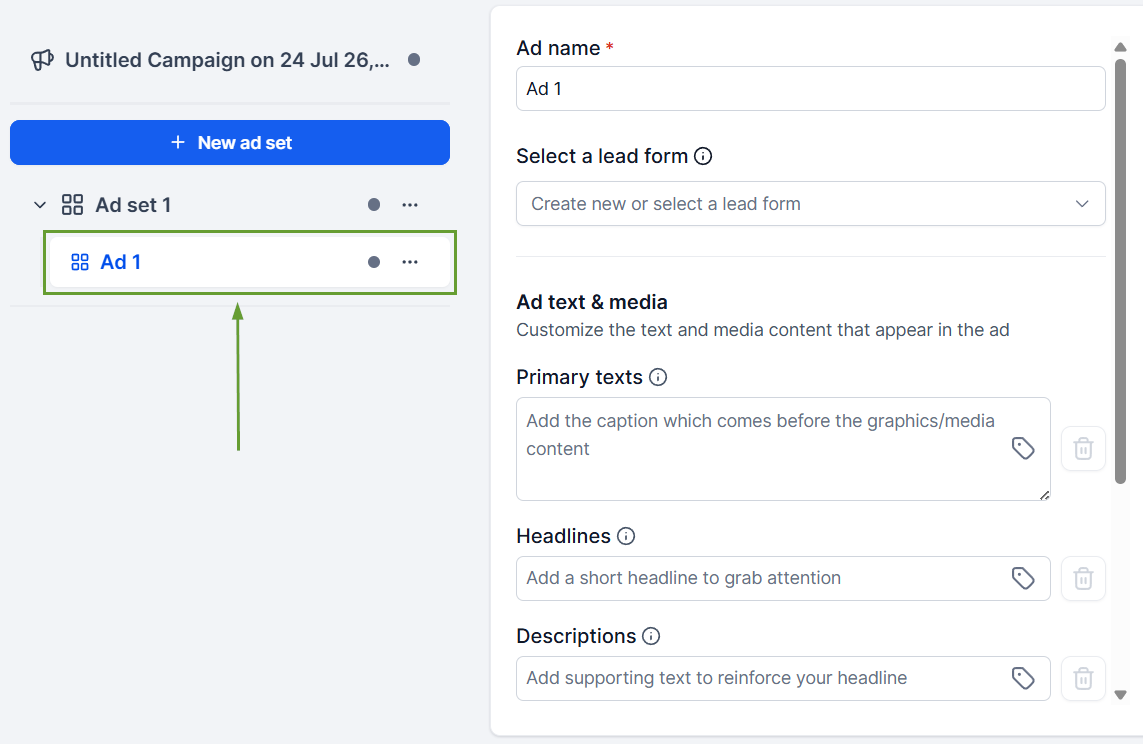
Open the Ad you want to edit, then click the tag icon.
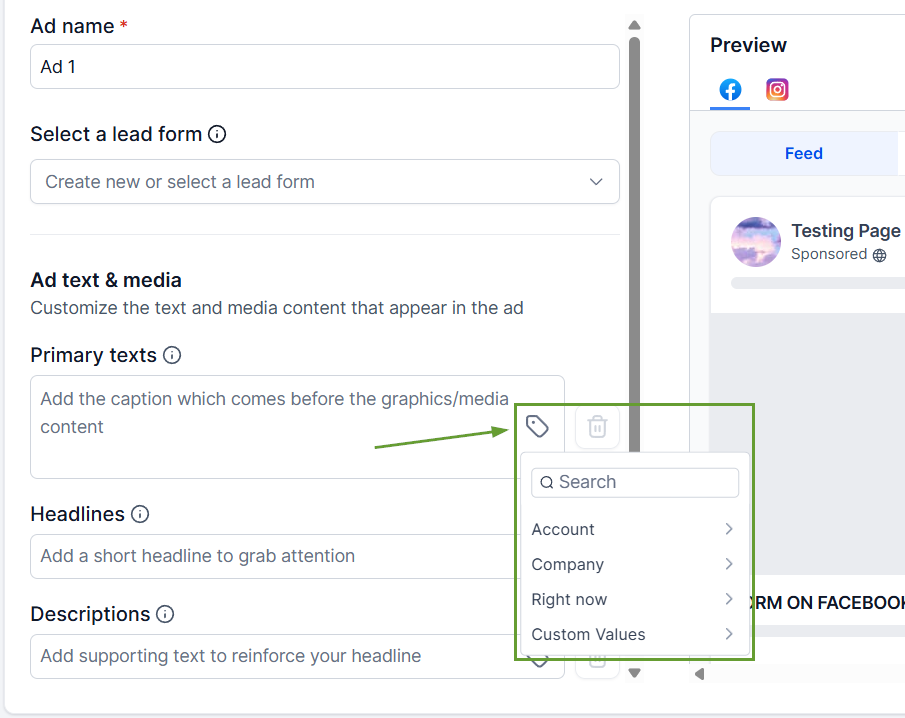
Select the Custom Value you want to add.
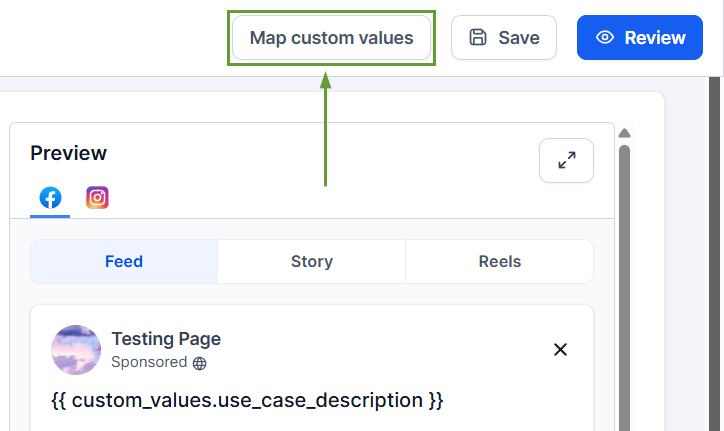
Map your custom values as needed and save your changes.
⭐️Why Is This Feature Beneficial To Your Company?
Increased Efficiency: This helps you avoid extra work and decreases the chances of inconsistent ad copy, helping you create your campaigns in seconds.
Validation for Safe Publishing: Ad Manager alerts you when Custom Values are missing, invalid, empty, or exceed character limits, helping prevent publishing issues.
Reusable Templates: Campaign templates can retain Custom Value keys, making it easier to reuse one template across multiple sub-accounts.
This feature helps you create a varied yet relevant campaign, enabling you to easily achieve perfect copywriting and keep details consistent across all ads to ensure your customers receive the right message. We hope you enjoy it!