Stay Up To Date
We believe in keeping you in the loop with all the latest happenings in our courses and system. On this page, you'll find a comprehensive log of all the exciting changes, improvements, and additions we make to our courses and system. Whether it's a new feature, a course enhancement, or a system update, we've got you covered. Bookmark this page and check back regularly. We're committed to ensuring that your learning experience remains exceptional and that you have all the information you need to succeed.

New Features

New Updates

Resources & Tools

Important Updates
Here are some of the most recent updates we thought would be helpful to take note of
New Feature: SMS Notifications for Rentals
SMS is a powerful way to improve booking-related communication and provide real-time updates to your clients and team. So, we’ve added this notification type to your Rental bookings. Let’s learn how to use it!
⭐️ How To Enable SMS Notifications for Rentals?
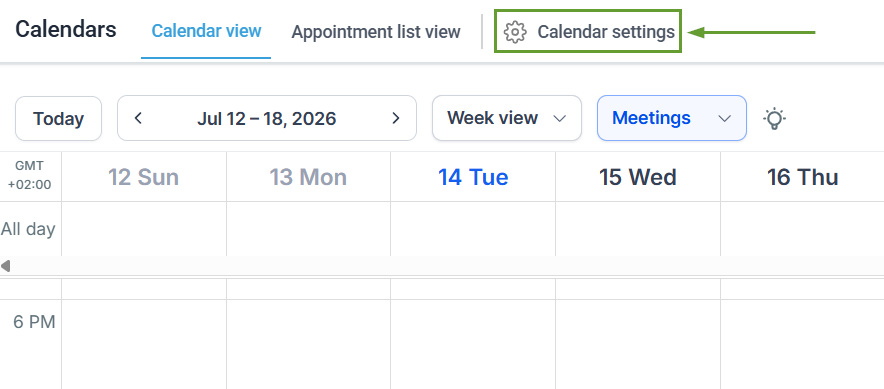
Navigate to the Calendars section and access the Calendar Settings.
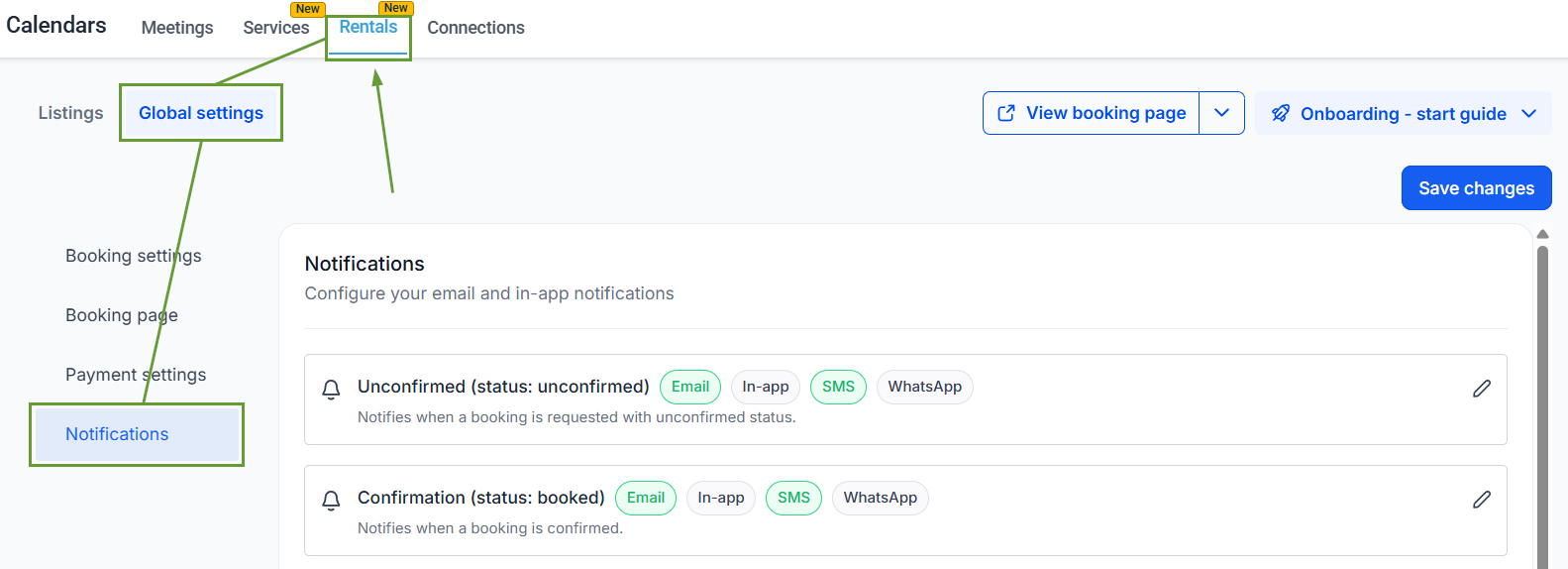
In the Rentals tab, switch to the Global Settings section, then open Notifications.
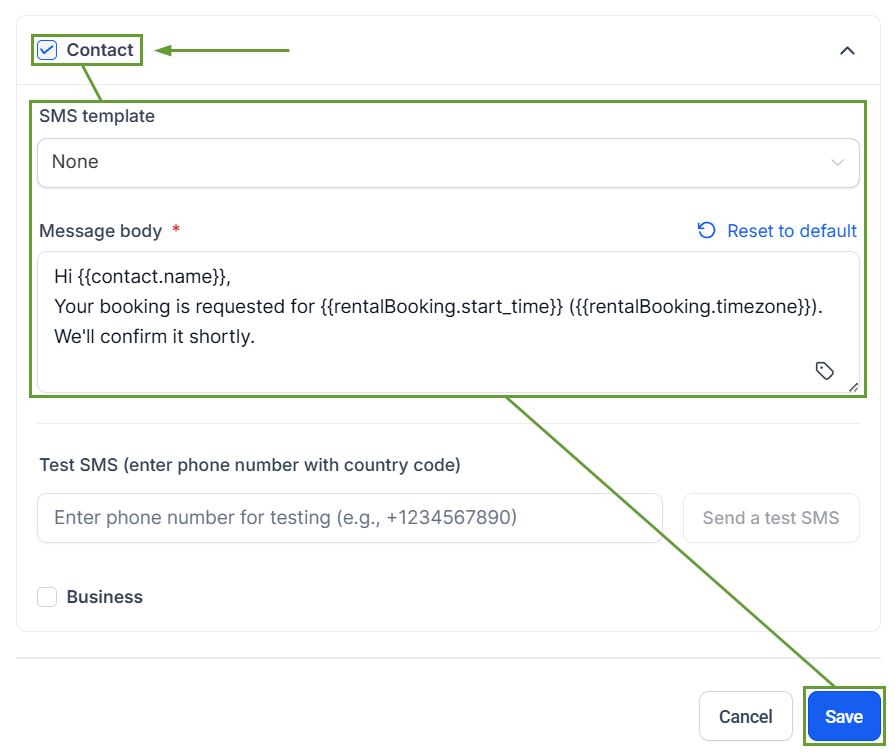
Select the SMS channel, then toggle SMS notifications on.
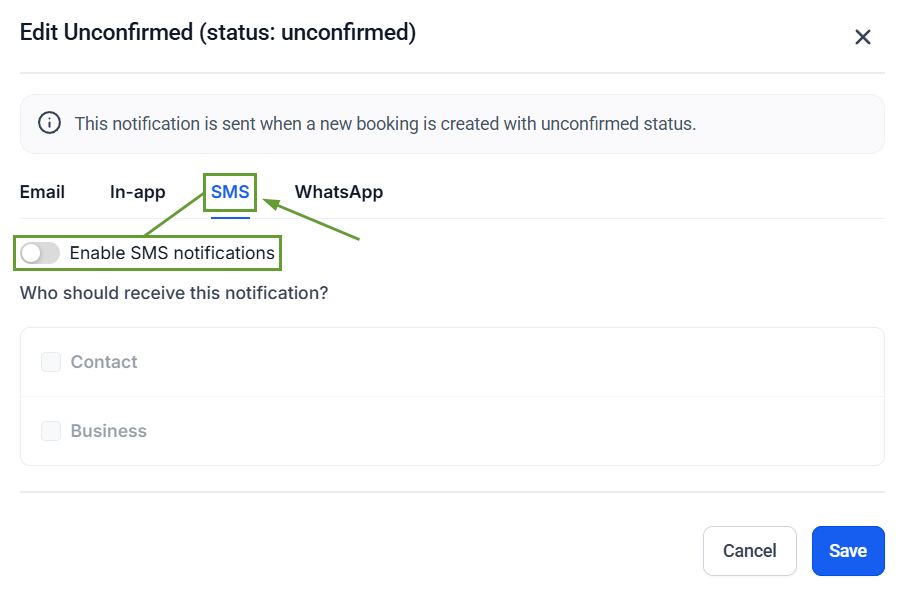
Select your template or write your message, then click Save in the bottom right corner.
⭐️Why Is This Feature Beneficial To Your Company?
Notification Automation: The SMS notifications allow you to reduce the need for manual follow-ups while retaining full control over template messaging and delivery, enabling efficient connection with attendees.
Improved Attendance Rates: Increases show-up rates with faster, mobile-first communication that ensures customers receive reminders and updates.
Recipient-Based Templates: This gives your business flexibility in how it reaches different recipients, allowing you to set different templates for contacts and businesses.
You can now send SMS notifications for all Rental booking events, automating unconfirmed appointment check-ins, booking reminders, cancellations or rescheduling confirmations, and more. We hope it helps you increase your attendance rates!