Stay Up To Date
We believe in keeping you in the loop with all the latest happenings in our courses and system. On this page, you'll find a comprehensive log of all the exciting changes, improvements, and additions we make to our courses and system. Whether it's a new feature, a course enhancement, or a system update, we've got you covered. Bookmark this page and check back regularly. We're committed to ensuring that your learning experience remains exceptional and that you have all the information you need to succeed.

New Features

New Updates

Resources & Tools

Important Updates
Here are some of the most recent updates we thought would be helpful to take note of

Improved Feature: Send Conversation AI Bot to Sleep Options
We are introducing granular controls for Conversation AI pauses. With this update, the setting “Send bot to sleep when I send a” has been split into two independent options for manual and automatic messages. Let's check the changes out!
⭐️How Do These Changes Affect You?:
Manual Messages: Messages sent directly by a user can pause the bot without affecting workflows.

Workflow Messages: Messages sent via automations can be sent without unintentionally stopping the bot.

Default Behavior: If no changes are made or both options are enabled, the bot will continue to follow the previously configured sleep behavior.

⭐️How To Manage The Conversation AI Sleep Configuration?
Let’s go over how to access and change the Sleep configurations for your Conversation AI bots.
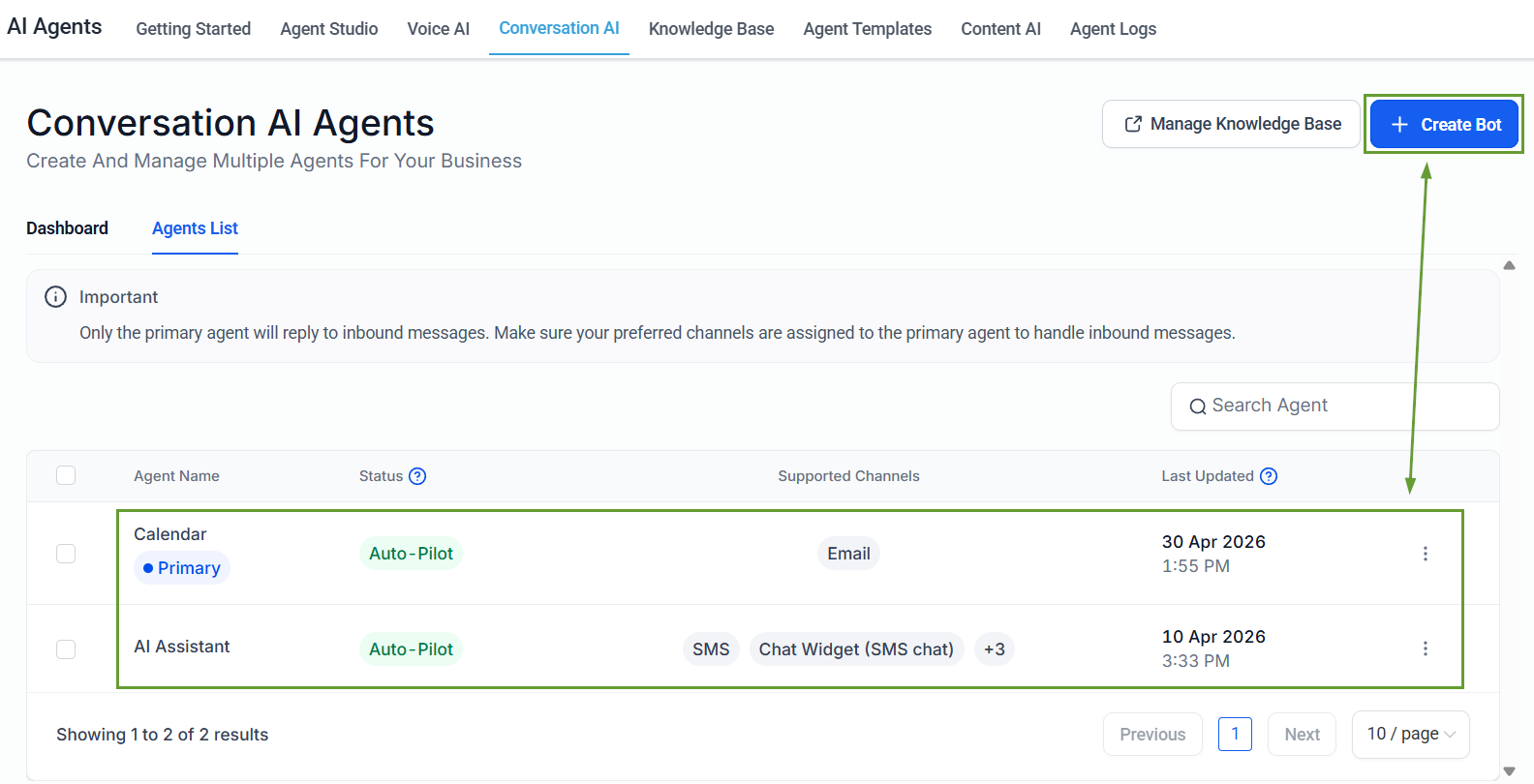
Go to the Conversation AI tab inside the AI Agents and create or edit a bot.
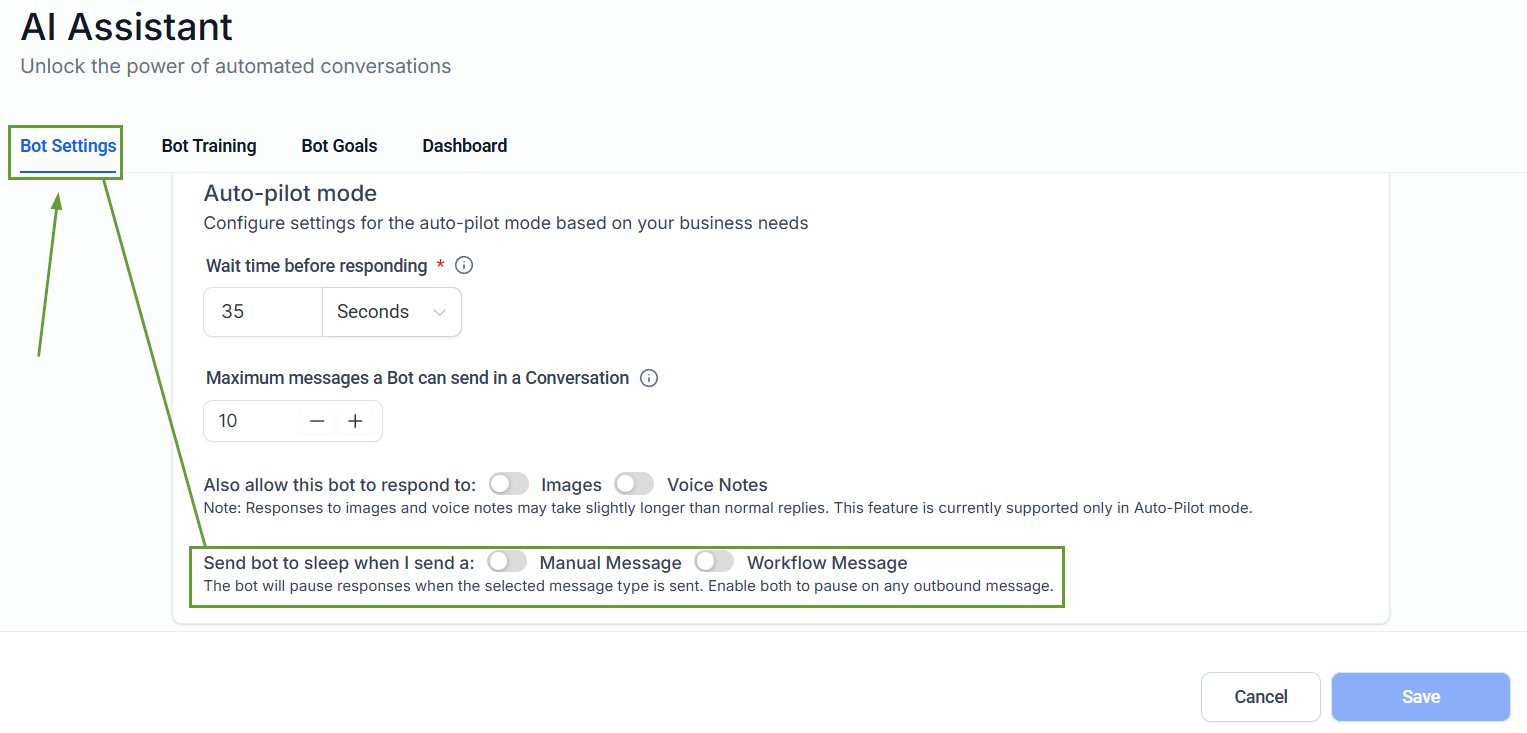
Toggle Manual Message, Workflow Message, or both to enable Bot Sleep.
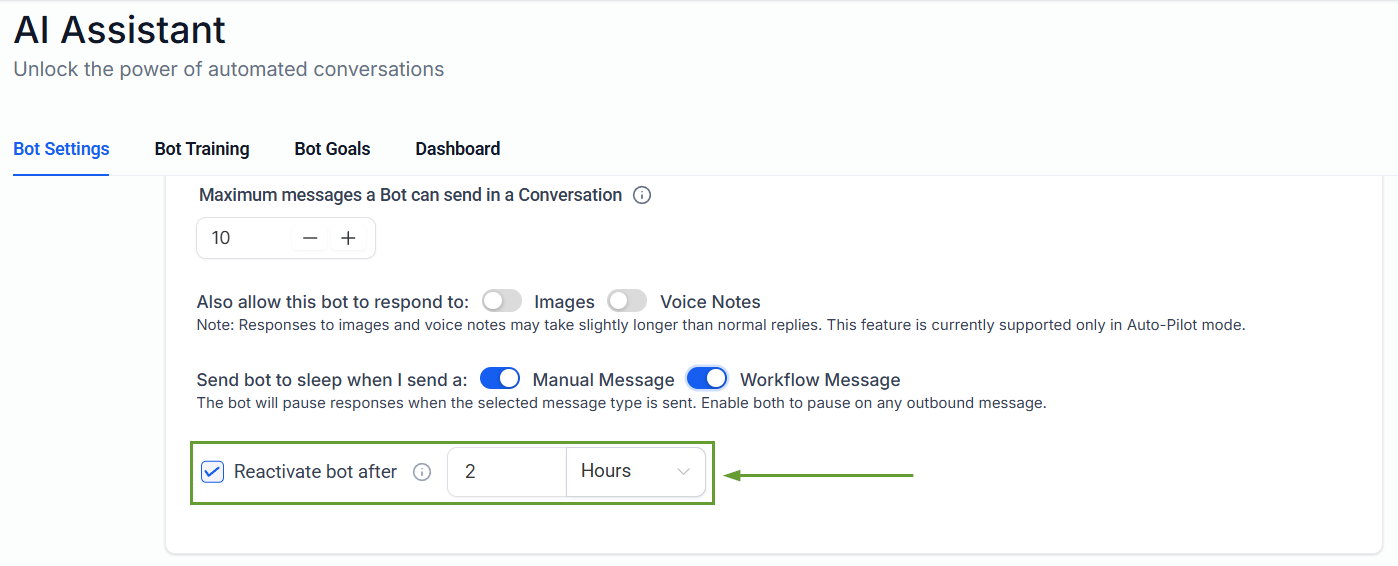
Check the box next to Reactivate bot after and set the time the AI should wait before restarting.
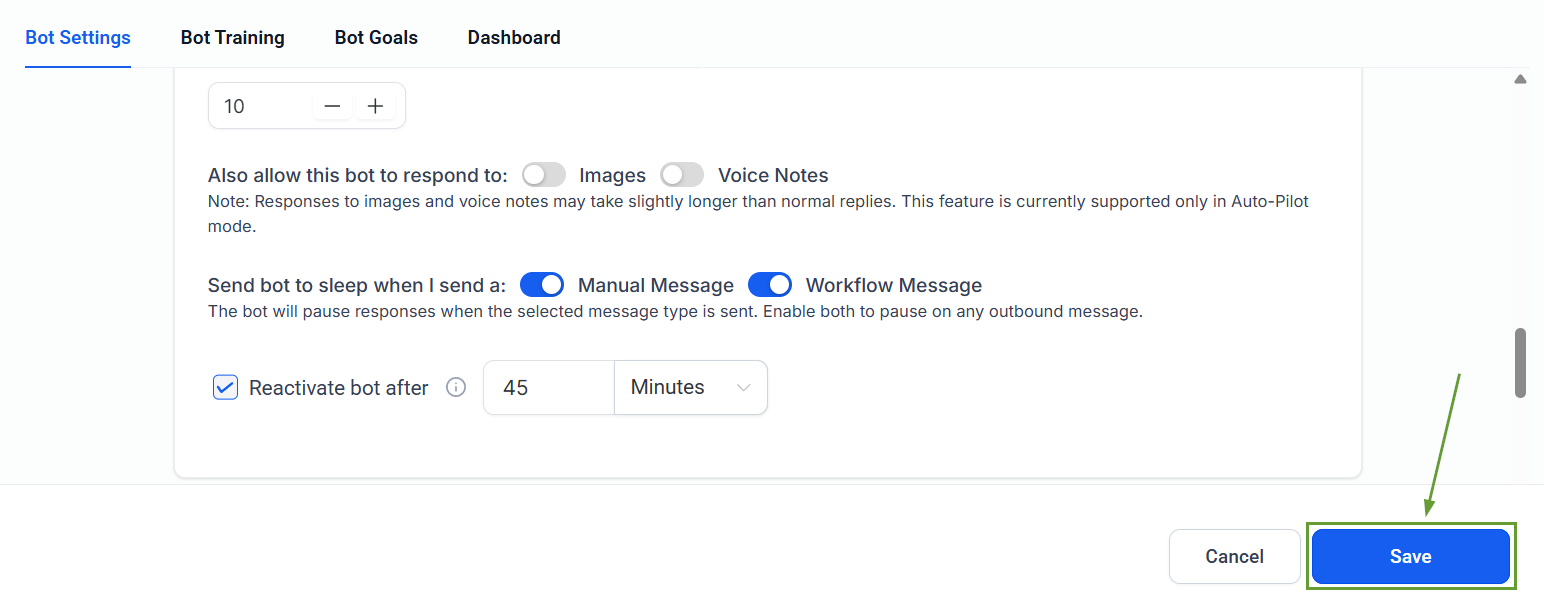
Once satisfied with your changes, click Save.
This gives users greater flexibility in controlling bot behavior based on how messages are triggered, improving automation precision and reducing unintended bot pauses. We hope you enjoy it!
