Stay Up To Date
We believe in keeping you in the loop with all the latest happenings in our courses and system. On this page, you'll find a comprehensive log of all the exciting changes, improvements, and additions we make to our courses and system. Whether it's a new feature, a course enhancement, or a system update, we've got you covered. Bookmark this page and check back regularly. We're committed to ensuring that your learning experience remains exceptional and that you have all the information you need to succeed.

New Features

New Updates

Resources & Tools

Important Updates
Here are some of the most recent updates we thought would be helpful to take note of

New Feature: Rentals in Calendars
Rentals help you manage bookable inventory, such as equipment or vehicles. Unlike traditional appointment scheduling, they are designed for duration-based, inventory-driven bookings, helping you expand your product management. Let's learn how they work.
⭐️How Will These Changes Affect You?:
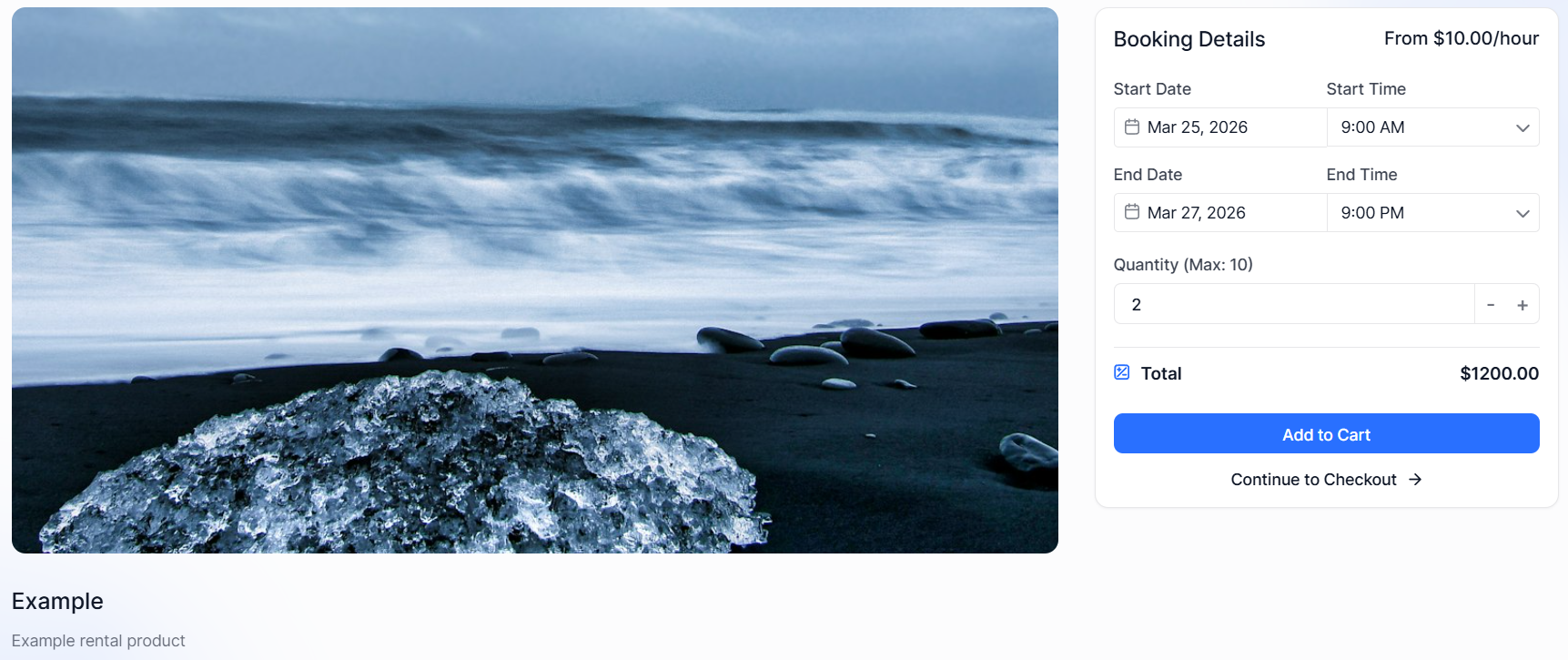
Rental Bookings: Whether you rent by the hour, day, week, or month, this section gives you the flexibility to model your real-world business accurately in the CRM.
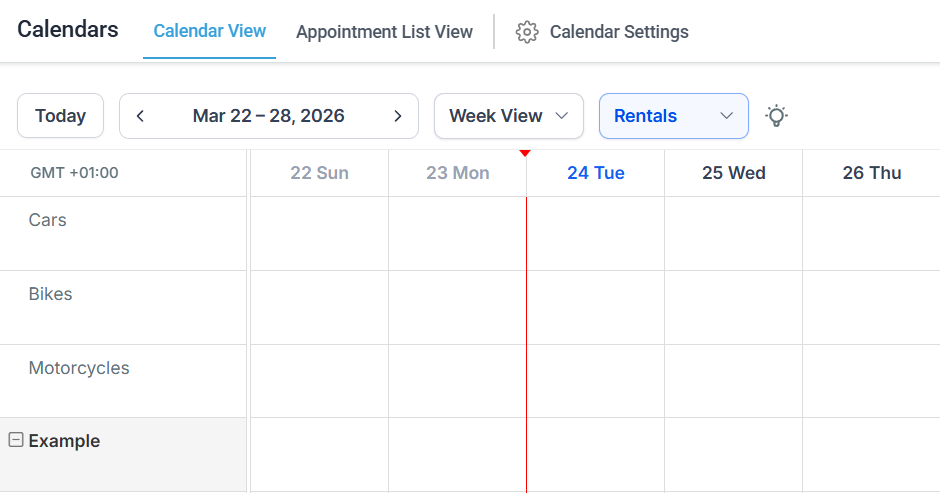
Calendar View: Since listing works differently, their view is a bit different as well. It contains a breakdown of all bookings for your available listings, including an expandable view for variants.
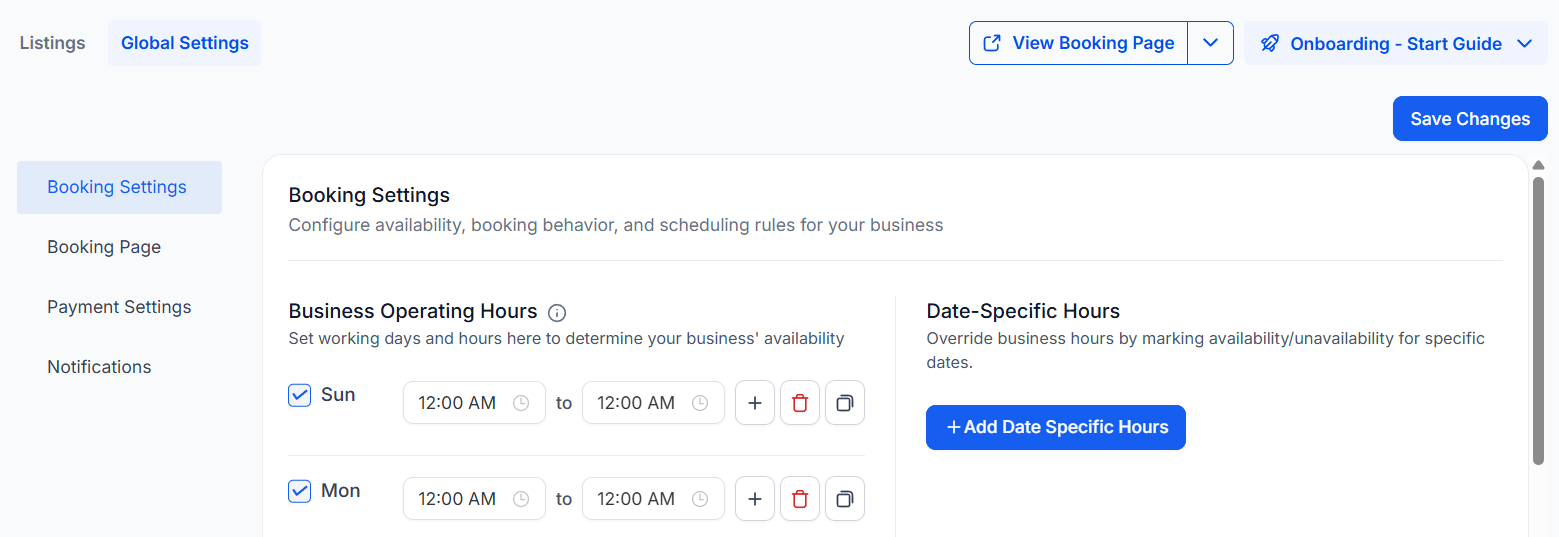
Global Settings: This tab helps you control the way listings are managed as a whole. This contains settings for bookings, the booking page, payments, and notifications.
⭐️How To Create A Rental Listing?
To help you effectively track your availability, you can create Rental Listings and manage customer bookings this way. Let’s learn how!
To get started, access your Calendar Settings inside your Calendars section.

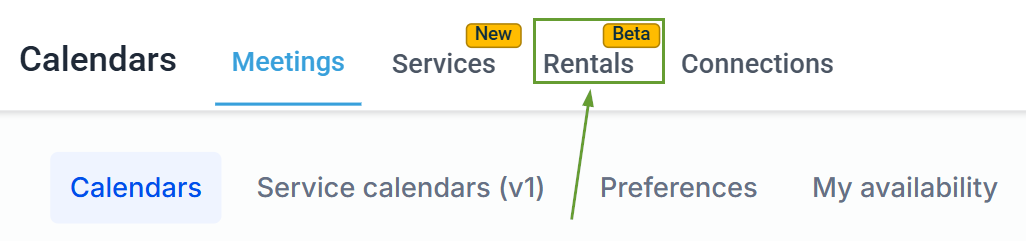
Once inside the Calendar Settings, head to the Rentals tab.
Locate the + New Listing button in the upper-right corner of the page and click it.
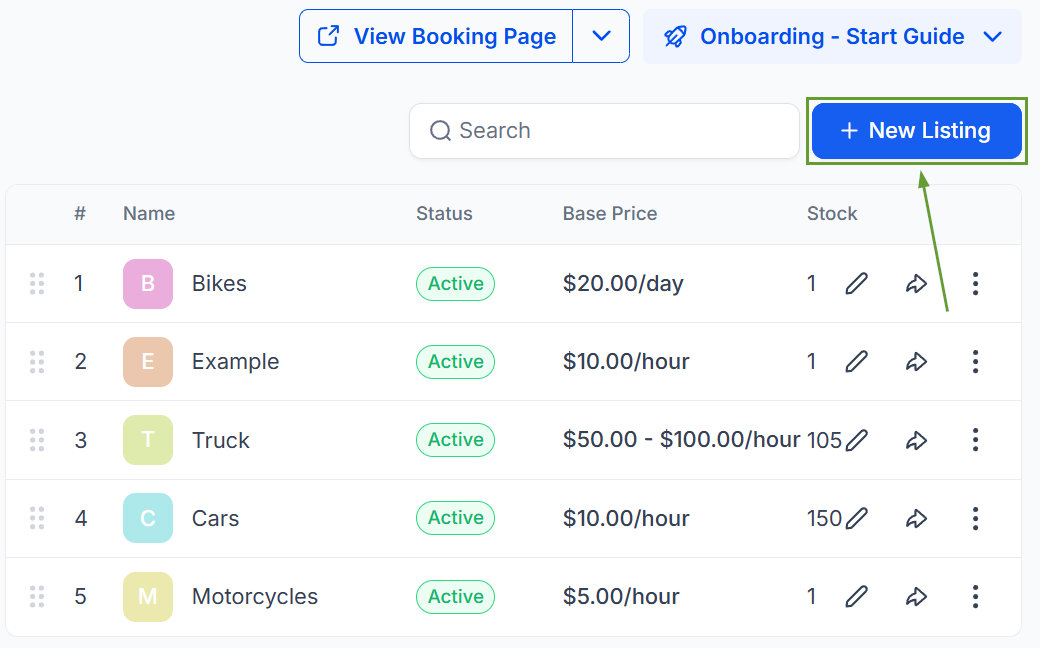
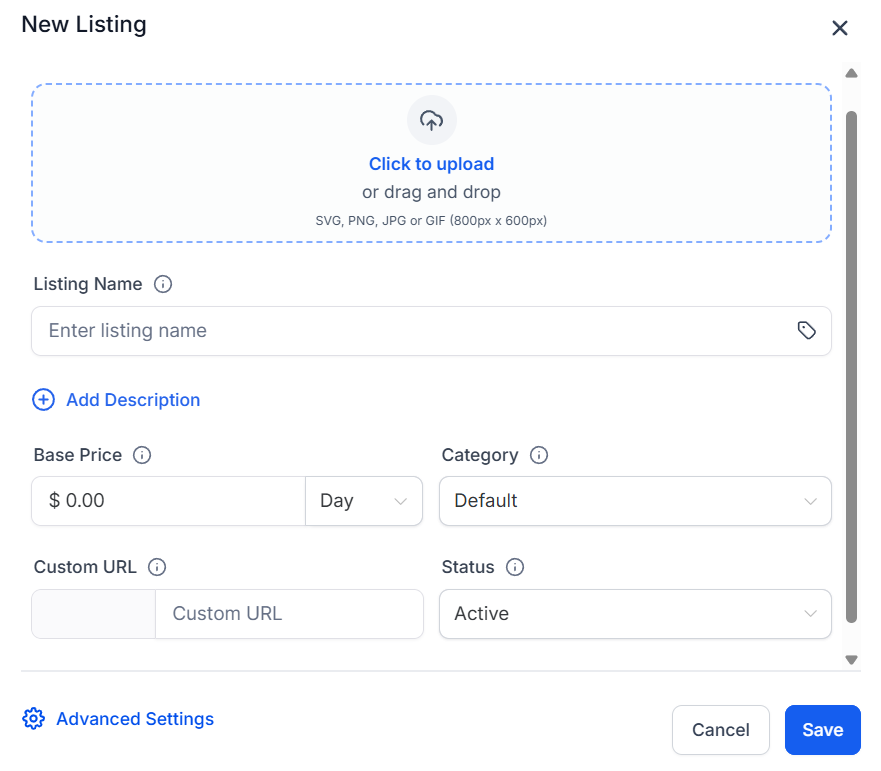
Fill out the details of your rental product Listing.
This intuitive tool will help you expand into new verticals, like vacation, vehicle, and equipment rentals, event businesses, coworking spaces, and mobility services. We hope you enjoy it!
