Stay Up To Date
We believe in keeping you in the loop with all the latest happenings in our courses and system. On this page, you'll find a comprehensive log of all the exciting changes, improvements, and additions we make to our courses and system. Whether it's a new feature, a course enhancement, or a system update, we've got you covered. Bookmark this page and check back regularly. We're committed to ensuring that your learning experience remains exceptional and that you have all the information you need to succeed.

New Features

New Updates

Resources & Tools

Important Updates
Here are some of the most recent updates we thought would be helpful to take note of

Improved Feature: Pipeline Improvements
Pipelines are a crucial tool in your CRM, making customer organization efficient and follow-ups consistent. However, it needed a small revamp to increase efficiency and maintain a consistent experience across views. Let's check the changes!
⭐️How Will These Changes Affect You?:
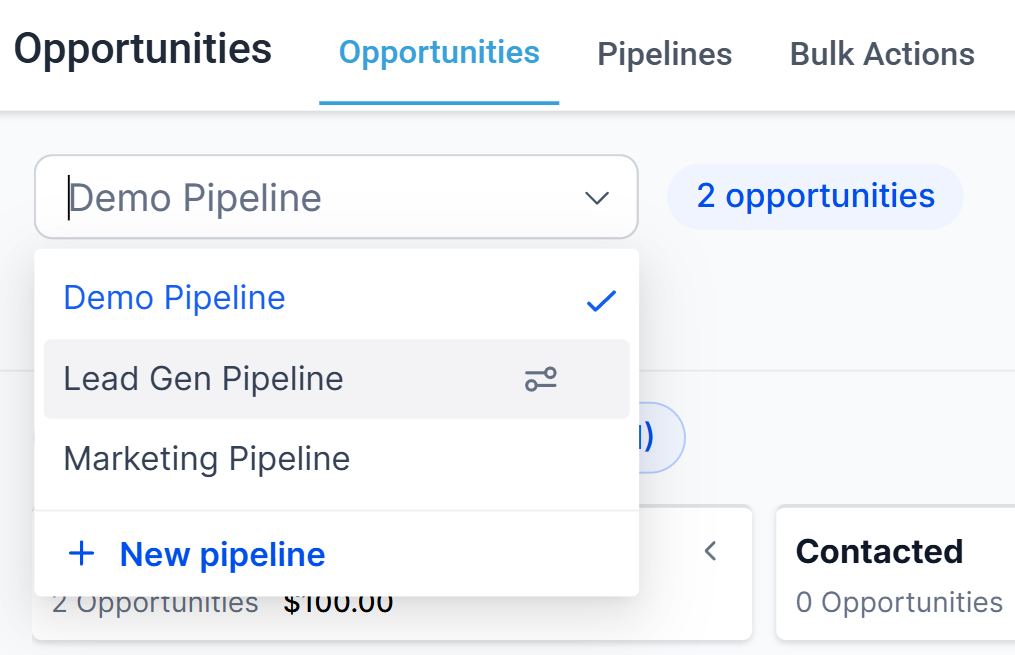
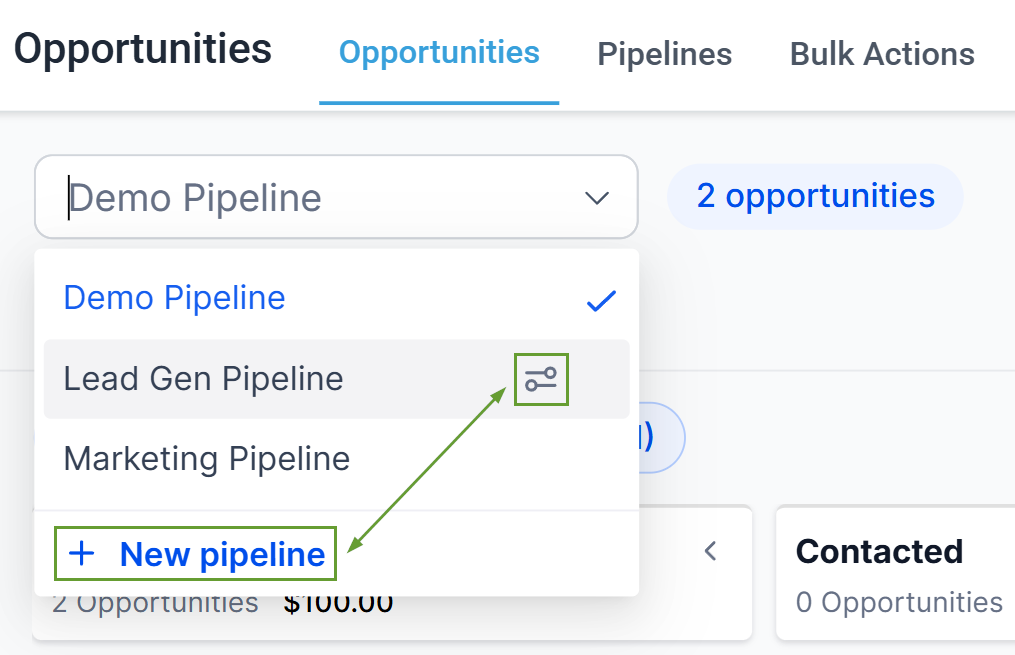
Direct Editing Access: Create and edit pipelines directly from the pipeline dropdown for faster pipeline management without extra navigation.
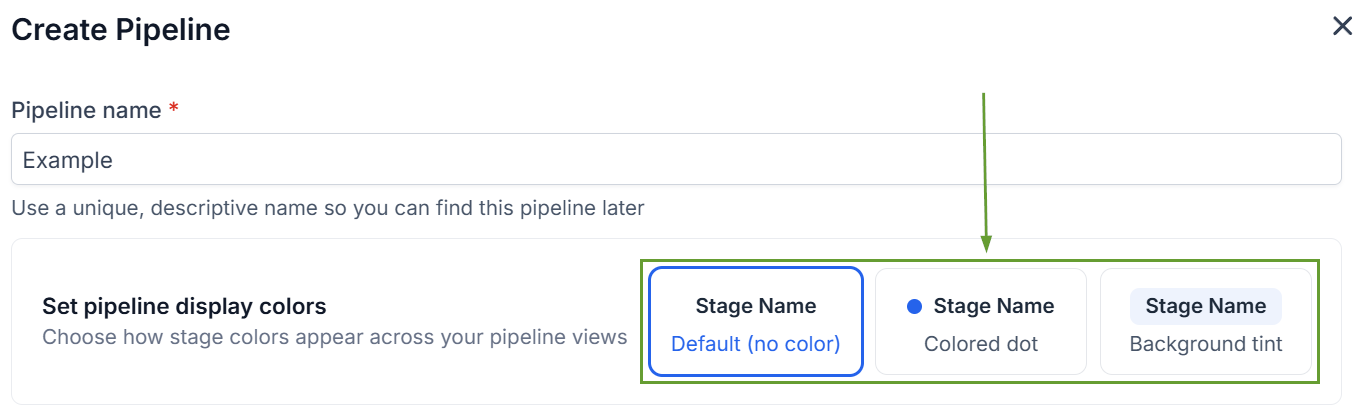
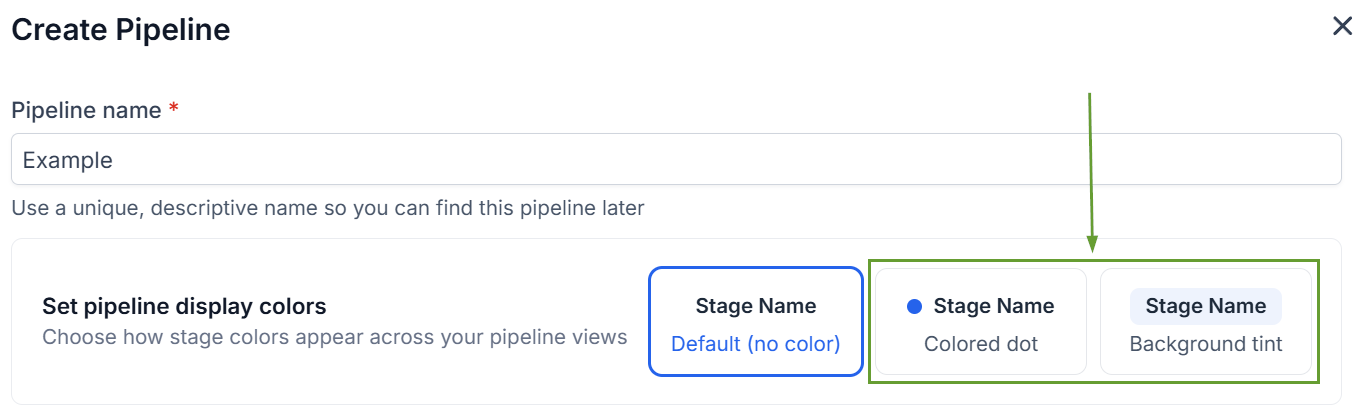
Display Selection: Select between the Default (no color), Colored dot, or Background tint views to assign color to pipeline stages.
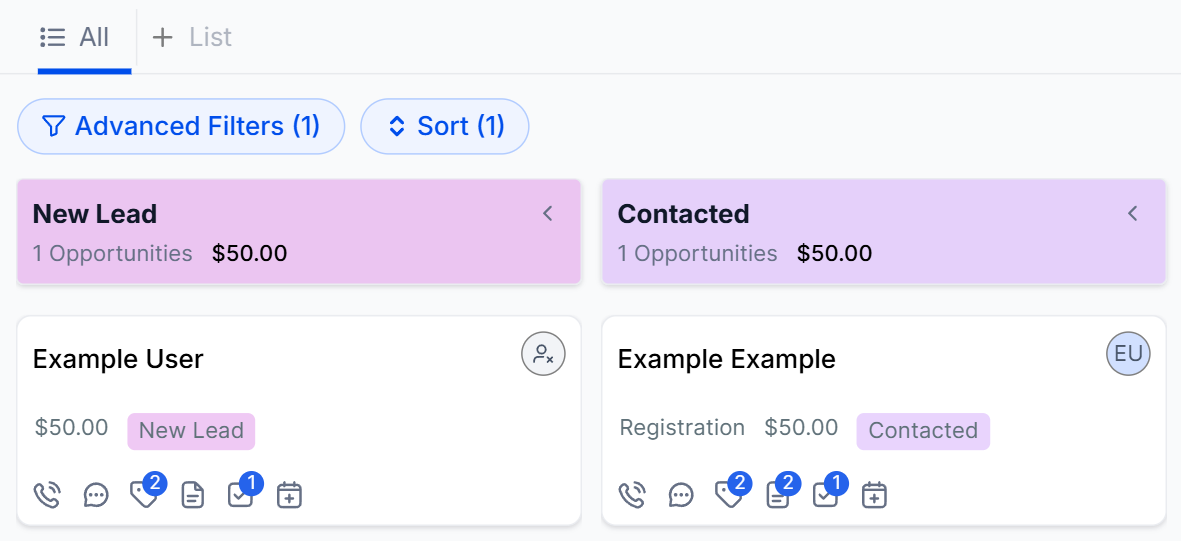
Color Coding: Stage colors now reflect across key views, such as Kanban, and record details, giving you better visual clarity across stages and deals.
⭐️How To Add Color To Your Pipelines?
Let's learn how to color-code stages with this feature!
Begin by editing or creating a new pipeline.
Select the colored dot or background tint view.
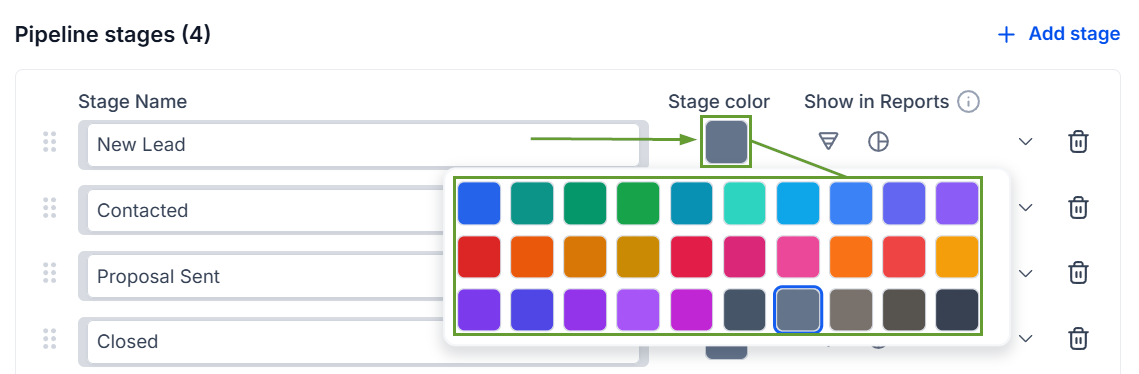
Click the colored square next to a stage and assign your desired color.
Once you’re ready, click Create or Update to save your changes.
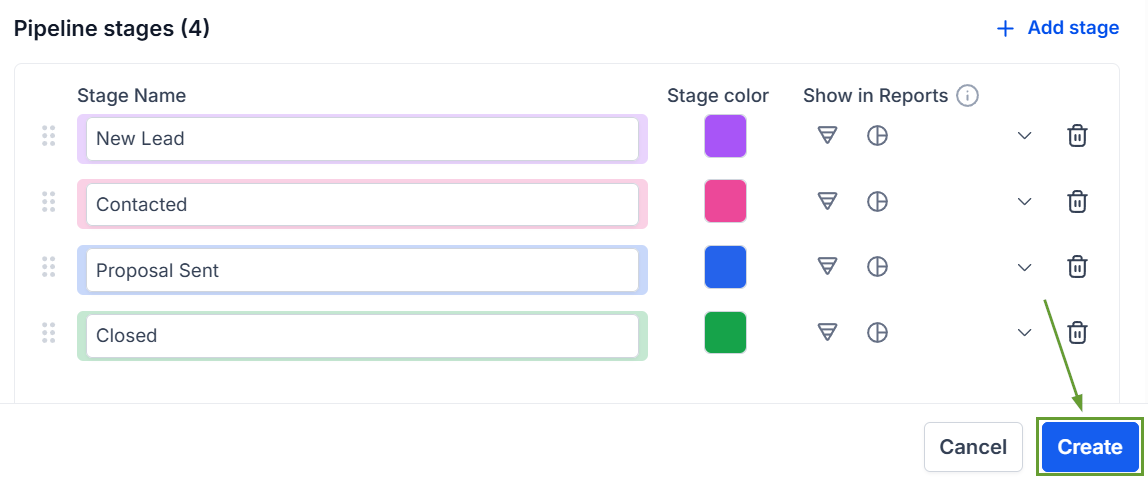
All users see the same stage color configuration, making it easier to scan pipelines and prioritize important work consistently across views. We hope you enjoy it!
