Stay Up To Date
We believe in keeping you in the loop with all the latest happenings in our courses and system. On this page, you'll find a comprehensive log of all the exciting changes, improvements, and additions we make to our courses and system. Whether it's a new feature, a course enhancement, or a system update, we've got you covered. Bookmark this page and check back regularly. We're committed to ensuring that your learning experience remains exceptional and that you have all the information you need to succeed.

New Features

New Updates

Resources & Tools

Important Updates
Here are some of the most recent updates we thought would be helpful to take note of

Improved Feature: Notes in Contacts
The Notes tab allows you to record additional information for each contact, making it easy to note details and follow through. We’ve updated them to boost their power and make them more structured, searchable, and actionable. Let's check the changes!
⭐️How Will These Changes Affect You?:
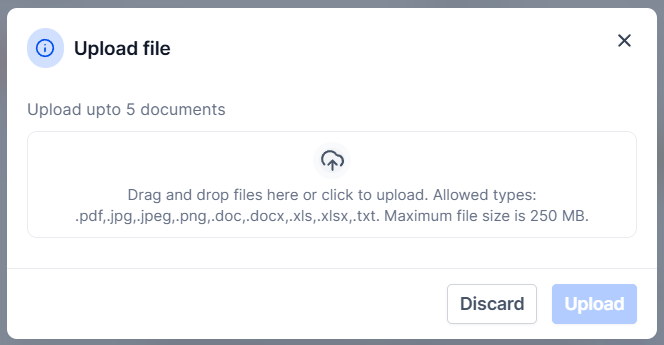
File Attachments: Add supporting documents directly to notes with support for up to 5 documents per note.
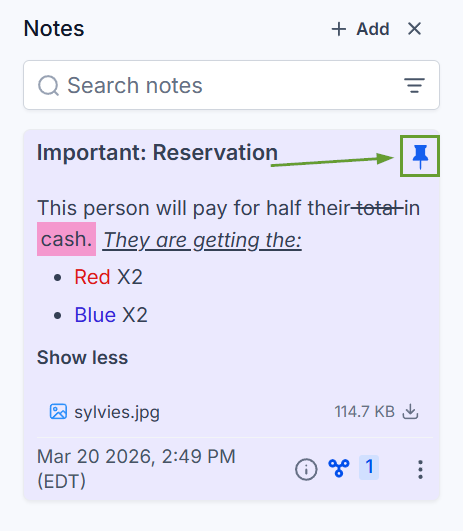
Pin Notes: Keep critical notes fixed at the top of the timeline. A maximum of 2 notes can be pinned.
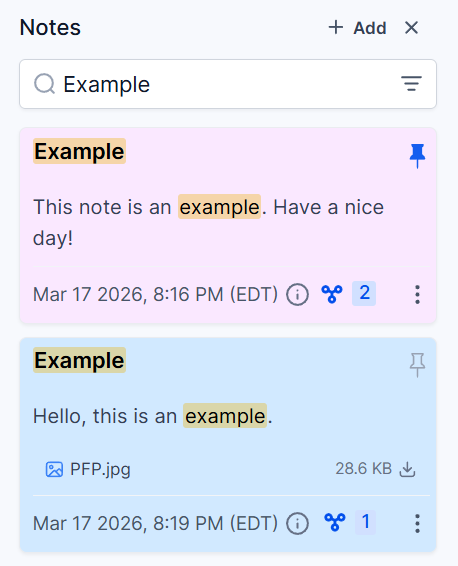
Search Functionality: The search functionality allows you to filter results to ones containing your keywords in the title or the description.
⭐️How To Add A Note To A Contact?
This update adds a few steps to note-taking in the CRM, so let’s learn how to do it!
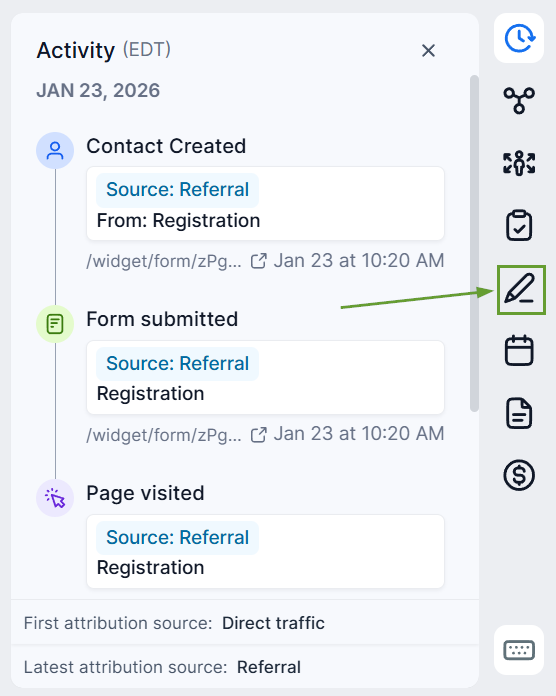
Locate your desired contact in either the Contacts or Conversations section and click the pencil icon to open the notes section.
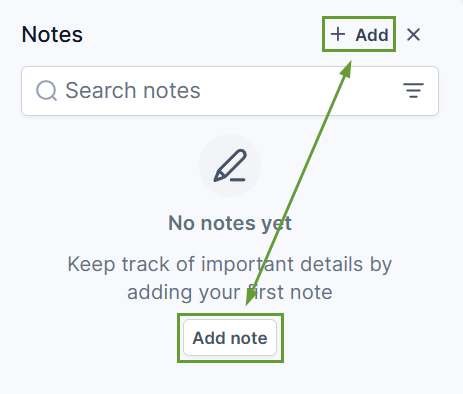
Click + Add or, if this is your first note, click Add note to open the builder.
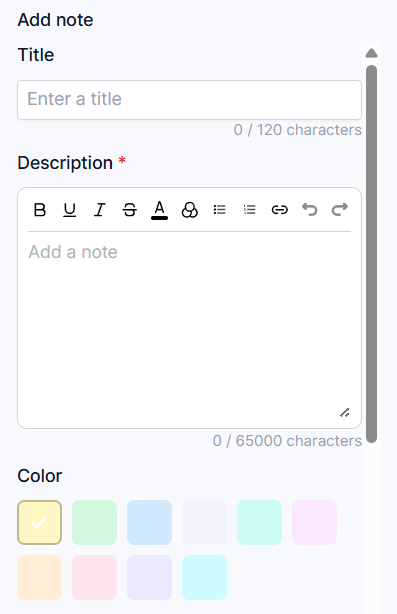
Fill out the title and description, select a color for your note, and add any attachments or associations needed.
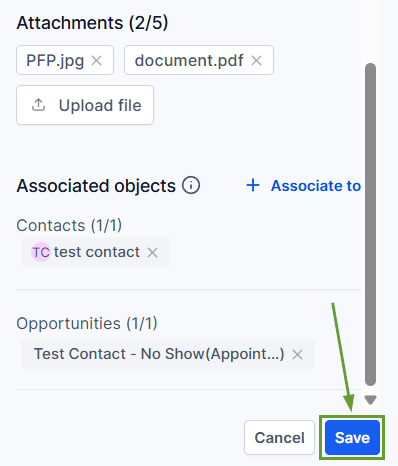
Once satisfied with your note, click Save in the bottom-right corner.
With this update, you can easily add extra information to your contacts, color-code it as needed, and sort the results. Making it easy to fulfil customer promises and remember details. We hope you enjoy it!
