Stay Up To Date
We believe in keeping you in the loop with all the latest happenings in our courses and system. On this page, you'll find a comprehensive log of all the exciting changes, improvements, and additions we make to our courses and system. Whether it's a new feature, a course enhancement, or a system update, we've got you covered. Bookmark this page and check back regularly. We're committed to ensuring that your learning experience remains exceptional and that you have all the information you need to succeed.

New Features

New Updates

Resources & Tools

Important Updates
Here are some of the most recent updates we thought would be helpful to take note of
New Feature: Notes for Custom Objects
Notes help you easily keep track of small details and special requirements, putting these points down in an accessible format so your teams always have the full picture right where they need it. And now, you can add them to your Custom Objects. Let's learn how to use them!
⭐️How To Add Notes For Custom Objects?
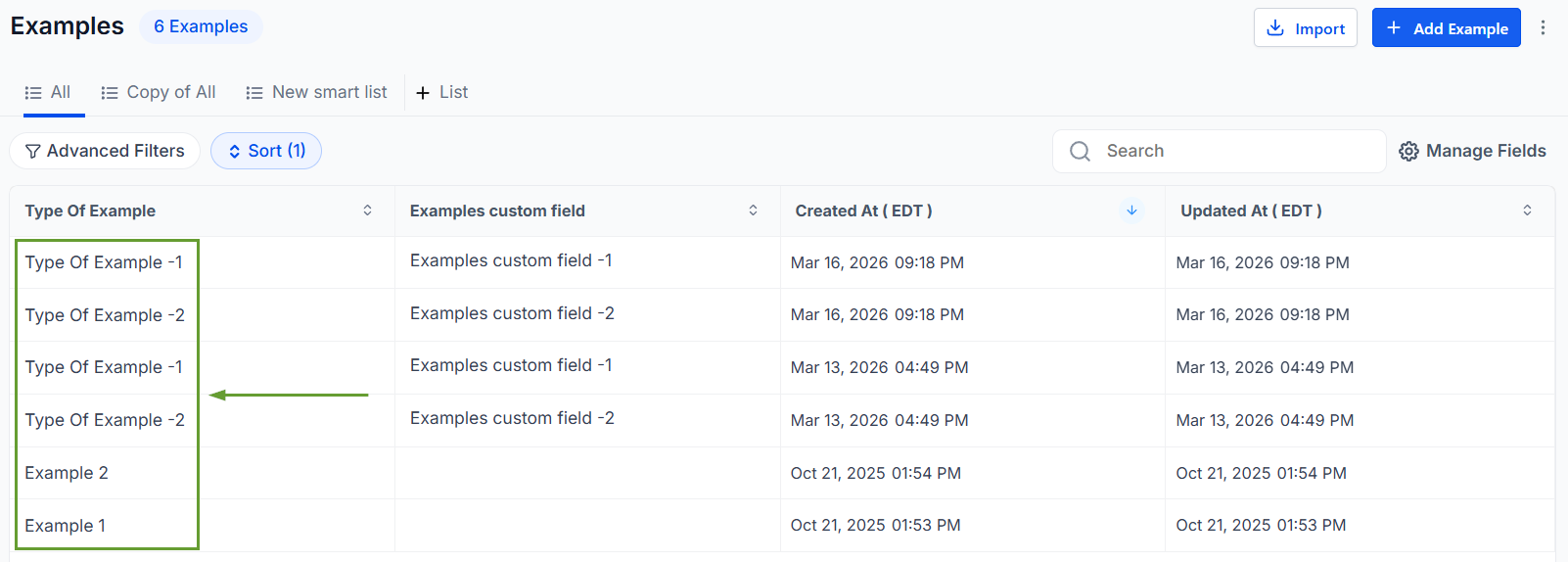
Head to Custom Objects and open any record.
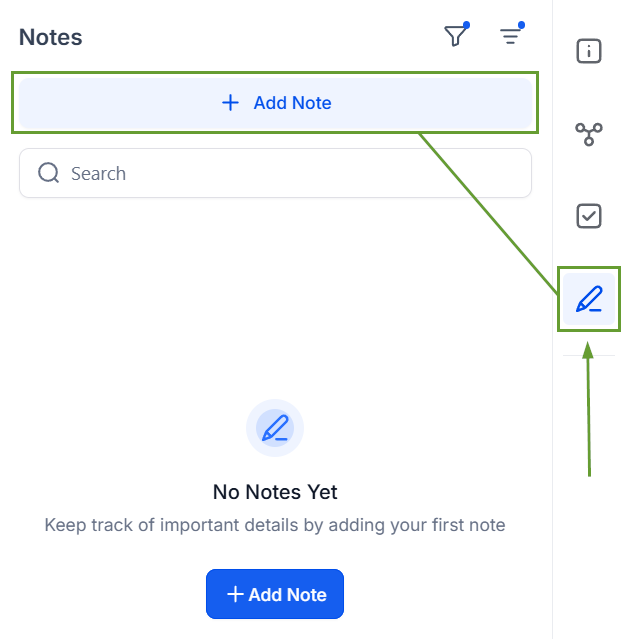
Open the Notes section and click Add Note.
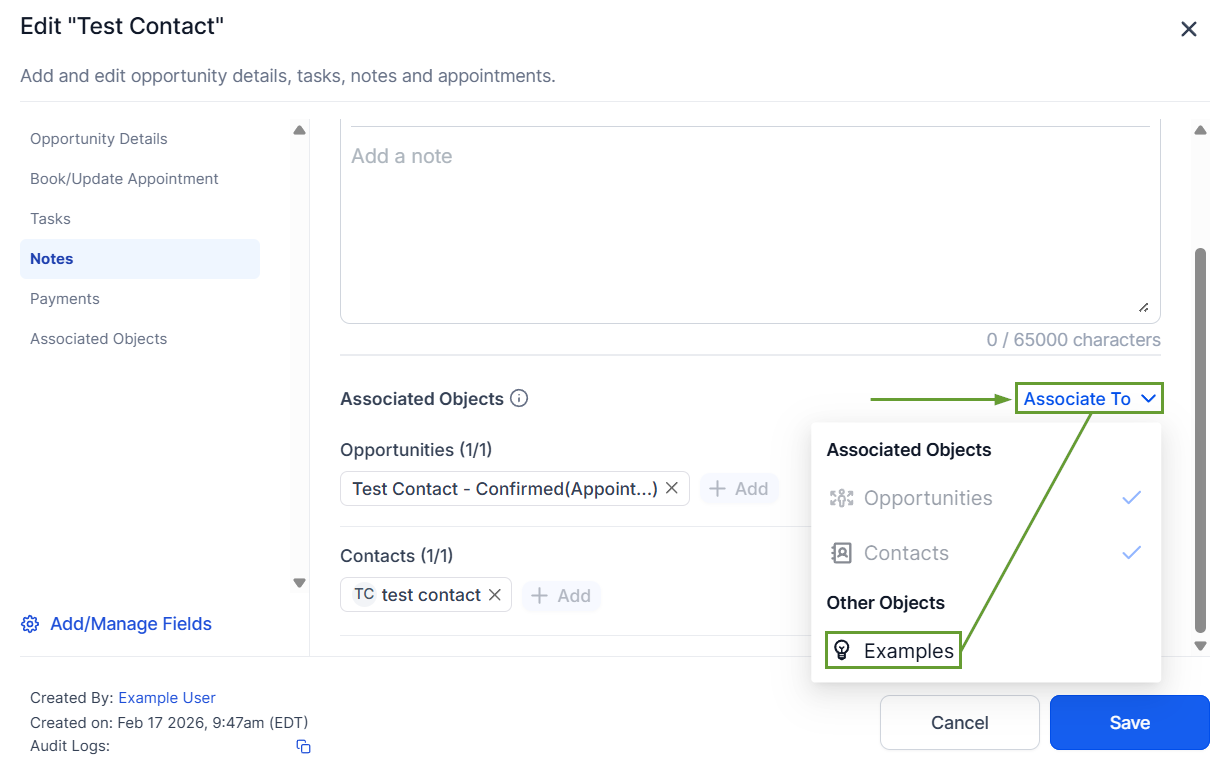
In Contact Notes, click “Associate To” then select the related Custom Object record.
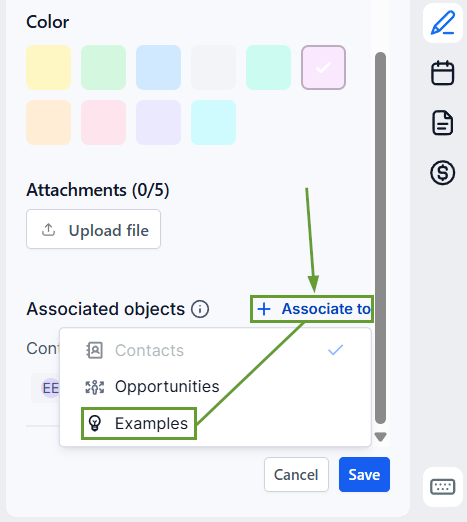
In Opportunity Notes, click “Associate To” then select the related Custom Object record.
⭐️Why Is This Feature Beneficial To Your Company?
Unified Experience: Notes for Custom Objects share the same interface and editor you’re already familiar with from Opportunities, making it easy to get used to.
Flexible Connections: Associate any existing or new note from a Contact or Opportunity to a related Custom Object record, keeping information accessible.
Smart Filtering & Search: You can quickly locate notes across objects using filters by entity, author, or keywords, as well as the search bar, allowing for direct results.
This brings greater clarity and efficiency to your workflow by keeping all relevant notes tied to their specific data entities and not scattered across unrelated records. We hope you enjoy it!
