Stay Up To Date
We believe in keeping you in the loop with all the latest happenings in our courses and system. On this page, you'll find a comprehensive log of all the exciting changes, improvements, and additions we make to our courses and system. Whether it's a new feature, a course enhancement, or a system update, we've got you covered. Bookmark this page and check back regularly. We're committed to ensuring that your learning experience remains exceptional and that you have all the information you need to succeed.

New Features

New Updates

Resources & Tools

Important Updates
Here are some of the most recent updates we thought would be helpful to take note of
Improved Feature: Conditional Visibility Improvements in Email Builder
Conditional Visibility is now more flexible and easier to manage with support for layouts and value-based conditions. Let's check the improvements and how they work!
⭐️How Do These Changes Affect You?:
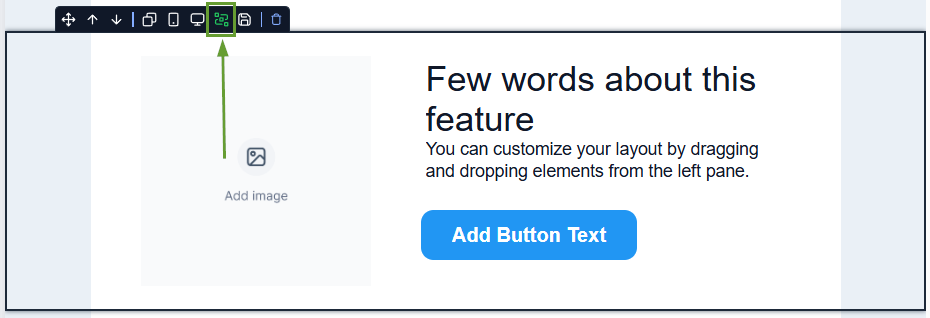
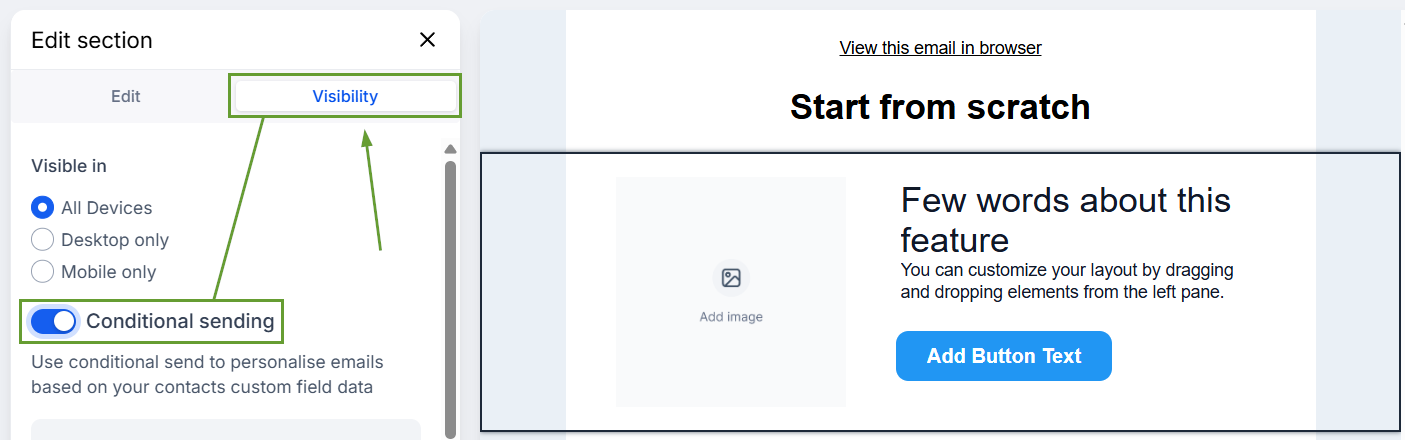
Visibility Rules for Layouts: Layouts now include a dedicated Visibility tab alongside Edit, so you can apply conditional visibility to the entirety instead of configuring each element individually.
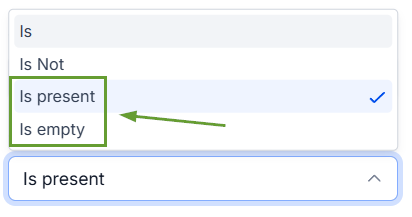
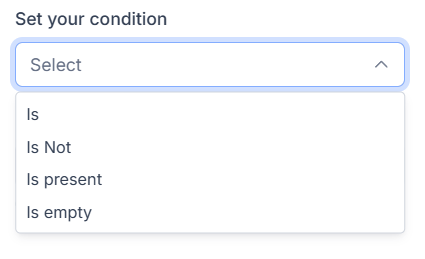
Value-Based Operators: Added IS EMPTY and IS PRESENT operators for more dynamic conditions.
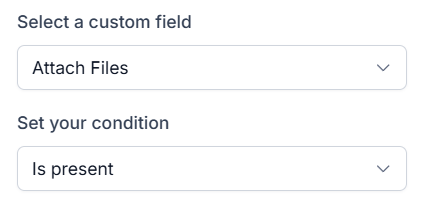
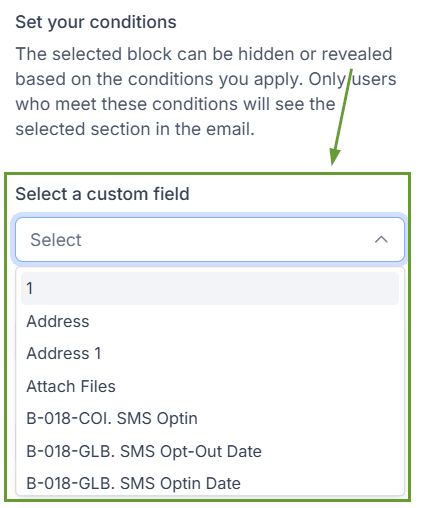
Visibility Options: All custom fields, including attachment fields, are now supported in the conditional visibility dropdown.
⭐️How To Configure Conditional Visibility?
Let’s go over how to configure conditional visibility for entire layouts!
Select any layout or element inside the email builder, then open the Visibility tab and enable Conditional Sending.
Choose the field you want to evaluate.
Select a conditional statement.
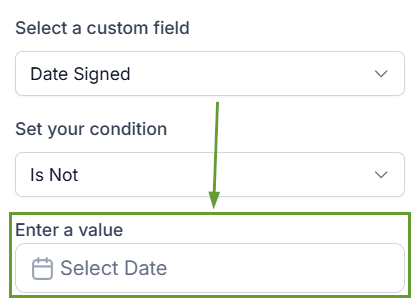
Set the required value, if applicable, and save.
This enables cleaner handling of empty or missing field values, eliminates repetitive rule setup across multiple elements, and makes Conditional Visibility significantly more powerful. We hope you enjoy it!
