Stay Up To Date
We believe in keeping you in the loop with all the latest happenings in our courses and system. On this page, you'll find a comprehensive log of all the exciting changes, improvements, and additions we make to our courses and system. Whether it's a new feature, a course enhancement, or a system update, we've got you covered. Bookmark this page and check back regularly. We're committed to ensuring that your learning experience remains exceptional and that you have all the information you need to succeed.

New Features

New Updates

Resources & Tools

Important Updates
Here are some of the most recent updates we thought would be helpful to take note of
Improved Feature: Nested Folders in Email Campaigns & Templates
Managing big content loads requires organization, which folders help you structure and maintain. Now, we’re growing this structure to allow you to be neater when juggling multiple clients, campaigns, or content types. Let's check these improvements out!
⭐️How Will These Changes Affect You?:
Template Organization: Use the folders to group related assets, keeping your templates easily accessible and streamlining your workflow when starting campaigns.
Campaign Management: You can create folders and sub-folders for campaigns to be sorted into hierarchical folder structures, ideal for teams managing large volumes of customers.
Multi-Layer Support: This release supports more than 5 layers of nesting for better organisation, with the folder path on top confirming the nesting structure.
⭐️How To Create A Nested Folder?
Let’s learn how to create a nested folder and how to move assets into it!
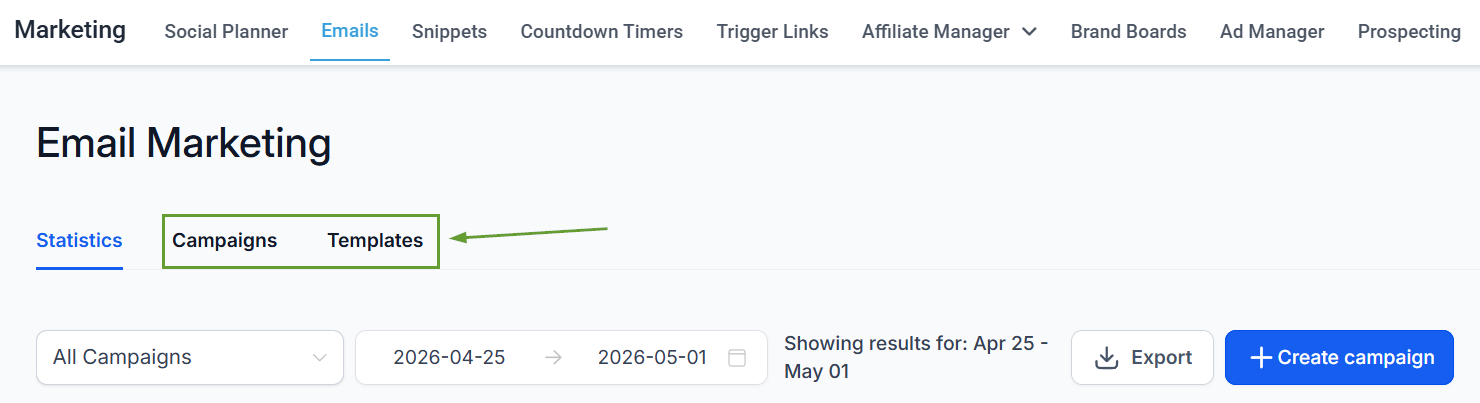
Navigate to the Email tab inside the Marketing section and access Campaigns or Templates.
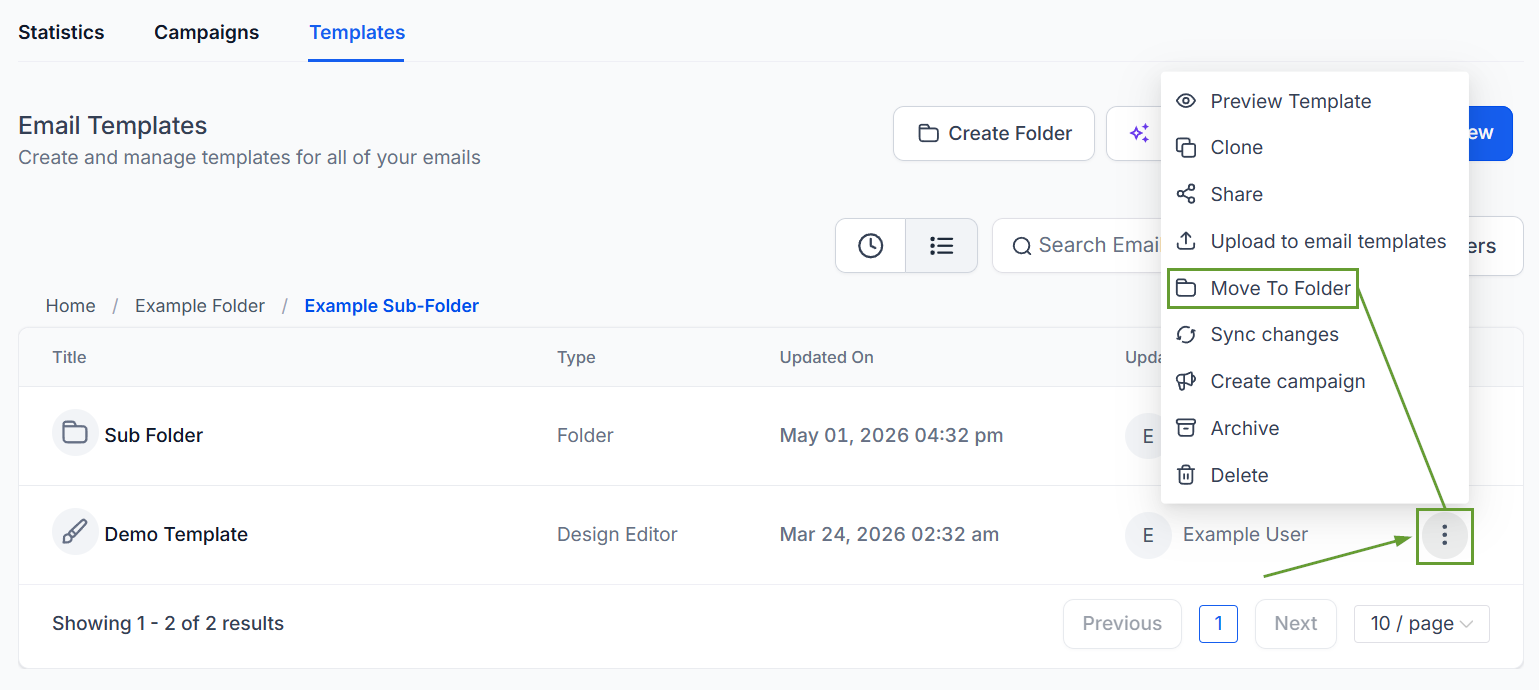
Click the three dots next to a campaign or template and select move to folder.
Select your Main Folder, then click New Folder.
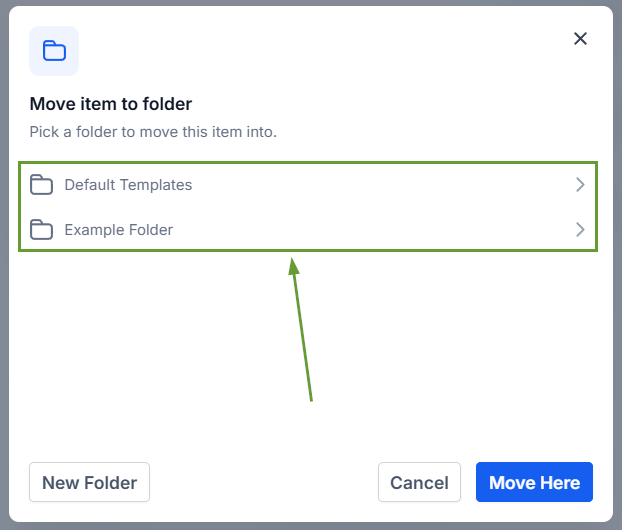
Enter the name of your nested folder, then click Move Here to relocate your asset.
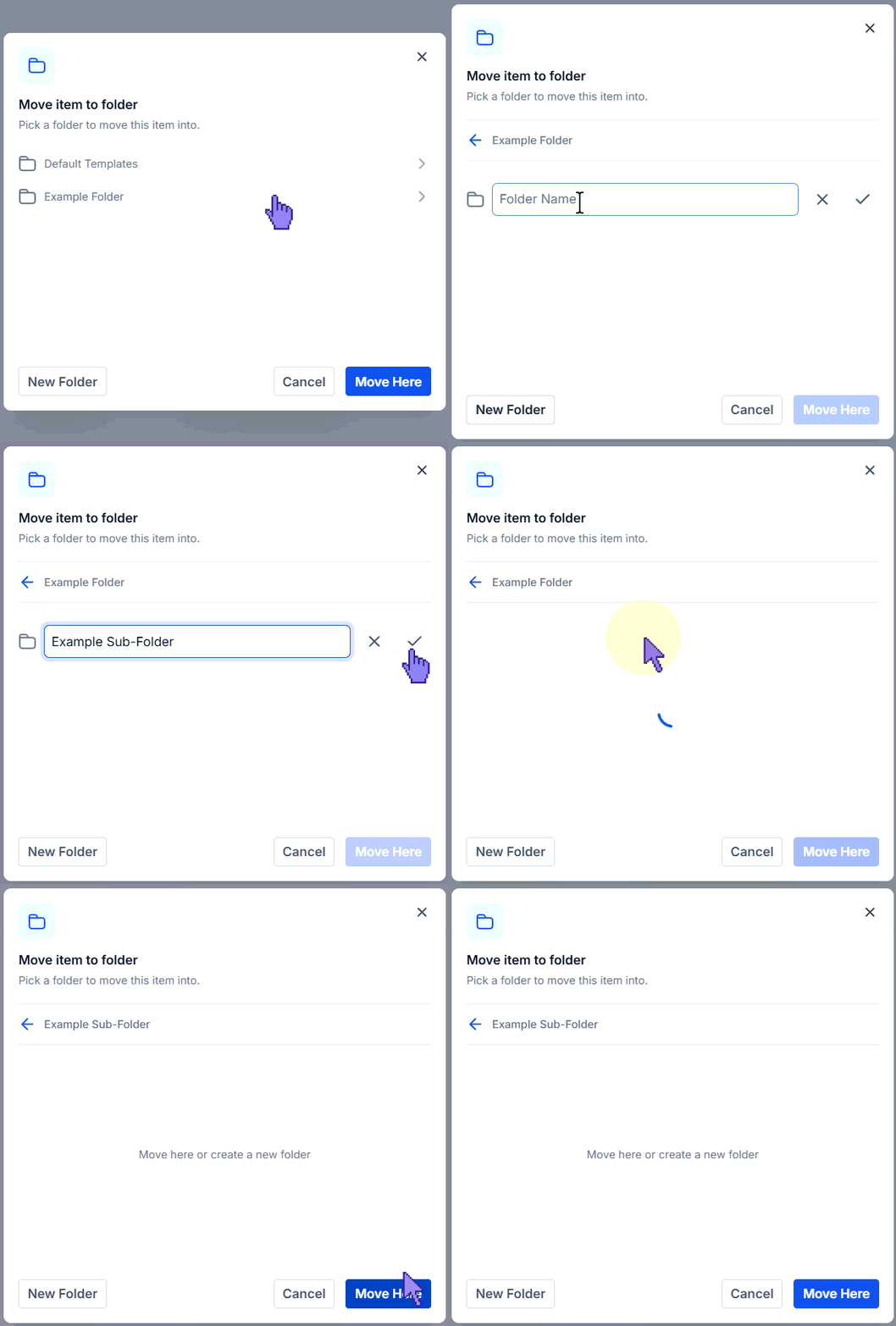
Additionally, you can click the New Folder button once inside an existing folder to create a nested folder directly. Helping you apply the same folder logic across Campaigns and Templates to keep your assets properly organized. We hope you enjoy it!
