Stay Up To Date
We believe in keeping you in the loop with all the latest happenings in our courses and system. On this page, you'll find a comprehensive log of all the exciting changes, improvements, and additions we make to our courses and system. Whether it's a new feature, a course enhancement, or a system update, we've got you covered. Bookmark this page and check back regularly. We're committed to ensuring that your learning experience remains exceptional and that you have all the information you need to succeed.

New Features

New Updates

Resources & Tools

Important Updates
Here are some of the most recent updates we thought would be helpful to take note of
New Feature: Multi-Board Publishing in Pinterest
Pinterest boards create content compilations that user will view based on their searches, making it really helpful to add the same content to different boards. Which is easier than ever, thanks to Multi-Board Selection. Let’s learn how to use this new feature!
⭐️ How To Post To Multiple Pinterest Boards From The Social Planner?
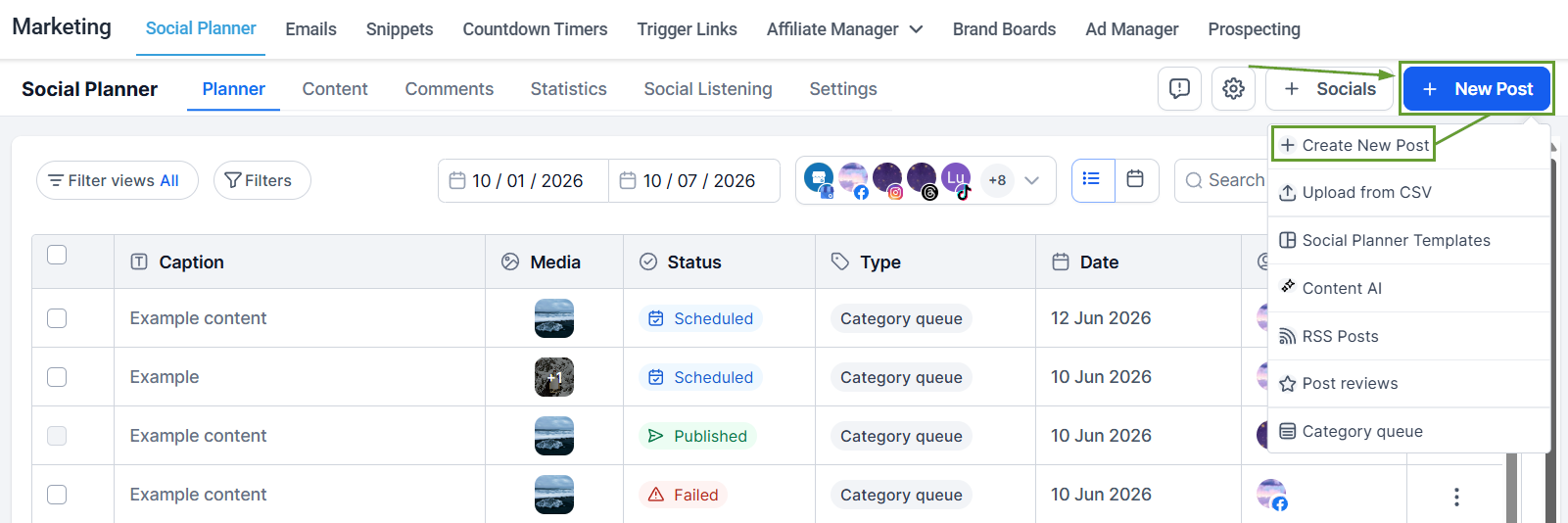
Inside the Social Planner tab of the Marketing section, create a new post.
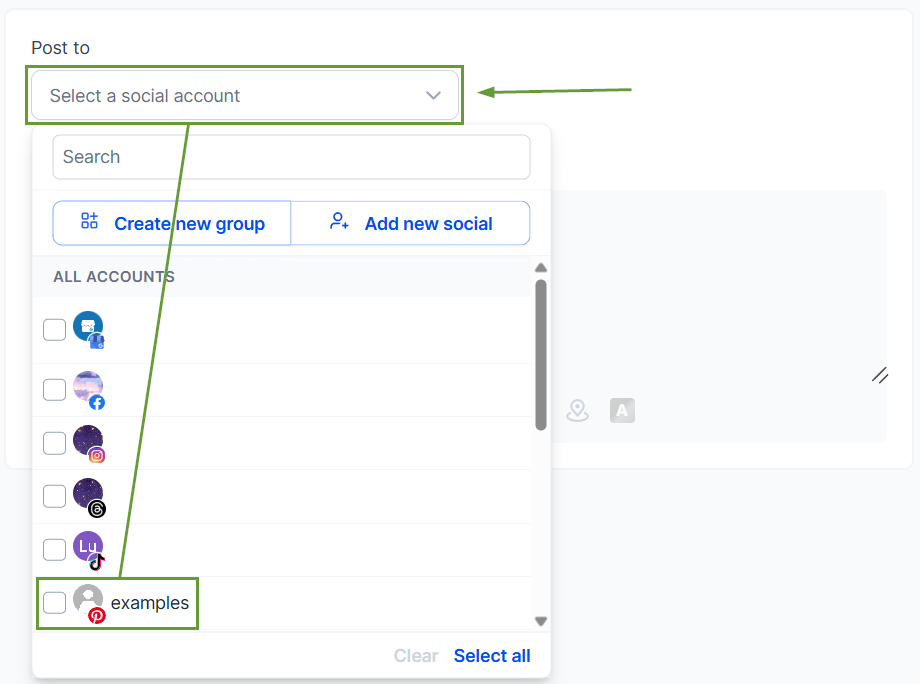
Select your Pinterest account(s), then scroll to Pinterest Options.
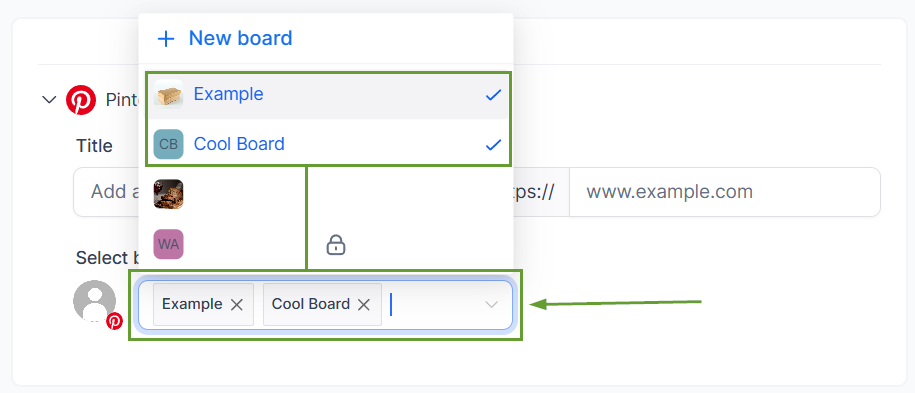
Choose your boards from the Boards selector.
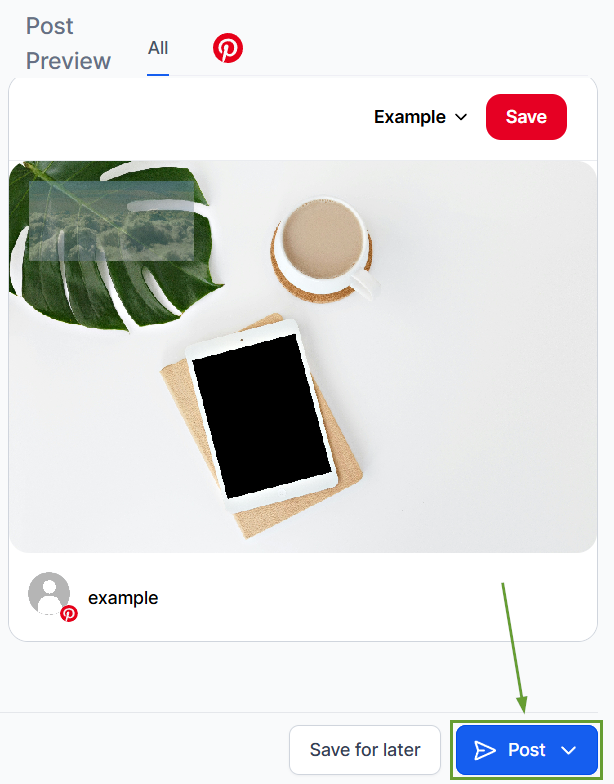
Once your content is ready, click Post to schedule or publish it.
⭐️Why Is This Feature Beneficial To Your Company?
Multi-Board Selection: You can select up to 25 Pinterest boards in a single post, with the selected boards pinned at the top for quick access, and multi-account support.
Independent Publishing: Every selected board creates its own published pin, preventing a board’s failure from affecting others and maintaining analytics separation.
Improved Post Reach: Connect with wider audiences without increased labor by saving a pin to various relevant boards. That way, you expose it to distinct audiences and improve its discoverability.
With Multi-Board Selection, you can use a single composition to create content in multiple boards. Eliminating repetitive work without losing presence. We hope you enjoy it!
