Stay Up To Date
We believe in keeping you in the loop with all the latest happenings in our courses and system. On this page, you'll find a comprehensive log of all the exciting changes, improvements, and additions we make to our courses and system. Whether it's a new feature, a course enhancement, or a system update, we've got you covered. Bookmark this page and check back regularly. We're committed to ensuring that your learning experience remains exceptional and that you have all the information you need to succeed.

New Features

New Updates

Resources & Tools

Important Updates
Here are some of the most recent updates we thought would be helpful to take note of

Improved Feature: Load Chat Widget on User Interaction
We’ve added a new toggle inside the Chat Window tab under Additional Options. To help reduce blocking time and improve user experience, especially on mobile devices. Giving you more flexibility in balancing performance and customer engagement. Let's check it!
⭐️How Do These Changes Affect You?:
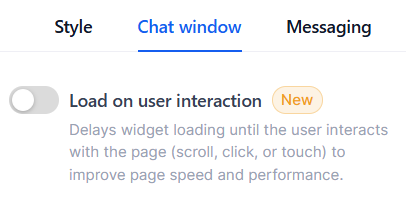
Chat Load Options: Choose how the Widget is deployed, either after a customer scrolls, clicks, or touches something on your page, or automatically by not toggling the option on.
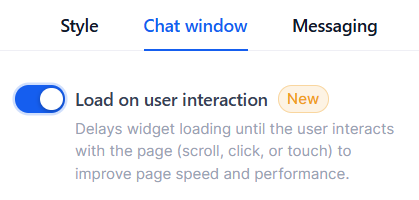
Fallback Behaviour: If the toggle is disabled or not configured, the chat widget loads immediately as per existing behaviour.
⭐️How To Enable Load Chat Widget on User Interaction?
Let’s go over how to enable the “Load Chat Widget on User Interaction” option!
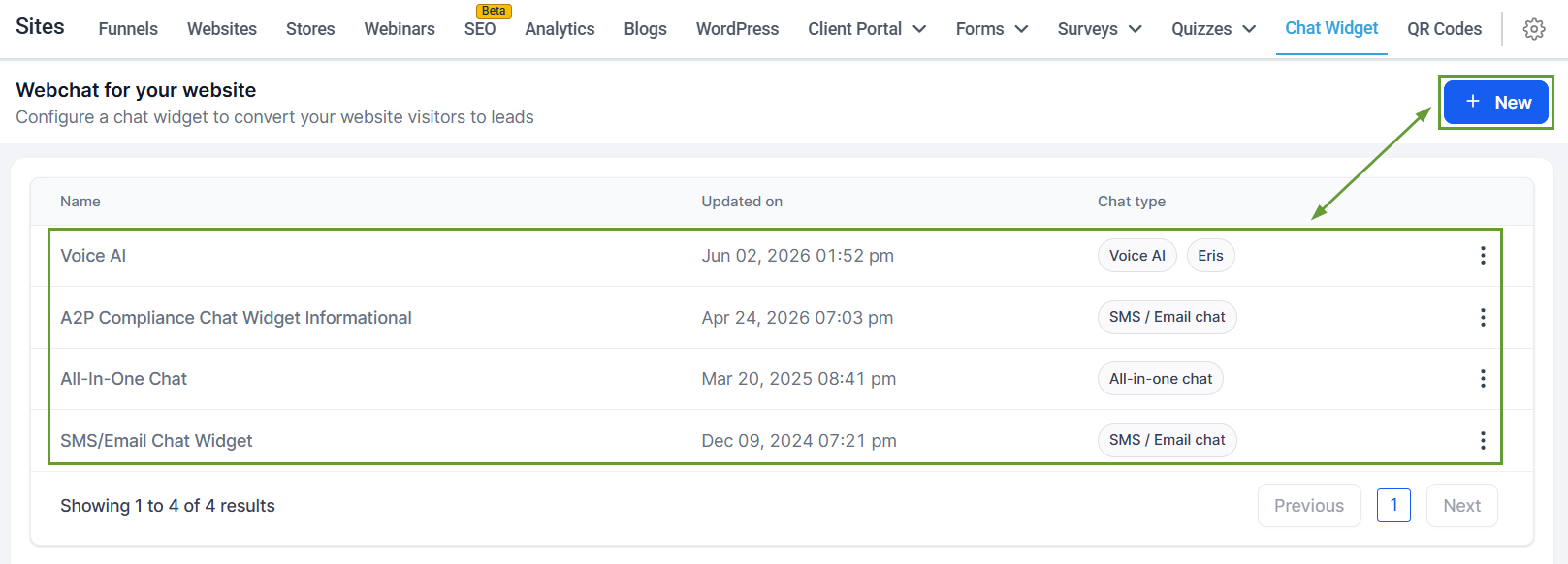
Navigate to the Chat Widget tab inside the Sites section and create or edit a widget.
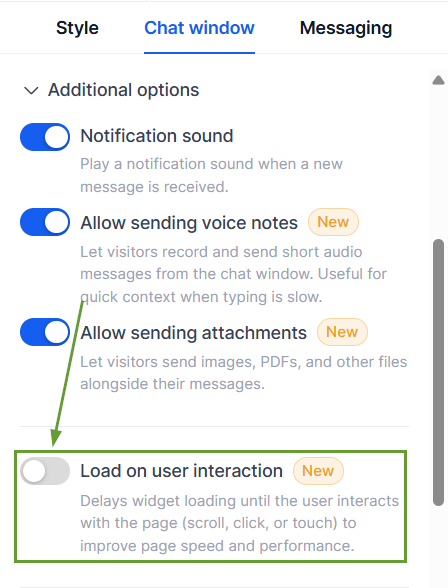
Open the Chat Window tab, and under Additional Options, enable the “Load on user interaction” toggle.
Click Save in the top right corner.
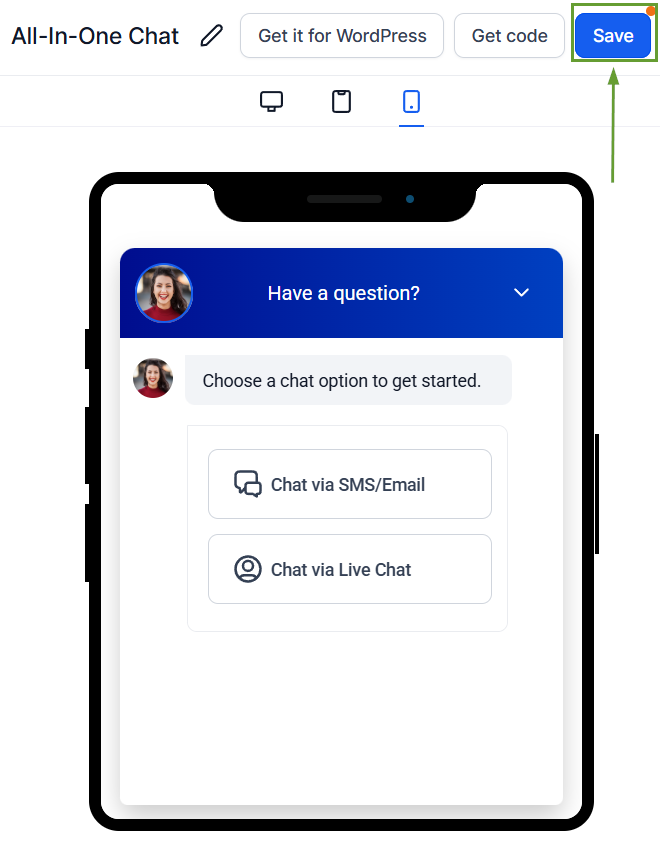
Once enabled, the widget will load only after a visitor interaction. If no interaction occurs, the widget automatically loads after an 8-second fallback delay.
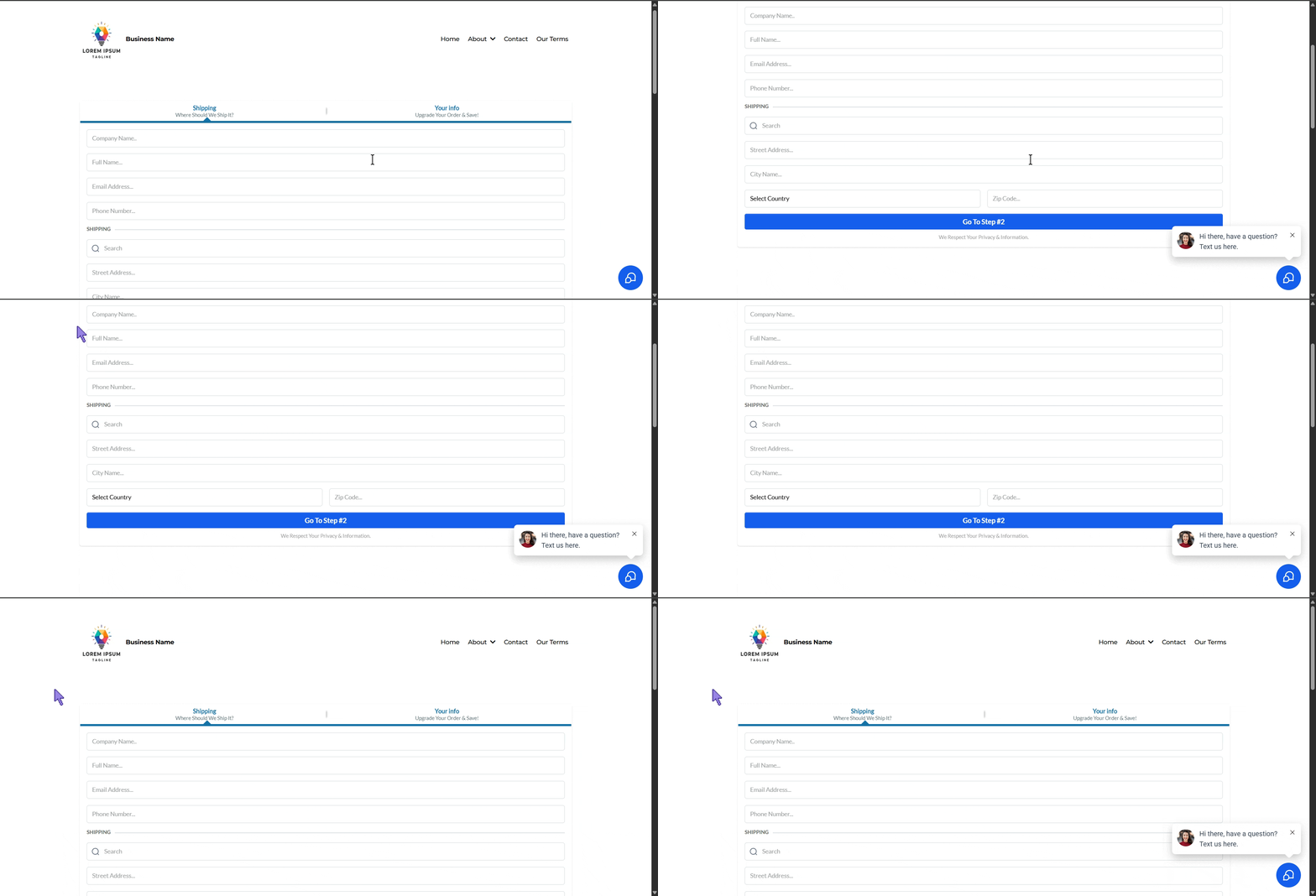
Enabling this option helps improve initial website performance, reduces unnecessary widget load during page rendering, and ensures the widget remains available for genuine visitors. We hope you enjoy it!
