Stay Up To Date
We believe in keeping you in the loop with all the latest happenings in our courses and system. On this page, you'll find a comprehensive log of all the exciting changes, improvements, and additions we make to our courses and system. Whether it's a new feature, a course enhancement, or a system update, we've got you covered. Bookmark this page and check back regularly. We're committed to ensuring that your learning experience remains exceptional and that you have all the information you need to succeed.

New Features

New Updates

Resources & Tools

Important Updates
Here are some of the most recent updates we thought would be helpful to take note of
Improved Feature: Keyword Management for Google Ads in Ad Manager
Managing large keyword lists is now significantly faster. We’ve made keyword management in Google Ads campaigns faster and more flexible, allowing you to add multiple keywords at once, paste values, and more. Let’s learn what has changed!
⭐️How Do These Changes Affect You?
Improved Text Management: Added a larger text area to make it easier to work with multiple keywords, and we’ve removed the previous 40-keyword limit for both Positive and Negative Keywords.
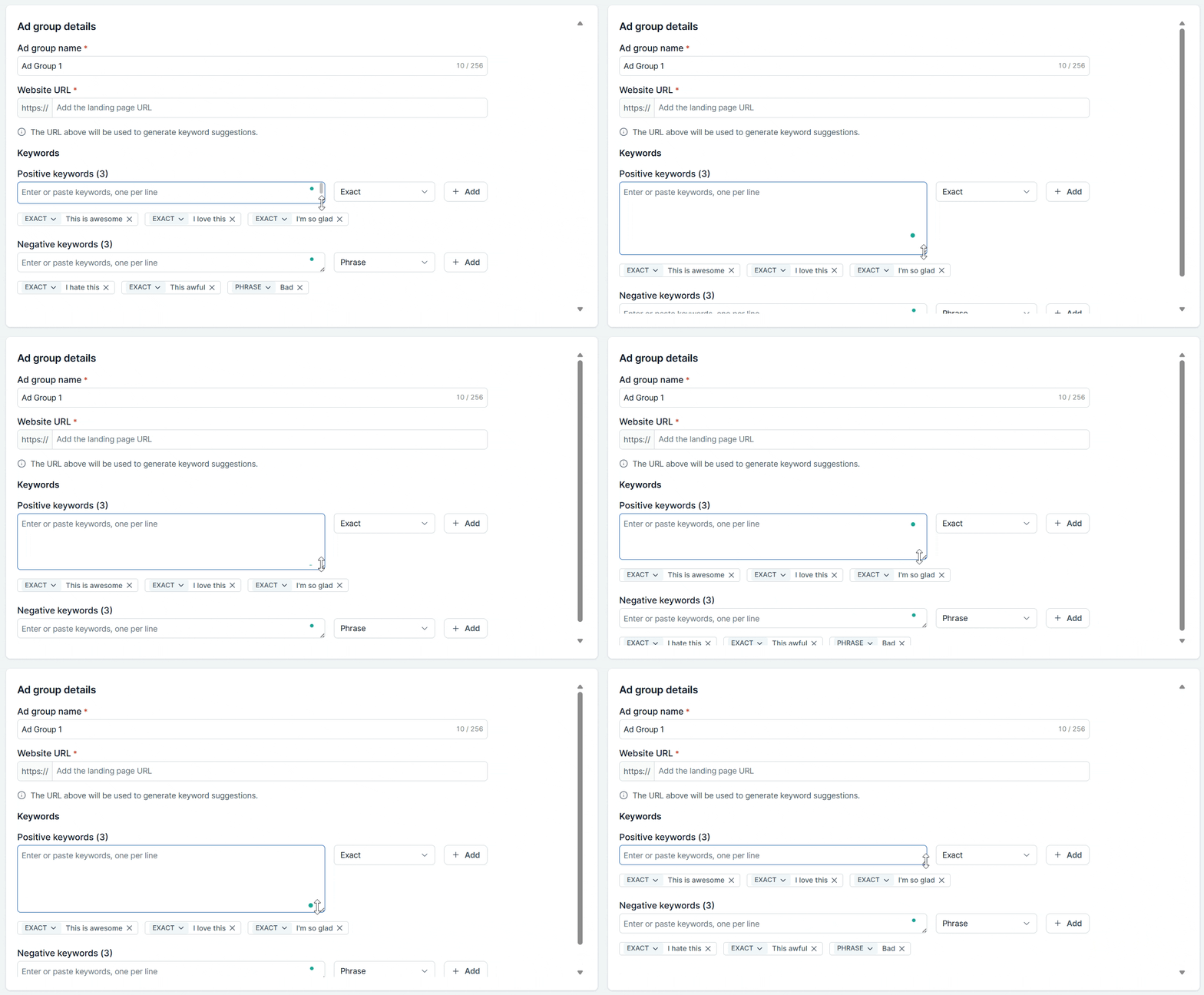
Bulk Keyword Addition: You can now bulk-paste keywords instead of adding them one by one. Bulk paste supports keywords separated by new lines or commas.
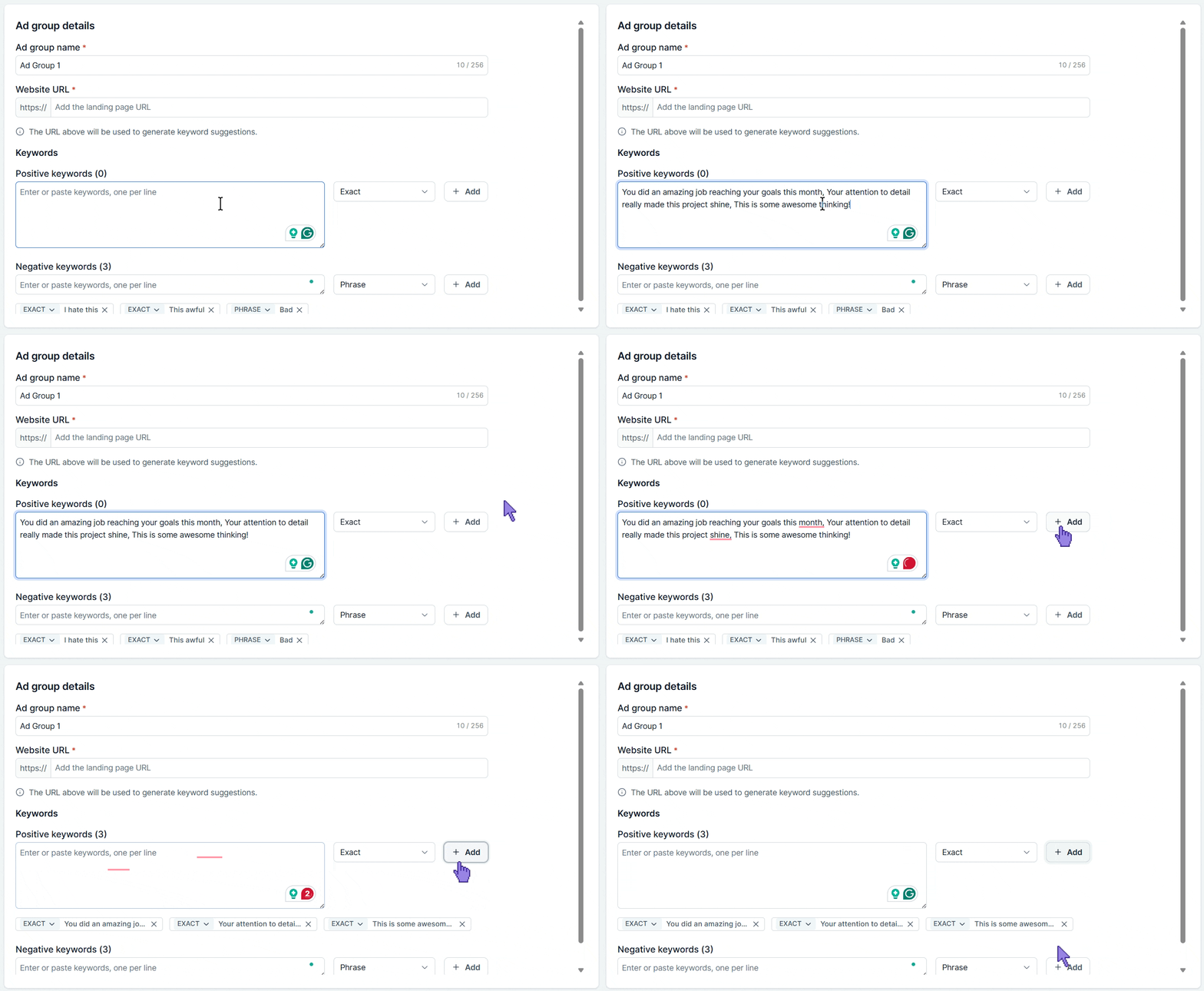
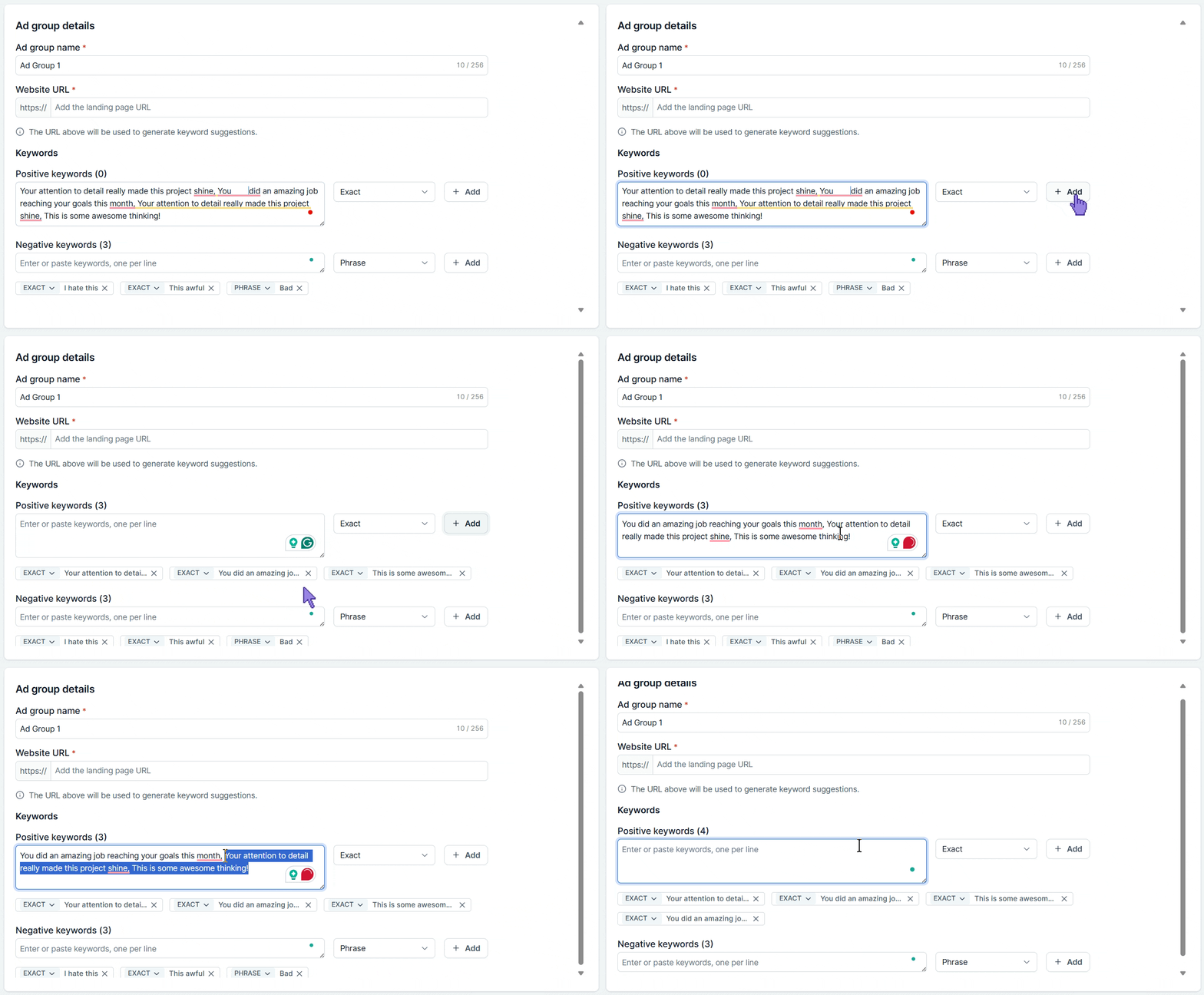
Automated Issue Correction: Duplicate keywords and extra blank spaces are automatically cleaned up for ease of addition.
⭐️How To Manage Keywords in Google Ads?
Let’s learn how to add positive and negative keywords to your Google Ads management!
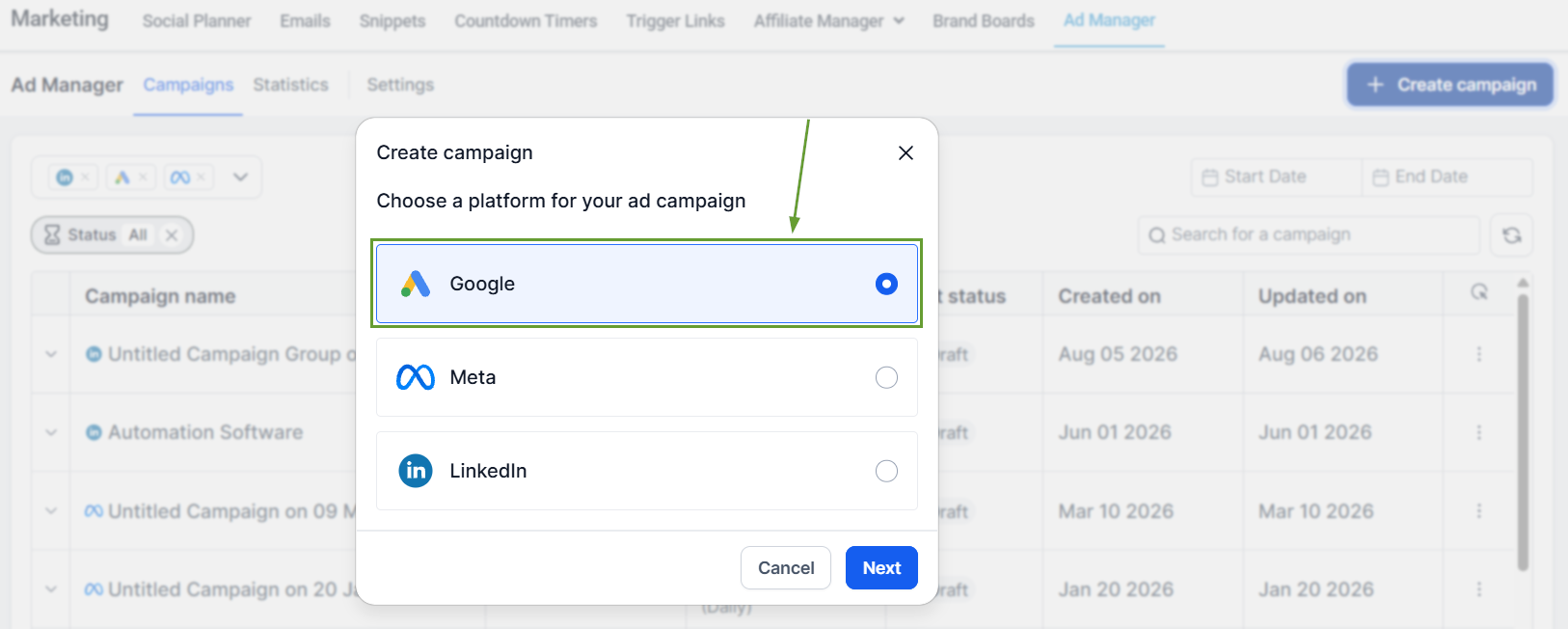
In the Ad Manager, create a Google Campaign.
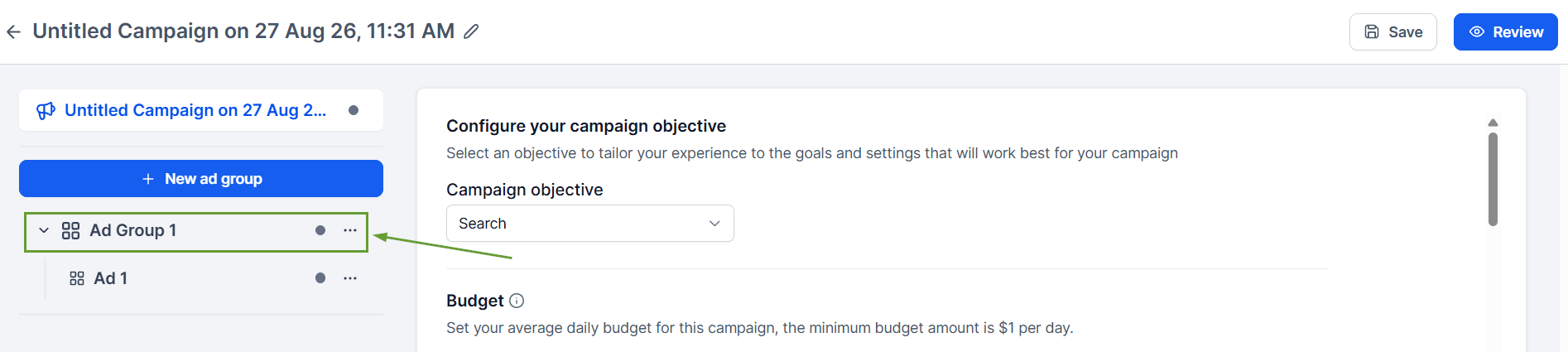
Head to the Ad Group.
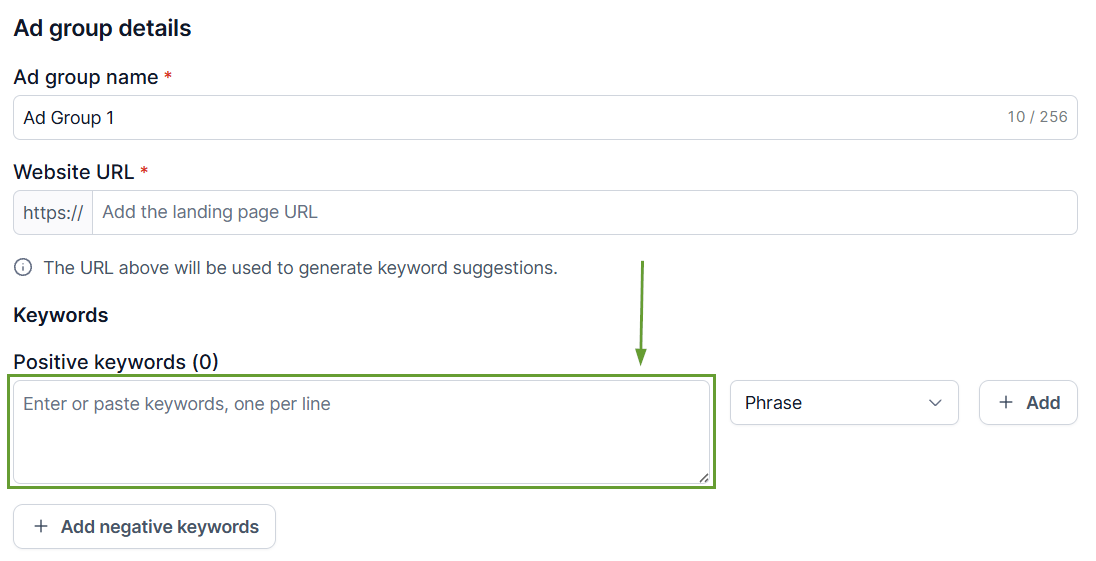
Type or paste multiple keywords into the keyword field, separate keywords using new lines or commas.
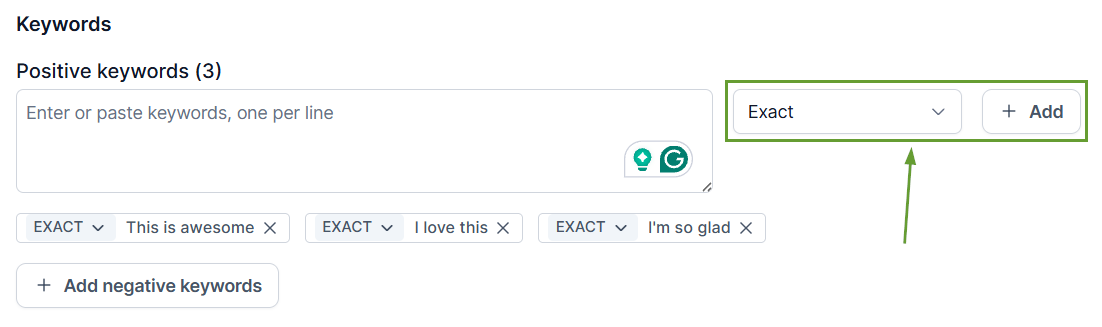
Select the desired match type and click Add.
You can bring existing keyword lists in one go, reduce repetitive manual entry, and build more comprehensive Google Search campaigns without being restricted by the previous 40-keyword limit. We hope you enjoy it!