Stay Up To Date
We believe in keeping you in the loop with all the latest happenings in our courses and system. On this page, you'll find a comprehensive log of all the exciting changes, improvements, and additions we make to our courses and system. Whether it's a new feature, a course enhancement, or a system update, we've got you covered. Bookmark this page and check back regularly. We're committed to ensuring that your learning experience remains exceptional and that you have all the information you need to succeed.

New Features

New Updates

Resources & Tools

Important Updates
Here are some of the most recent updates we thought would be helpful to take note of
Improved Feature: Tags
Tags are now easier to organize, identify, and manage with tag categories and customizable tag colors. You can group related tags into categories and assign colors to make tags easier to recognize across your account. Let's check the improvements!
⭐️What Has Changed With This Update?:
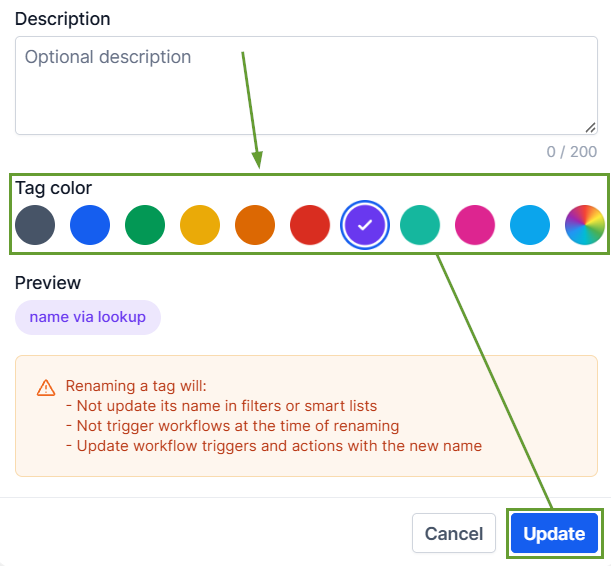
Color-Coded Tags: Assign a color to each tag for easy identification. Choose from a predefined list of colors or use the color picker to select a custom color.
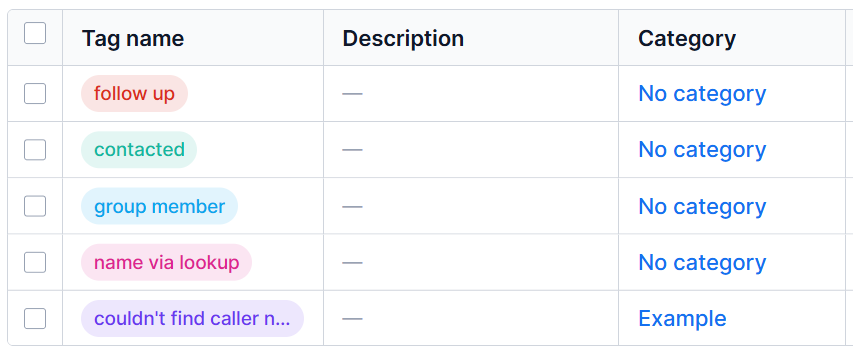
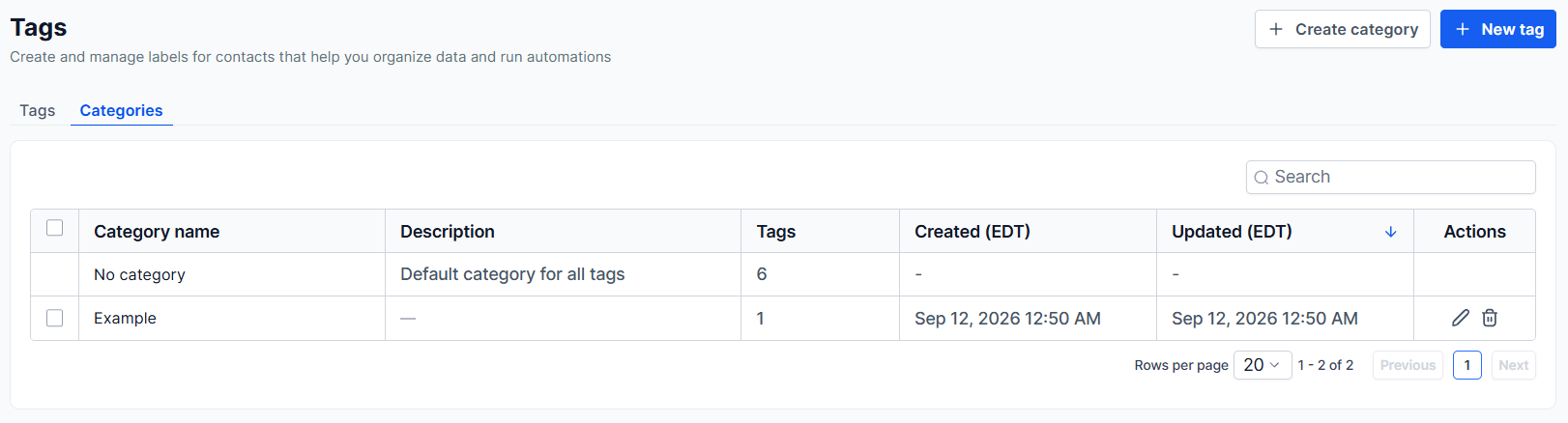
Category Organization: Create categories and group multiple tags under them for a structured way to manage related tags.
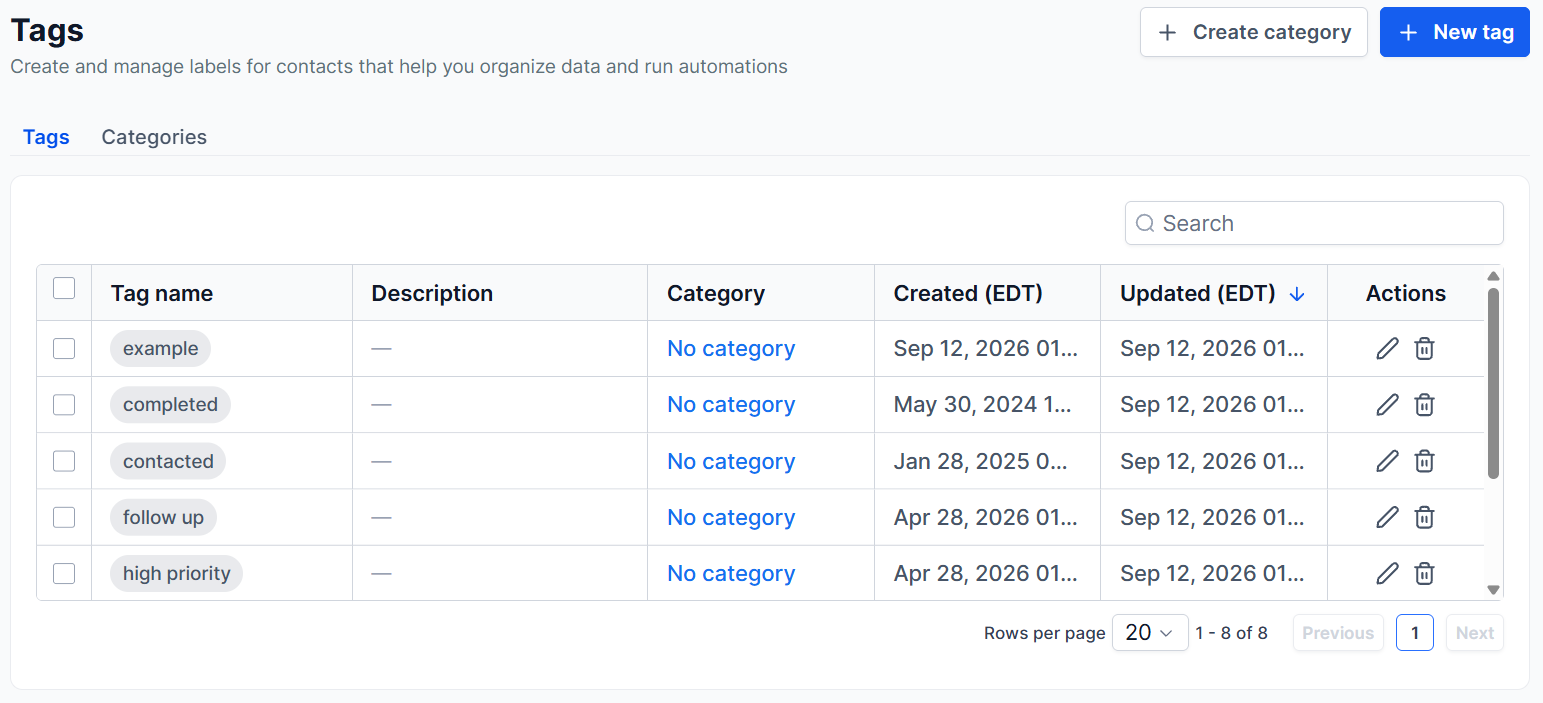
Default Behaviour: Existing tags will automatically appear in gray and will be placed under the No category category, so your current setup continues to work without any additional configuration.
⭐️How To Create Or Update A Tag?
Learn how to create and update tags after this update.
Head to the Tags section inside your account settings.
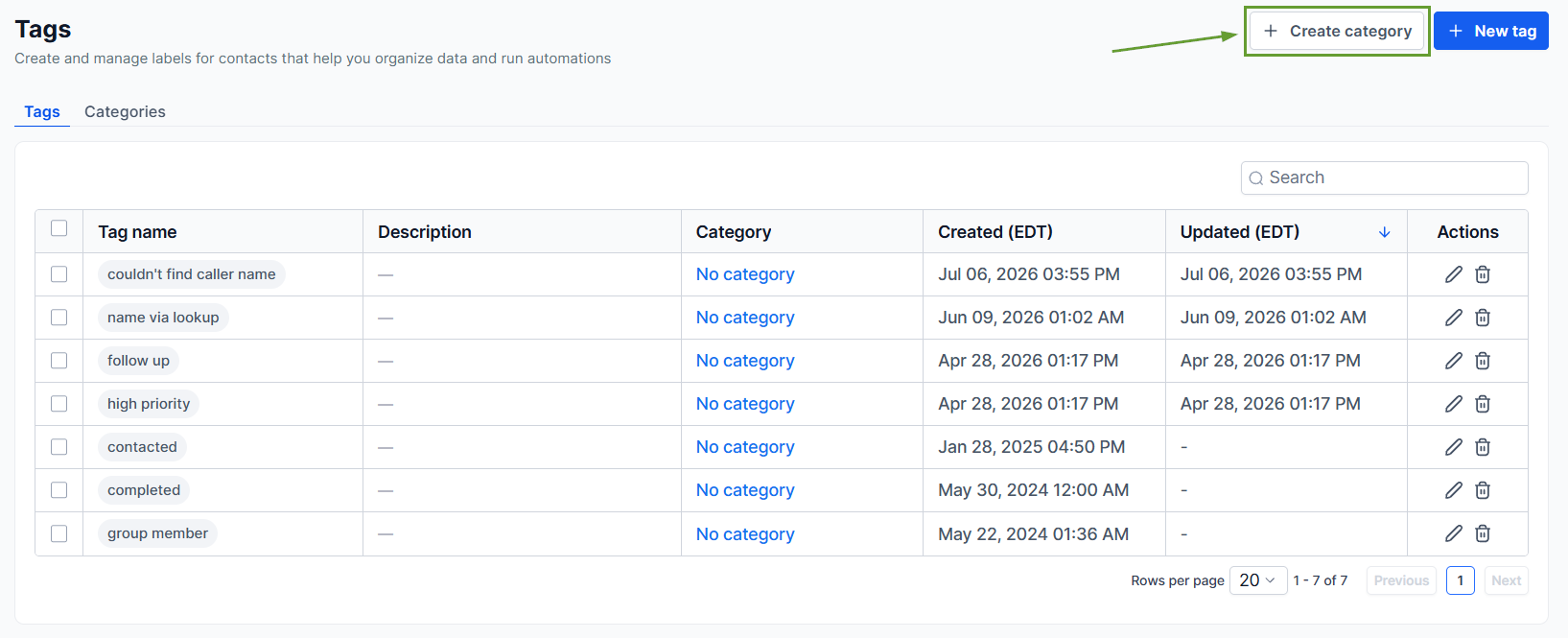
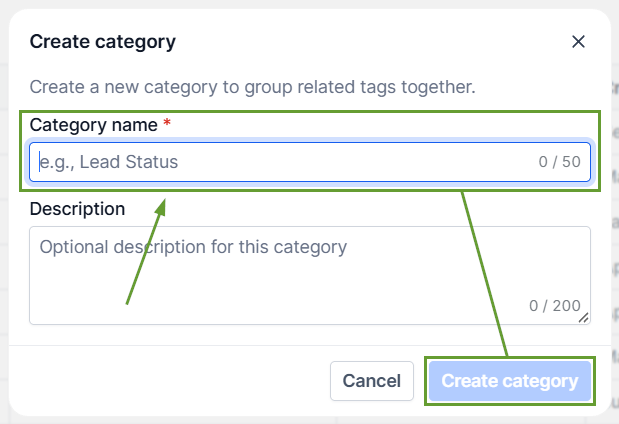
To create a Category, first click + Create Category, enter its name, then click Create Category.
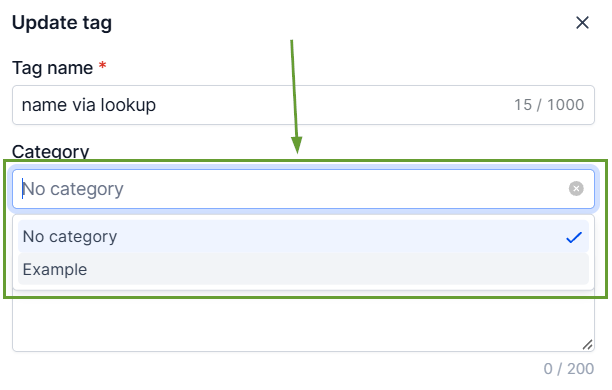
When creating or editing a Tag, select the category you want to include it in.
Pick an identifying color, then click Update or Save.
The added organization will help you keep your contacts and opportunities organized, providing more information at a glance while maintaining prior functionality. We hope you enjoy it!