Stay Up To Date
We believe in keeping you in the loop with all the latest happenings in our courses and system. On this page, you'll find a comprehensive log of all the exciting changes, improvements, and additions we make to our courses and system. Whether it's a new feature, a course enhancement, or a system update, we've got you covered. Bookmark this page and check back regularly. We're committed to ensuring that your learning experience remains exceptional and that you have all the information you need to succeed.

New Features

New Updates

Resources & Tools

Important Updates
Here are some of the most recent updates we thought would be helpful to take note of
Improved Feature: QR Codes
QR Codes help you bring offline customer interactions into your CRM. We want you to be able to do it smoothly, without digging through a gallery full of saved images, so you can now save QR codes directly to Apple Wallet or Google Wallet. Let’s learn how!
⭐️How Do These Changes Affect You?
Easy QR Identification: Wallet passes show useful details to help you understand the QR type, associated location, destination, and other relevant information.
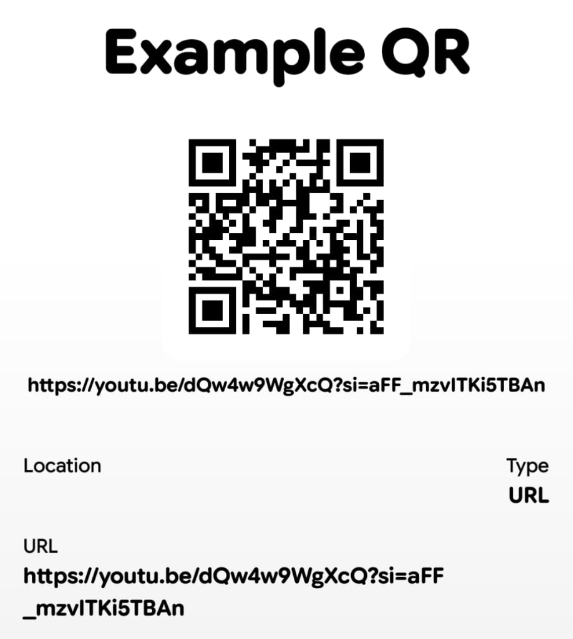
Wallet-Native Designs: QR code passes are designed specifically for each wallet, taking advantage of the configurations supported by Apple and Google Wallet.
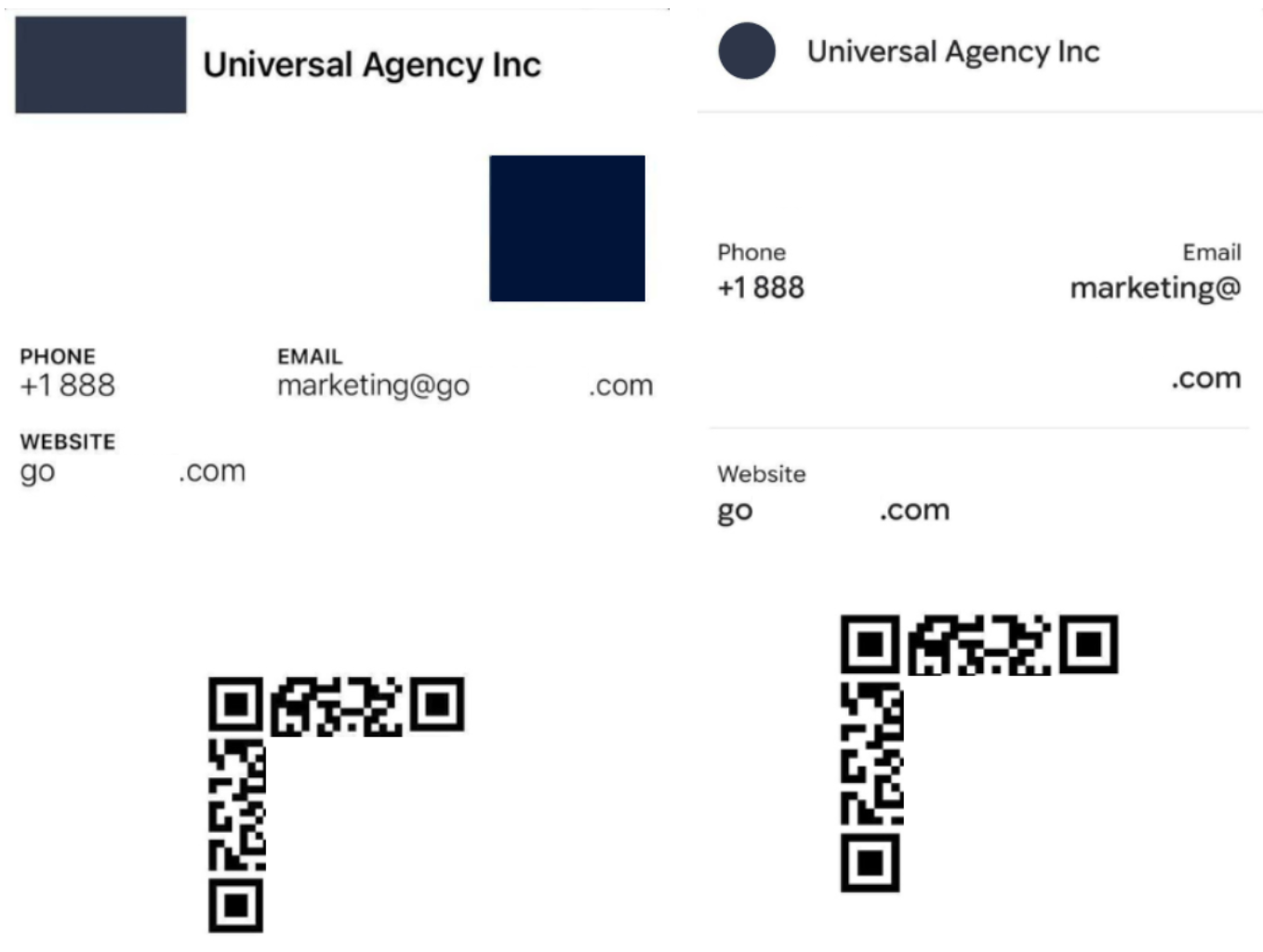
Existing QR Code Support: Existing QR codes can benefit from this feature by accessing the editing module and adding them to your wallet; no need to recreate them.
⭐️How To Add Contact Forms and Lead Tracking?
Learn how to add QR Codes to Apple & Google Wallet for easier access.
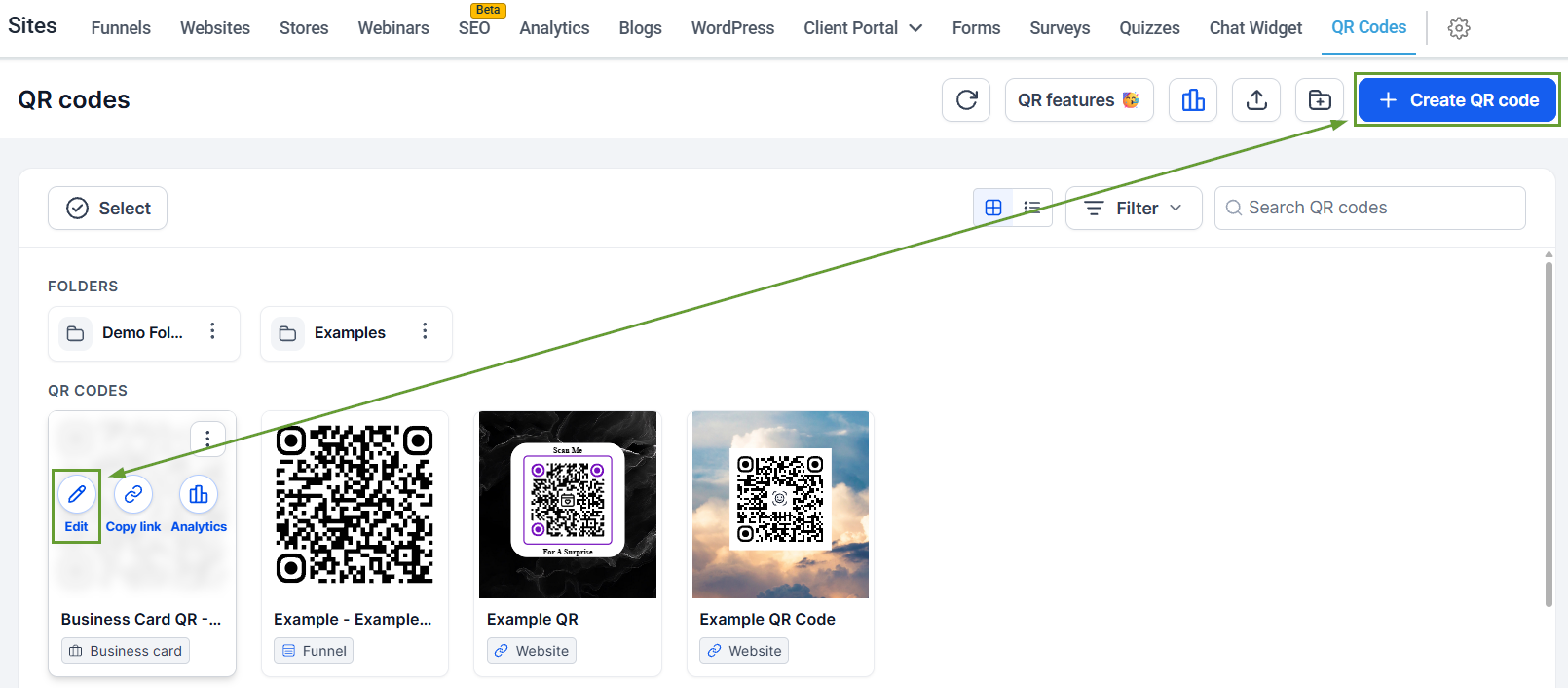
Head to the QR Codes tab inside the Sites section and create or edit a QR Code.
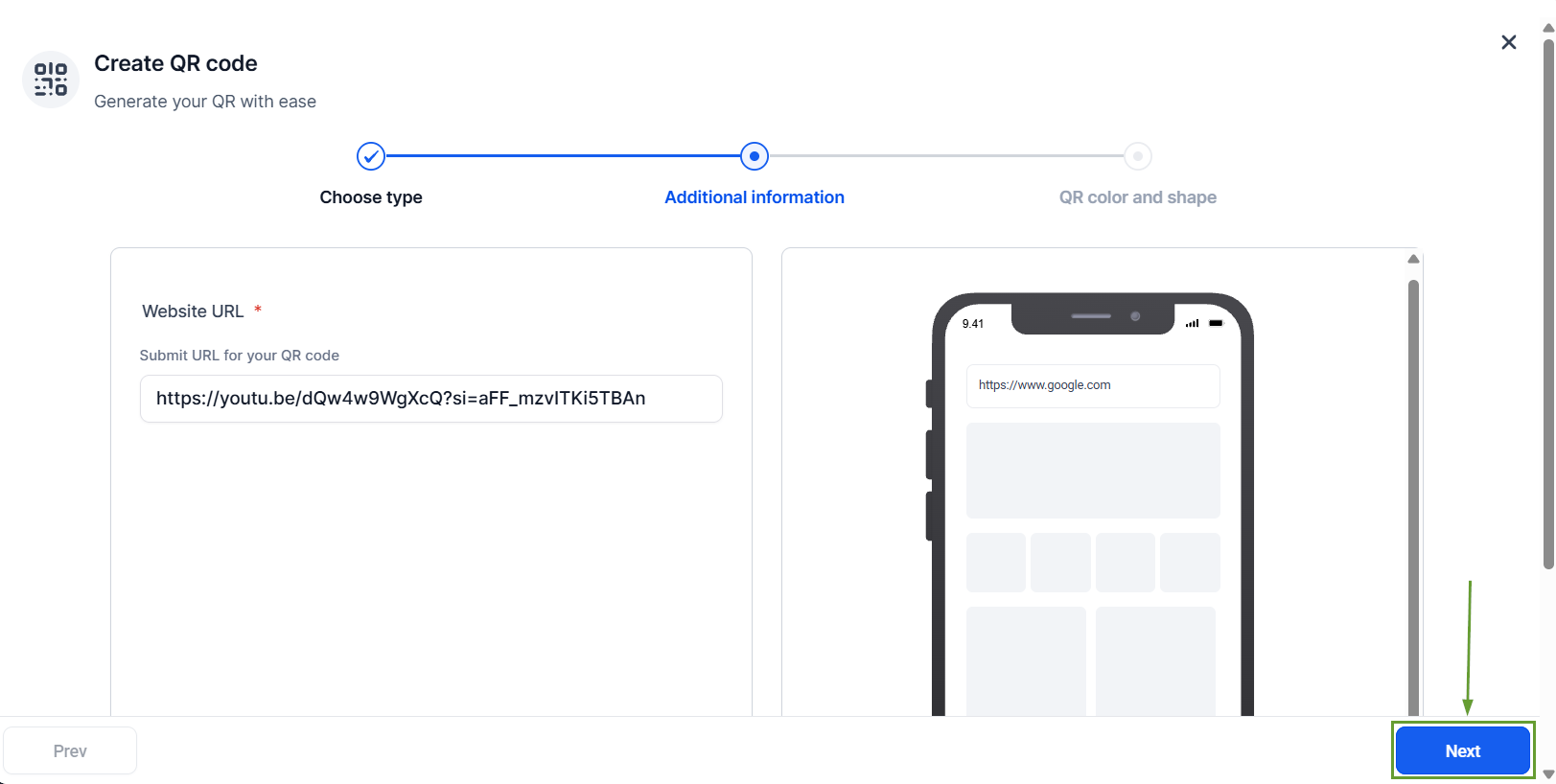
Proceed to the final step of the builder.
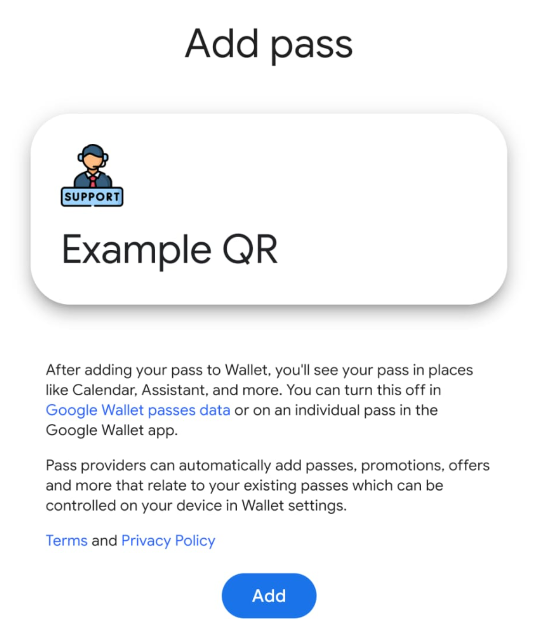
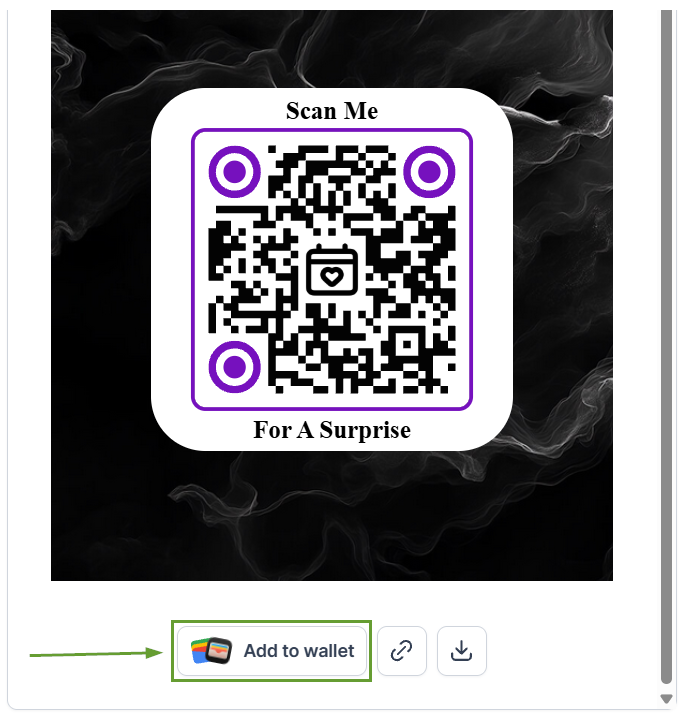
Select the option to add the QR code to your digital wallet.
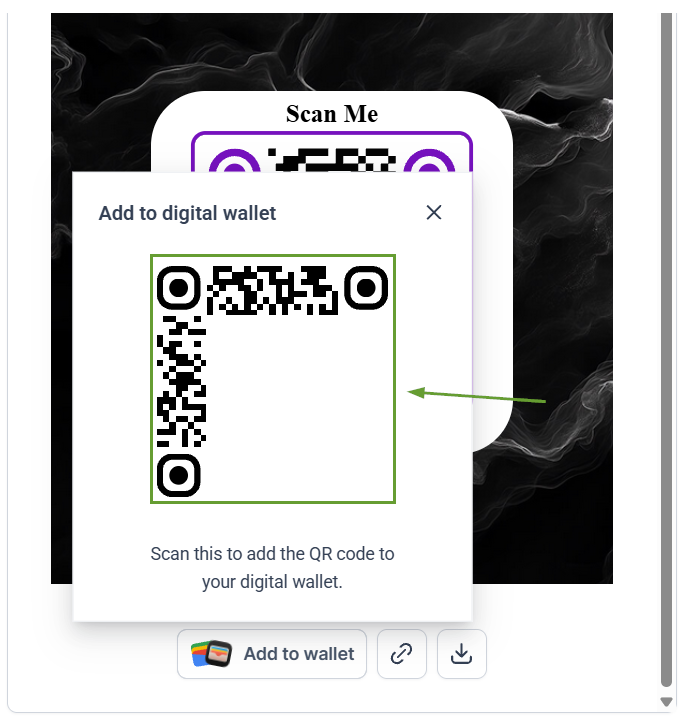
Scan the QR code with your phone, then click Add/Save to add it to your wallet.
With Digital Wallet support, you can keep your business QR codes organized. Avoid wasted time and instead drive conversions by opening your digital wallet and choosing the appropriate QR code. We hope you enjoy it!