Stay Up To Date
We believe in keeping you in the loop with all the latest happenings in our courses and system. On this page, you'll find a comprehensive log of all the exciting changes, improvements, and additions we make to our courses and system. Whether it's a new feature, a course enhancement, or a system update, we've got you covered. Bookmark this page and check back regularly. We're committed to ensuring that your learning experience remains exceptional and that you have all the information you need to succeed.

New Features

New Updates

Resources & Tools

Important Updates
Here are some of the most recent updates we thought would be helpful to take note of
Improved Feature: Image Layout Controls in Forms & Surveys
Images help keep viewers' attention focused and create interesting builds. We’ve added new image layout controls in Forms & Surveys to give you more control over how they appear. Let's check the changes!
⭐️How Will These Changes Affect You?:
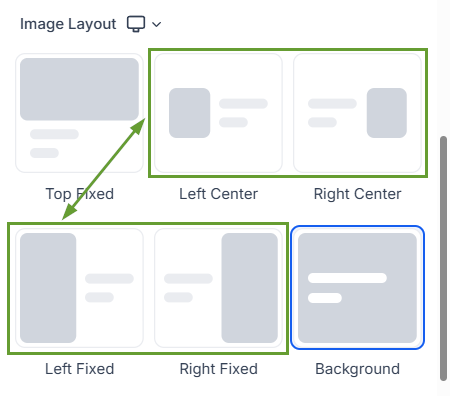
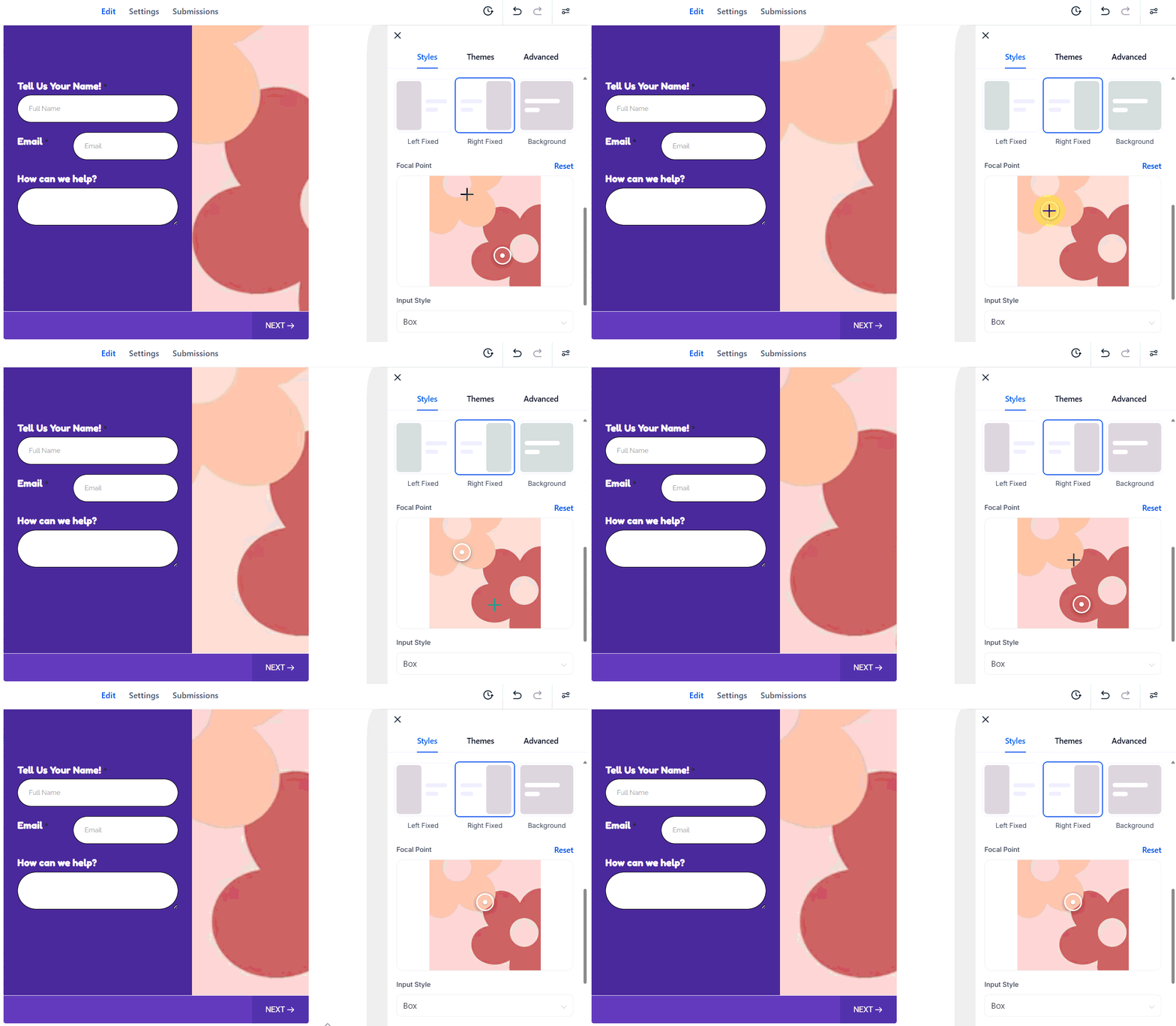
Image Layout Options: You can now use four new layouts in Forms & Surveys, which give you more flexibility in how images are displayed alongside form fields and survey content.
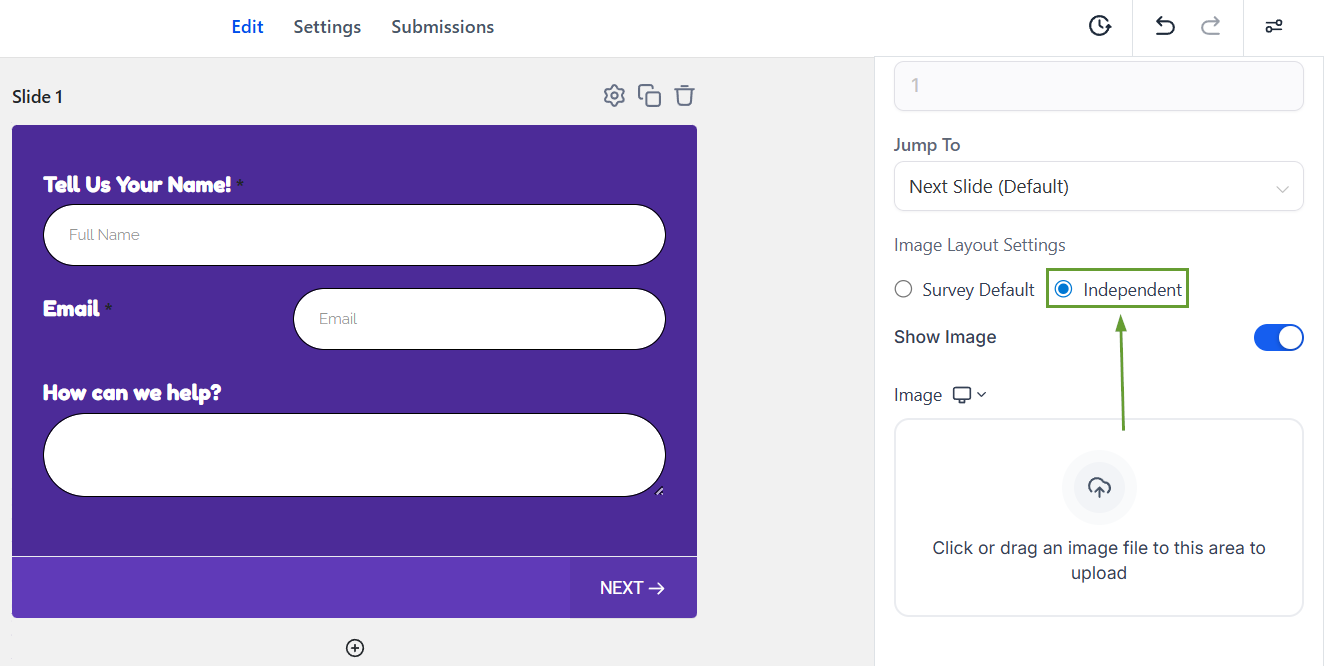
Survey Slide-Level Customization: By default, all survey slides use the main survey image layout. But you can override this at the slide level and apply a different image layout or image for individual slides.
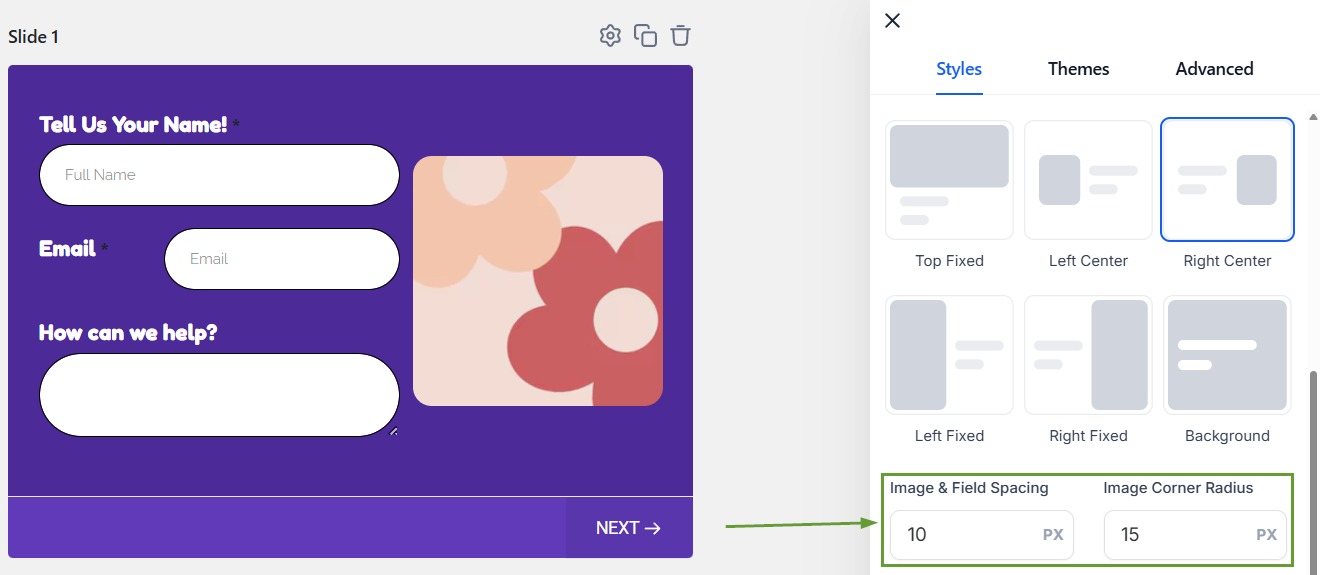
Left and Right Center Options: You can adjust the corner radius and spacing between the image and the form fields.
⭐️How To Use Image Layout Controls?
Image customization is part of the style settings, so let's learn how to access and use it!
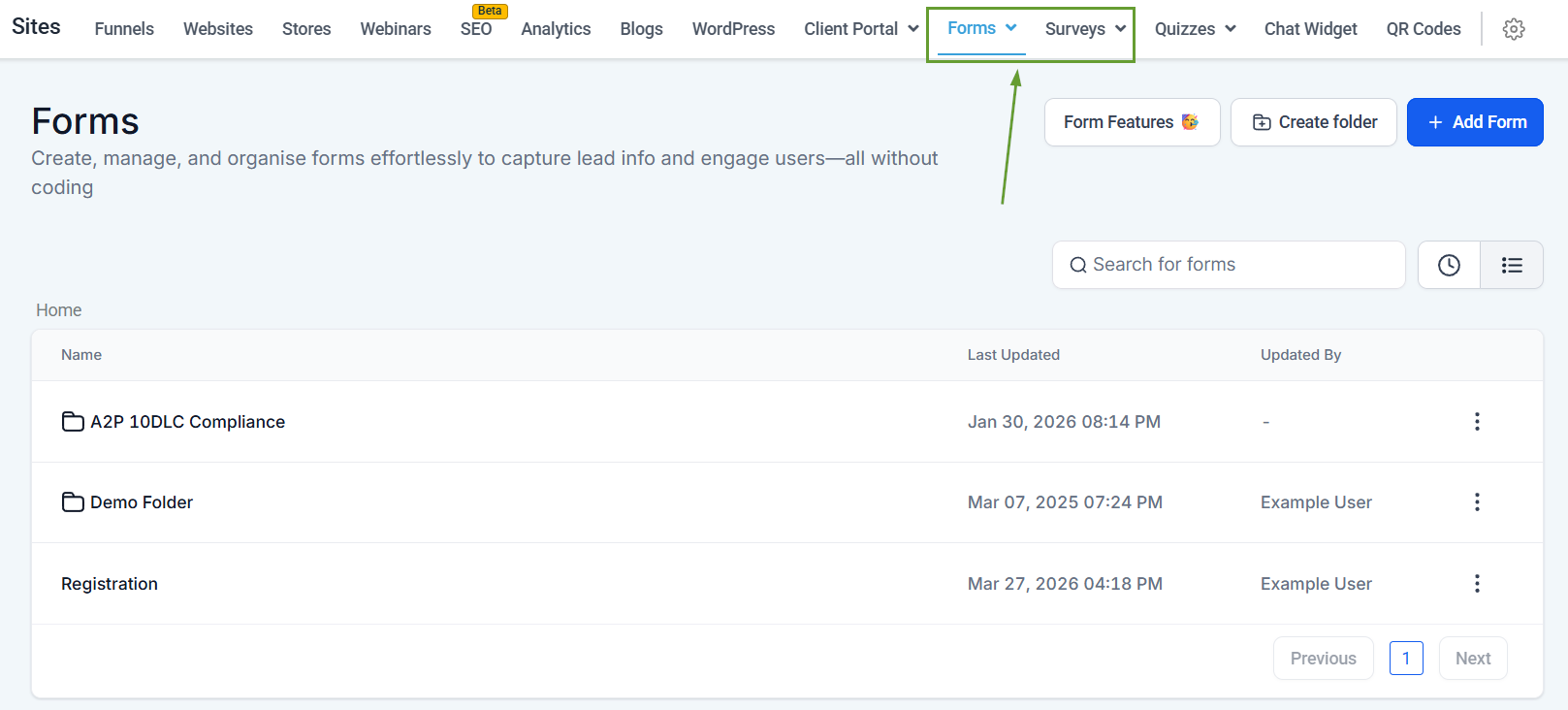
Head to the Forms or Surveys tab inside the site section and create or edit a new build.
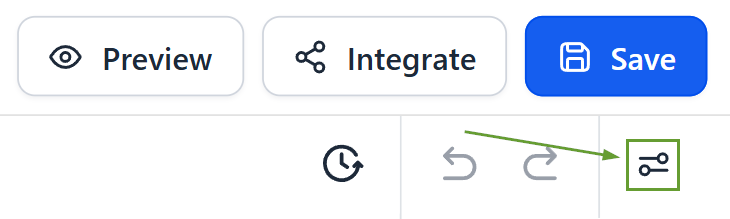
Open the Style Settings by clicking the icon in the top right corner.
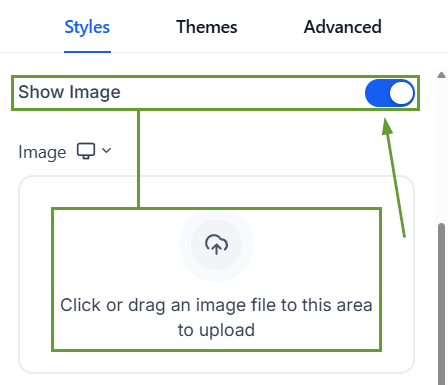
Toggle “Show Image” on and add your image.
Customize the image display to your liking.
These improvements help create cleaner, more polished experiences that align with your design and create visually interesting content. We hope you enjoy it!
