Stay Up To Date
We believe in keeping you in the loop with all the latest happenings in our courses and system. On this page, you'll find a comprehensive log of all the exciting changes, improvements, and additions we make to our courses and system. Whether it's a new feature, a course enhancement, or a system update, we've got you covered. Bookmark this page and check back regularly. We're committed to ensuring that your learning experience remains exceptional and that you have all the information you need to succeed.

New Features

New Updates

Resources & Tools

Important Updates
Here are some of the most recent updates we thought would be helpful to take note of
Improved Feature: Edit Service Bookings After Payment
When managing your Service appointments, many teams encountered complications in handling paid appointments. To make this easier than ever, you can now fully edit both paid and unpaid service appointments without needing to cancel and recreate the booking. Let’s learn what has changed!
⭐️How Do These Changes Affect You?
Complete Booking Editing: You can now edit both paid and unpaid service bookings, with editing support for services, add-ons, coupons, and other booking details.
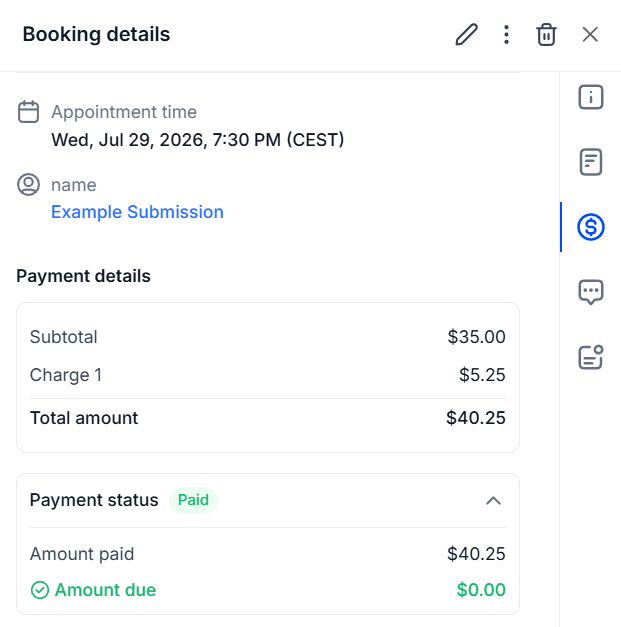
Automatic Payment Reconciliation: Edits automatically recalculate the booking total to reflect the latest payment status and support refund processing in the appointment modal.
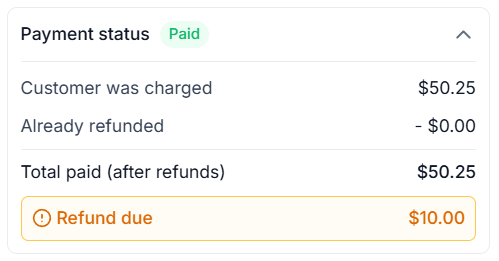
Smarter Order Management: Every service booking remains linked to its associated order, and if a refund has been initiated but is still being processed, editing will be temporarily disabled until the refund is completed.
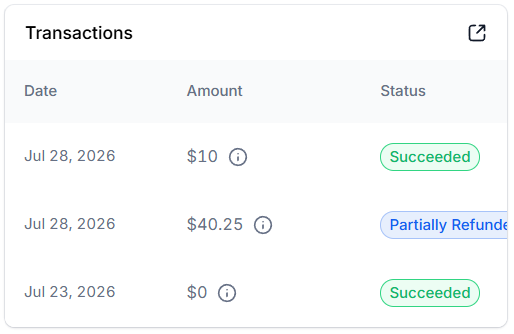
⭐️How To Edit A Service Booking After Payment?
Let’s learn how to edit an already paid-for service booking!
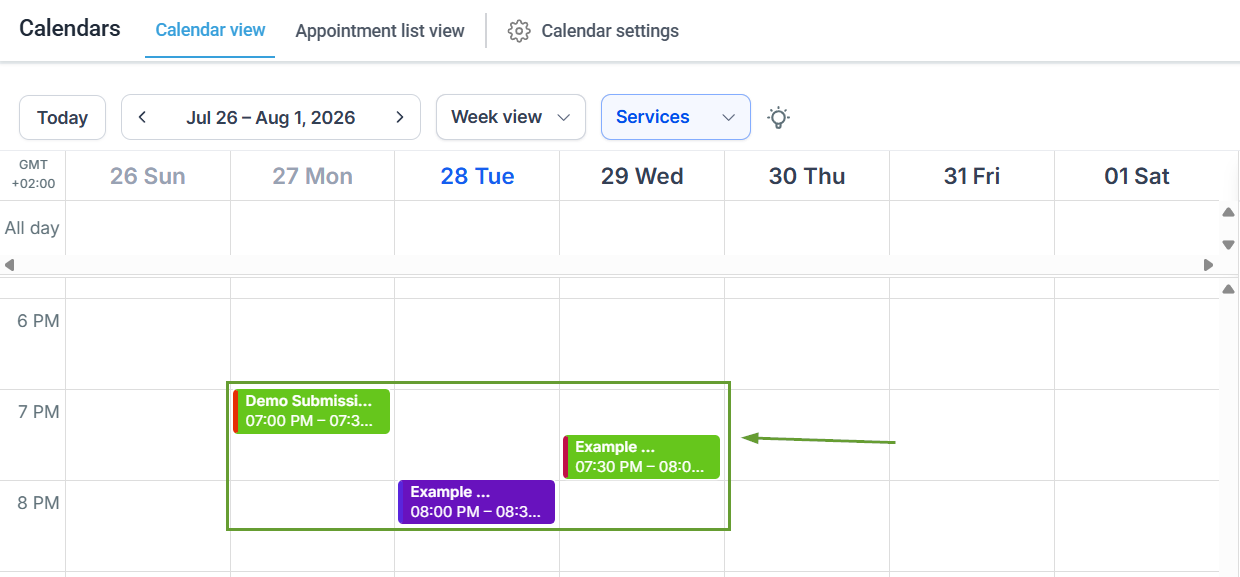
Locate an existing Service Booking inside your calendar and click it to open its details.
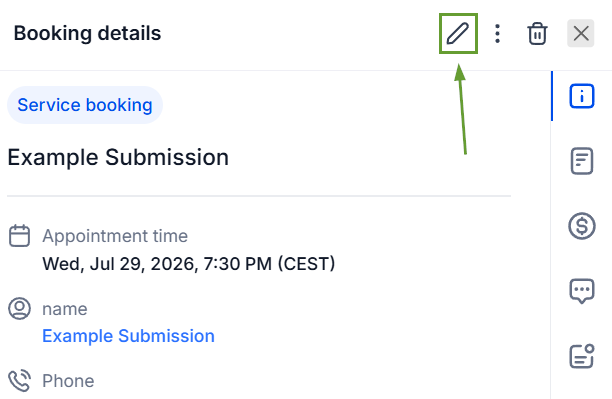
Click the pencil icon to edit the appointment.
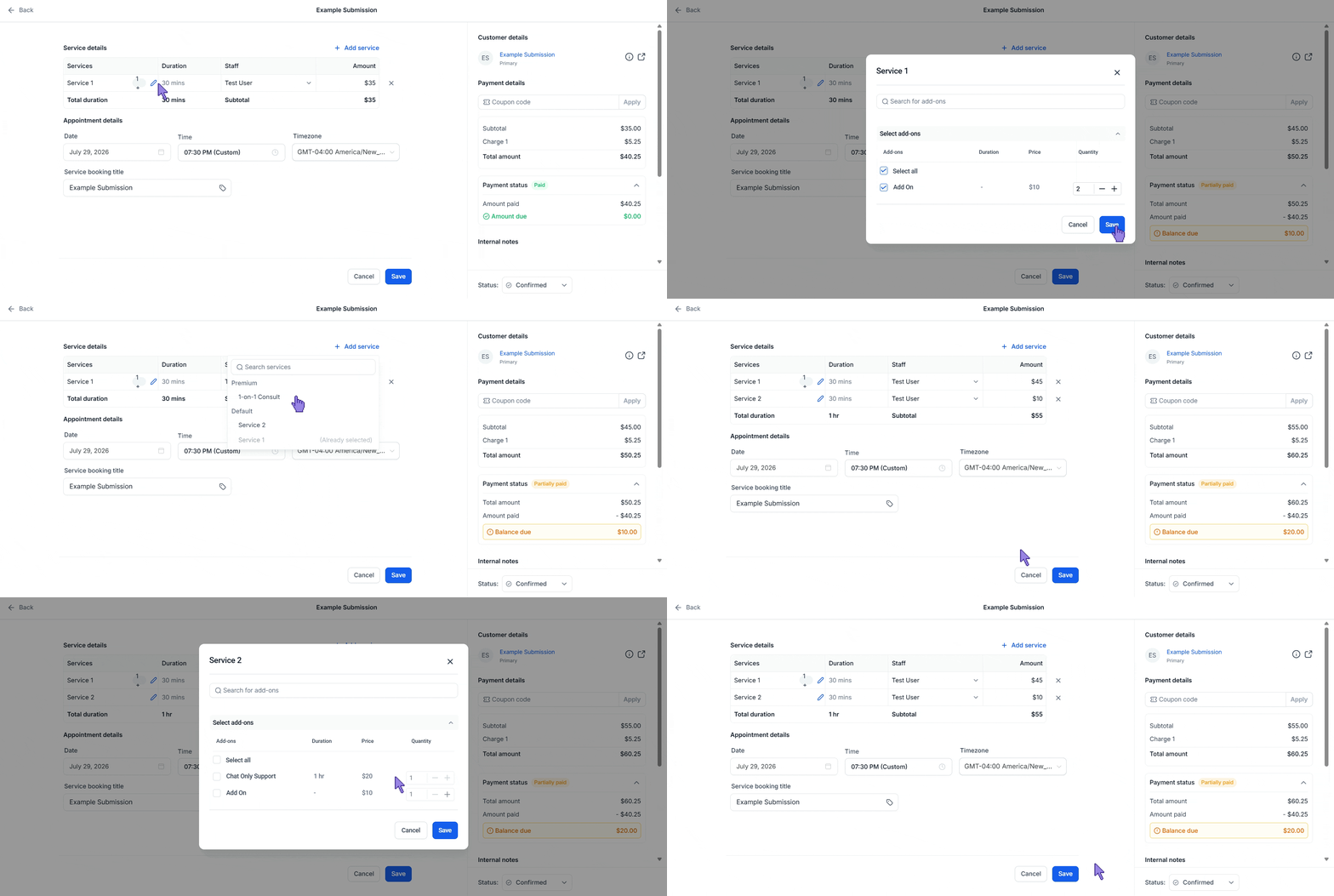
Make any required changes.
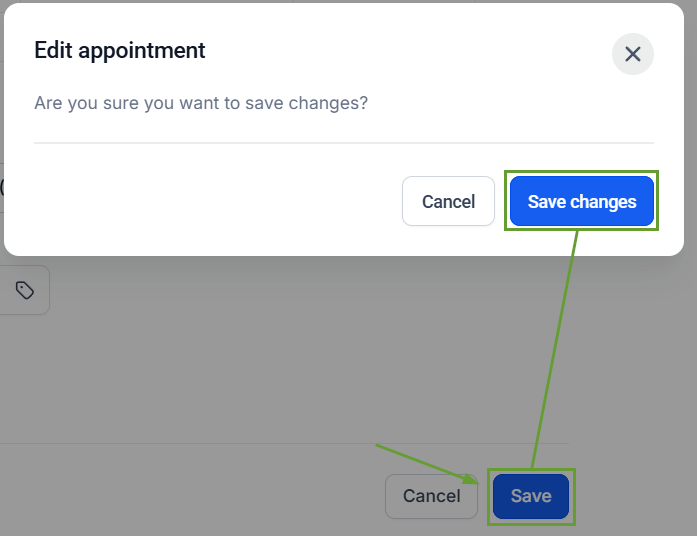
Save your changes.
Whether your customer wants to add another service, change the assigned staff member, update add-ons, or apply a coupon after booking, you can make those changes seamlessly while keeping the booking, order, and payment information in sync. We hope you enjoy it!