Stay Up To Date
We believe in keeping you in the loop with all the latest happenings in our courses and system. On this page, you'll find a comprehensive log of all the exciting changes, improvements, and additions we make to our courses and system. Whether it's a new feature, a course enhancement, or a system update, we've got you covered. Bookmark this page and check back regularly. We're committed to ensuring that your learning experience remains exceptional and that you have all the information you need to succeed.

New Features

New Updates

Resources & Tools

Important Updates
Here are some of the most recent updates we thought would be helpful to take note of
Improved Feature: Date Picker & Filter Persistence in Dashboard
Having proper control over the dates used when viewing data in your widgets is key to proper analysis. So, we’ve enhanced dashboards and custom reports to persist date ranges and filter selections per user. Let's check the changes!
⭐️How Will These Changes Affect You?:
Persistent Selection: Dashboard date range and widget dropdown values now persist based on user preference, remaining saved until manually changed.
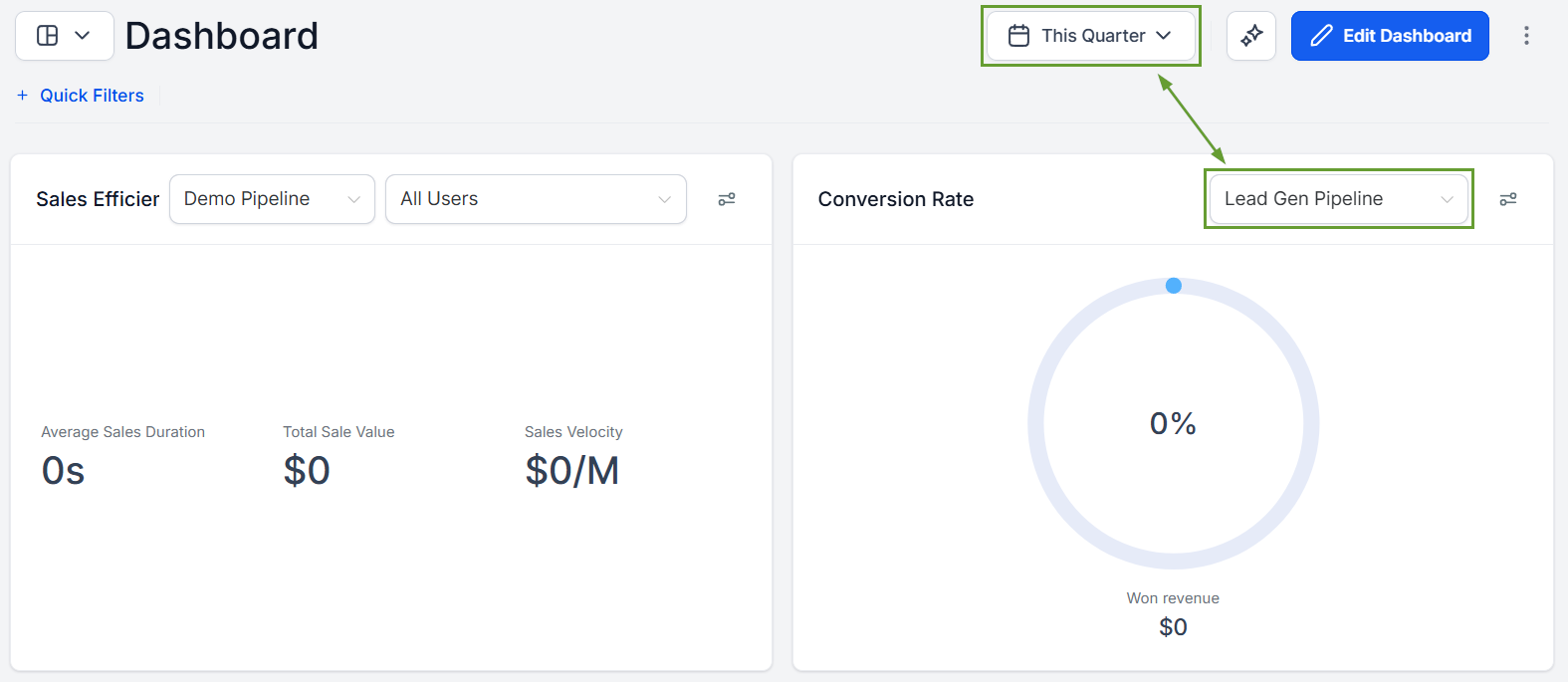
Comparison Date Range: You can manually select the comparison date range on the dashboard or the custom report builder.
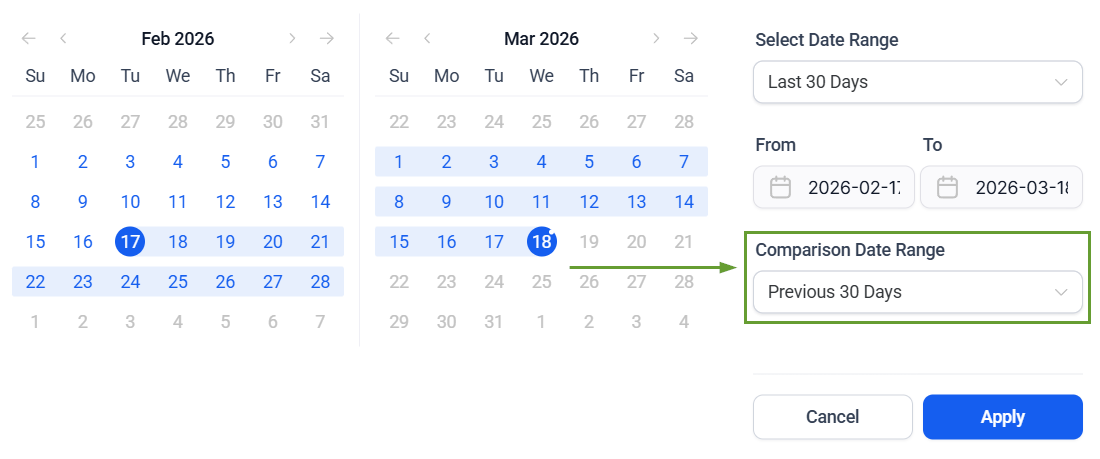
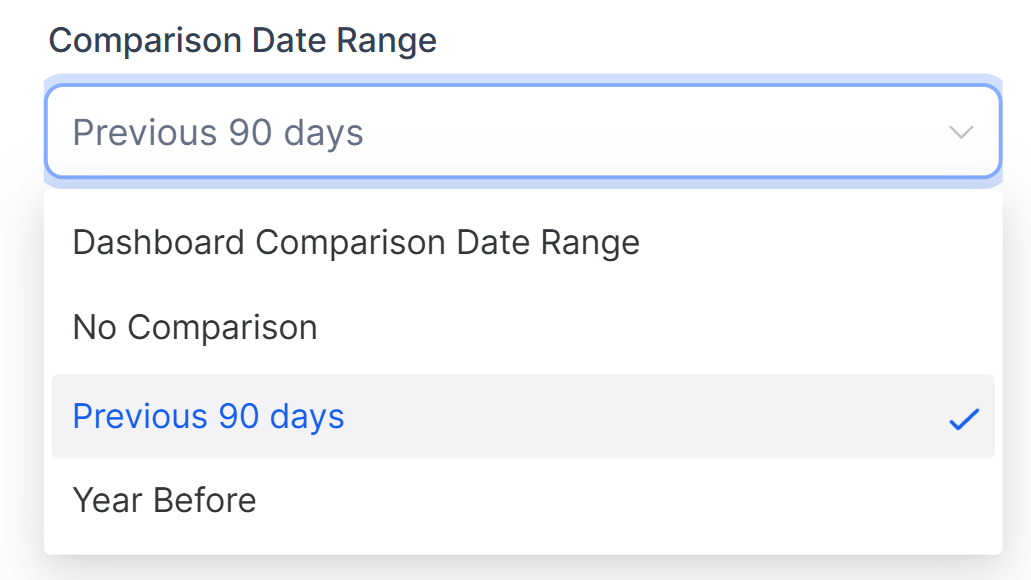
Widget Level Settings: Widget-level date comparison will take preference over dashboard-level selection if explicitly selected during configuration.
⭐️How To Create A Custom Report With Persistent Selection?
The way Custom Reports are done hasn’t changed, but you might feel the differences. So, let’s go over how to create a Custom Report and what the changes will look like!
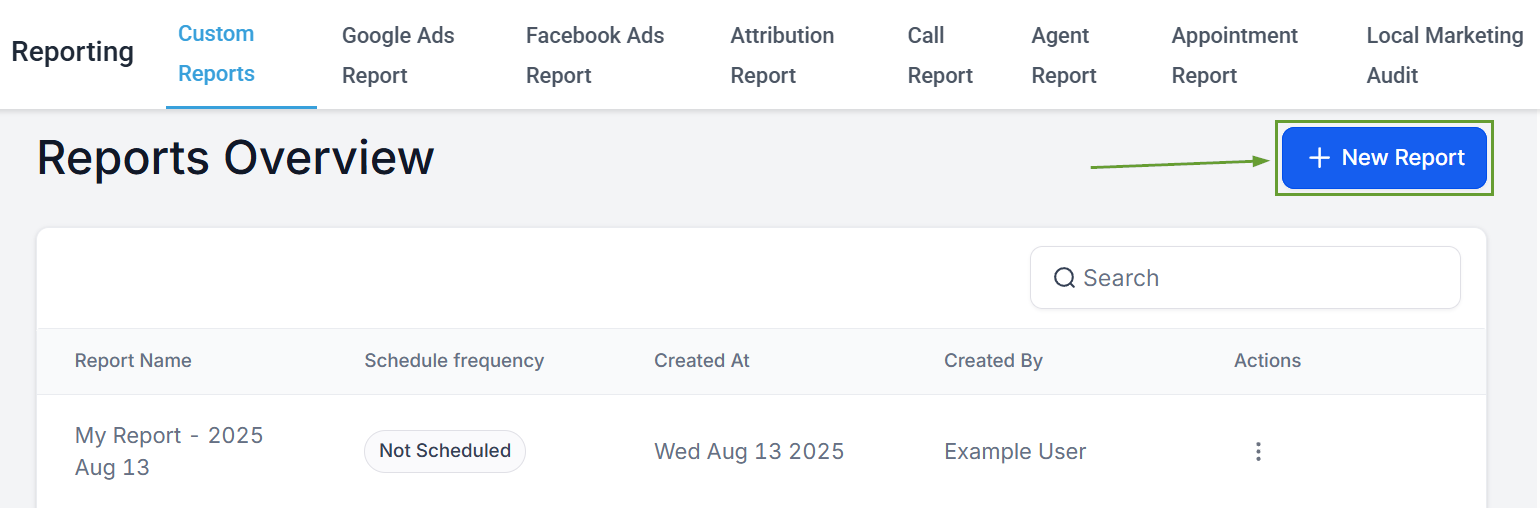
Head to the Custom Reports tab inside the Reporting section and click + New Report.
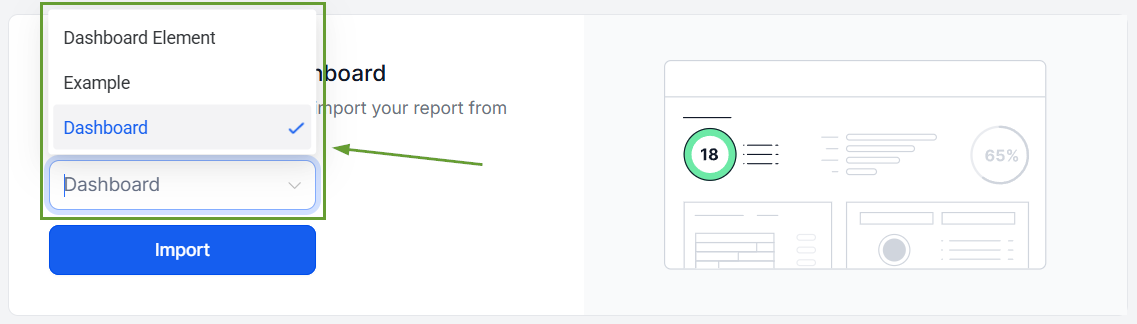
Select the Dashboard you want to use for your report.
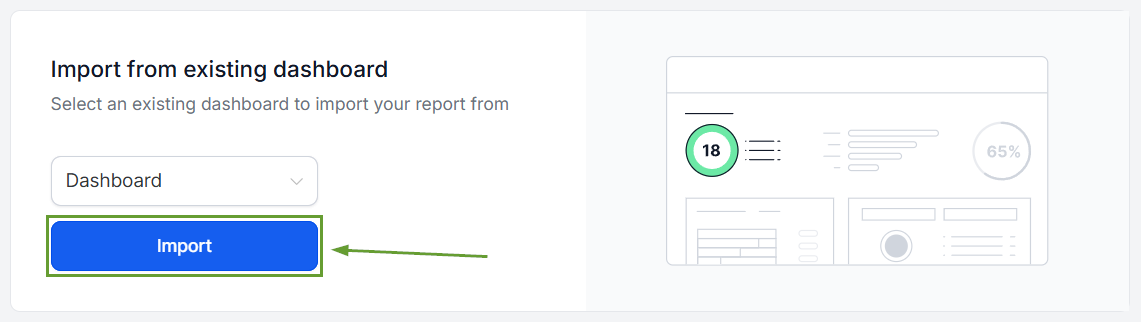
Click Import to generate your report.
The date range and pipelines you’ve selected in the Dashboard will be maintained in the report.
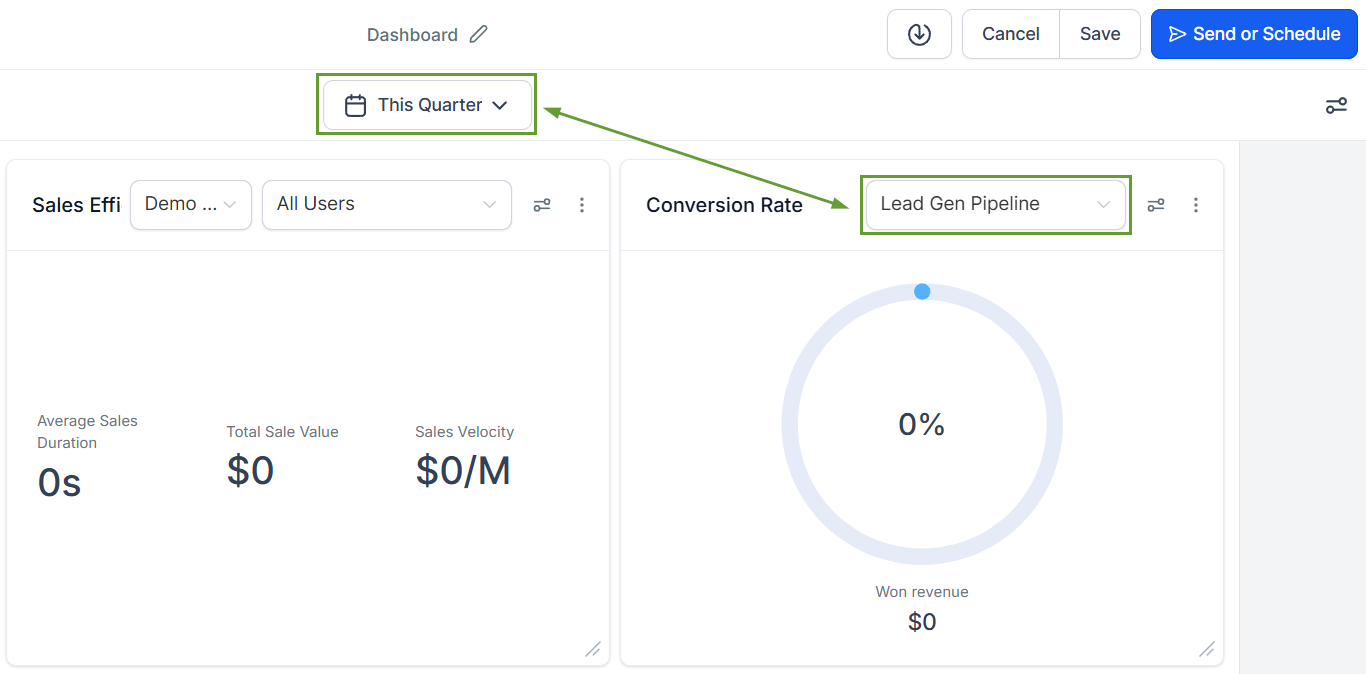
Thanks to this, you no longer need to reset filters every time you open a dashboard. Your reports stay consistent, and previously sent emails won’t change even if you update filters later. We hope you enjoy it!
