Stay Up To Date
We believe in keeping you in the loop with all the latest happenings in our courses and system. On this page, you'll find a comprehensive log of all the exciting changes, improvements, and additions we make to our courses and system. Whether it's a new feature, a course enhancement, or a system update, we've got you covered. Bookmark this page and check back regularly. We're committed to ensuring that your learning experience remains exceptional and that you have all the information you need to succeed.

New Features

New Updates

Resources & Tools

Important Updates
Here are some of the most recent updates we thought would be helpful to take note of
New Feature: Custom Object Templates
Setting up Custom Objects is now easier thanks to pre-built, industry-specific configurations. Each template comes with ready-to-use custom objects, fields, and associations, so you can skip the setup and start operating. Let’s learn how to use them!
⭐️ How To Create A Custom Object Using A Template?
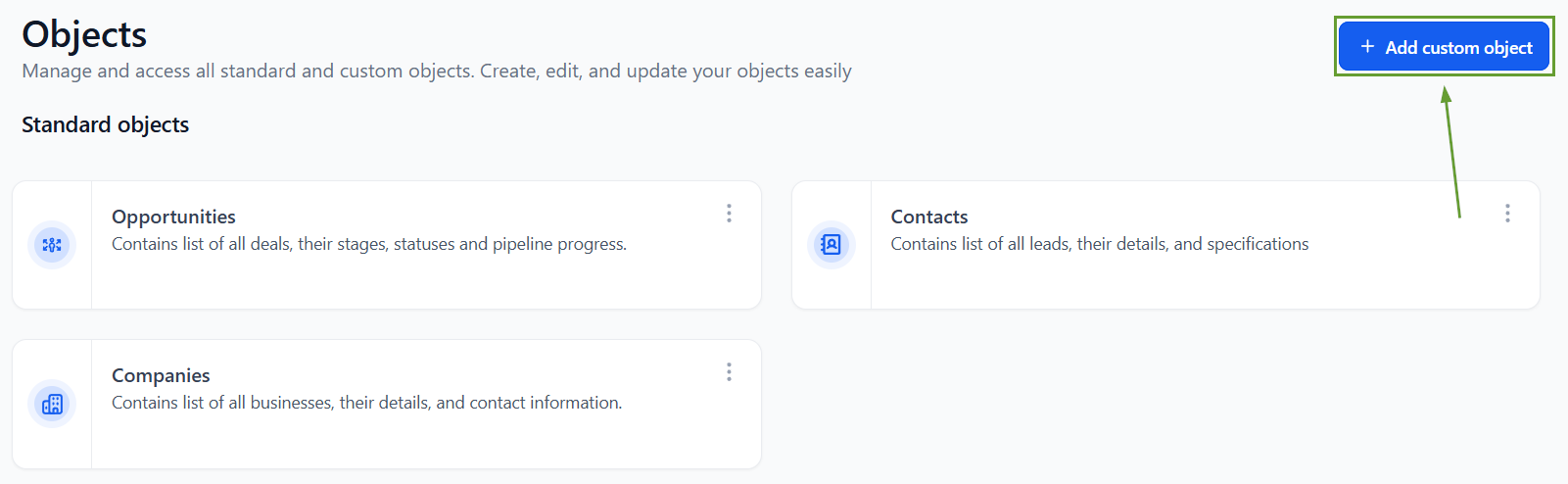
Start by accessing your account settings and heading to the Object section. In there, click + Add custom object.
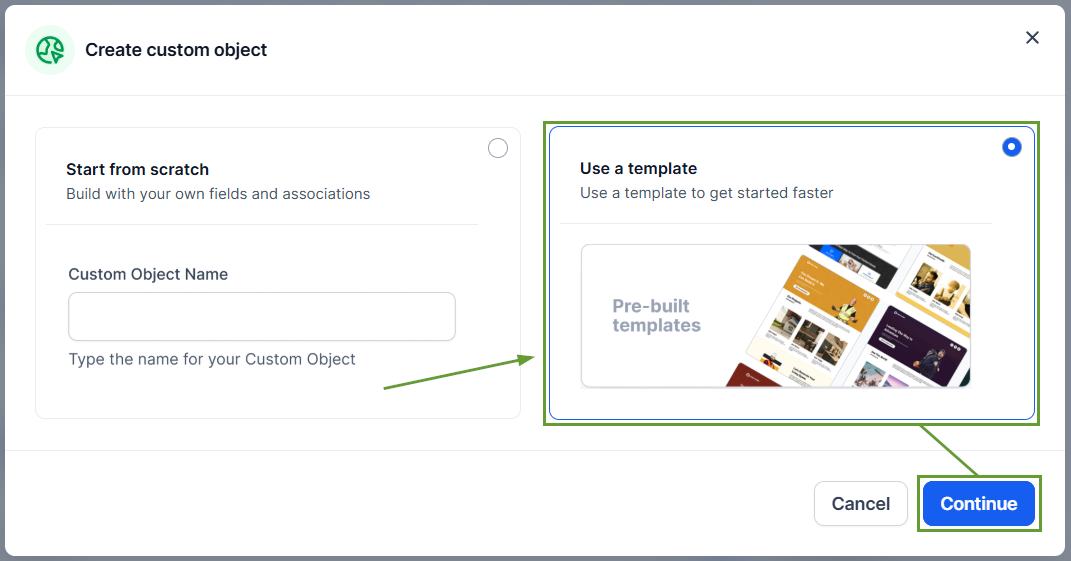
Select the “Use a template” option, then click continue.
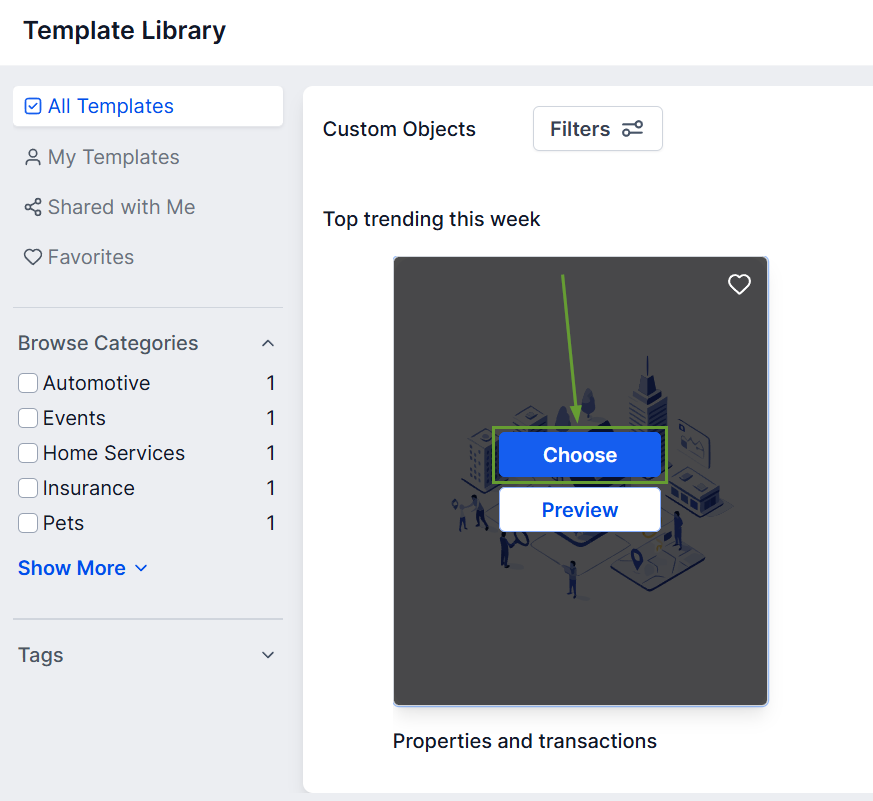
Click Choose Template to open the asset list.
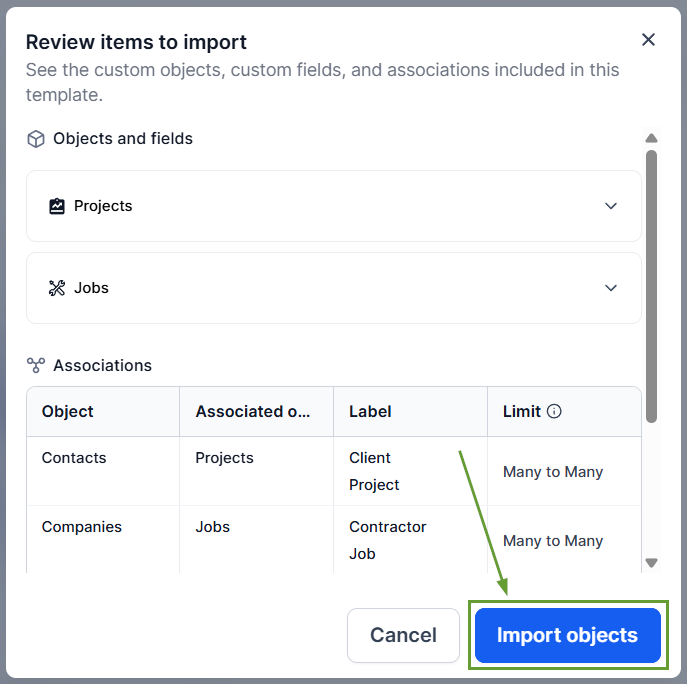
Once reviewed, click import objects to apply it.
⭐️Why Is This Feature Beneficial To Your Company?
Simplified Set-Up: These pre-configured Custom Objects come with industry-relevant fields, providing a plug-and-play configuration.
Integrated Organization: Fields are grouped into folders for cleaner navigation, avoiding confusion and ensuring all important assets are included.
Object Associations: The templates include pre-configured associations that connect records to the right contacts and companies.
This option makes it easier than ever to add custom objects to your CRM, ensuring you can set all important custom fields and associations quickly and efficiently. We hope you enjoy it!
