Stay Up To Date
We believe in keeping you in the loop with all the latest happenings in our courses and system. On this page, you'll find a comprehensive log of all the exciting changes, improvements, and additions we make to our courses and system. Whether it's a new feature, a course enhancement, or a system update, we've got you covered. Bookmark this page and check back regularly. We're committed to ensuring that your learning experience remains exceptional and that you have all the information you need to succeed.

New Features

New Updates

Resources & Tools

Important Updates
Here are some of the most recent updates we thought would be helpful to take note of
New Feature: Count Available Days Only in Calendars
Clients can now book, view, and manage appointments directly from the Client Portal, giving them one place to manage their schedule without switching to emails, booking links, or other tools. Let’s learn how to use it!
⭐️ How To Enable Count Available Days Only in Calendars?
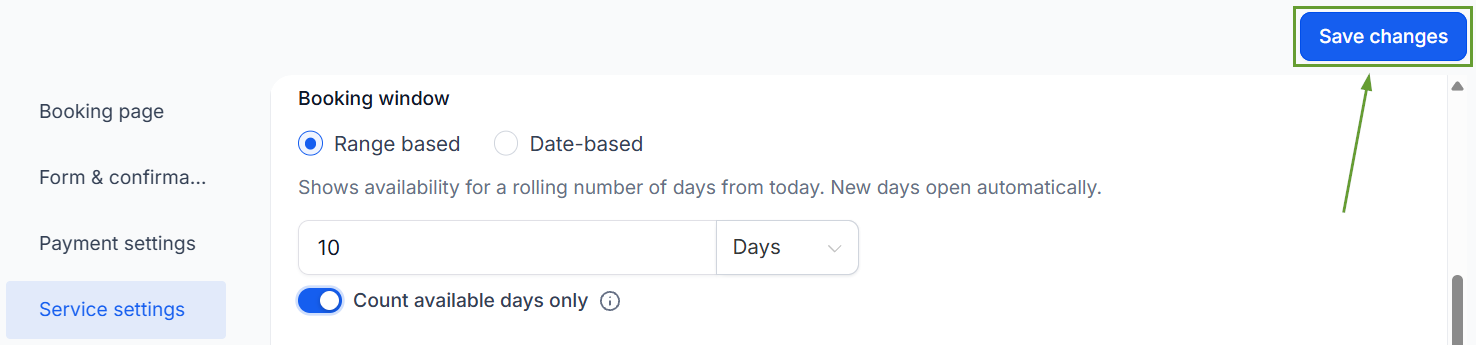
Head to the Settings tab in the Calendars section and create or edit a calendar.
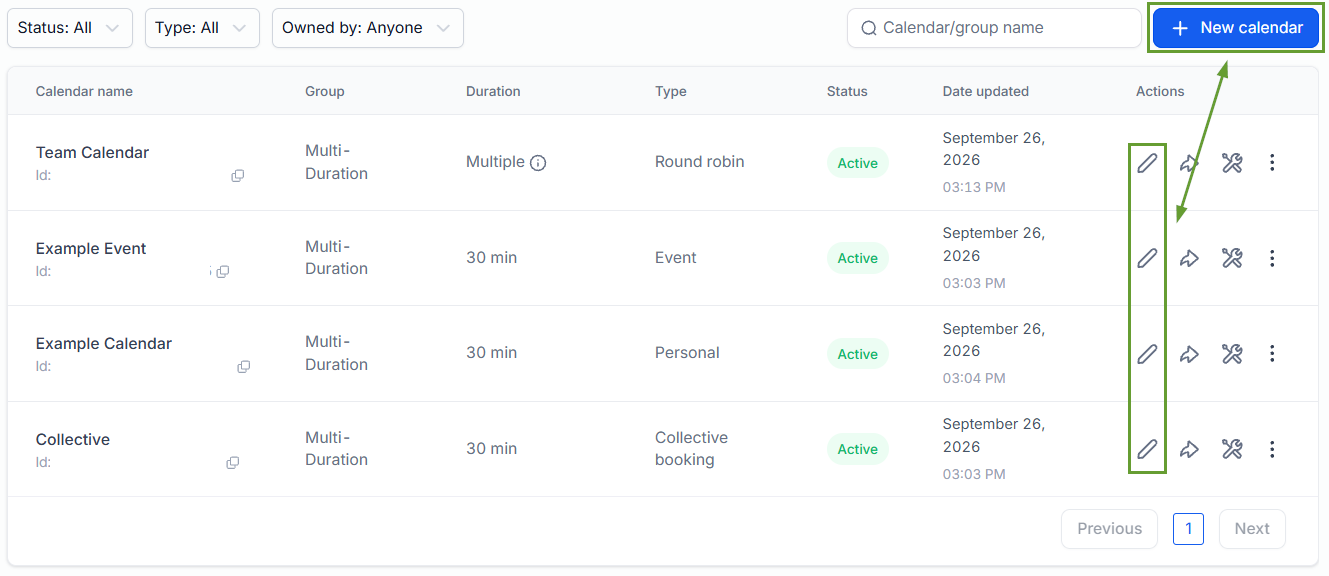
Open the Booking rules tab and set a Date range.
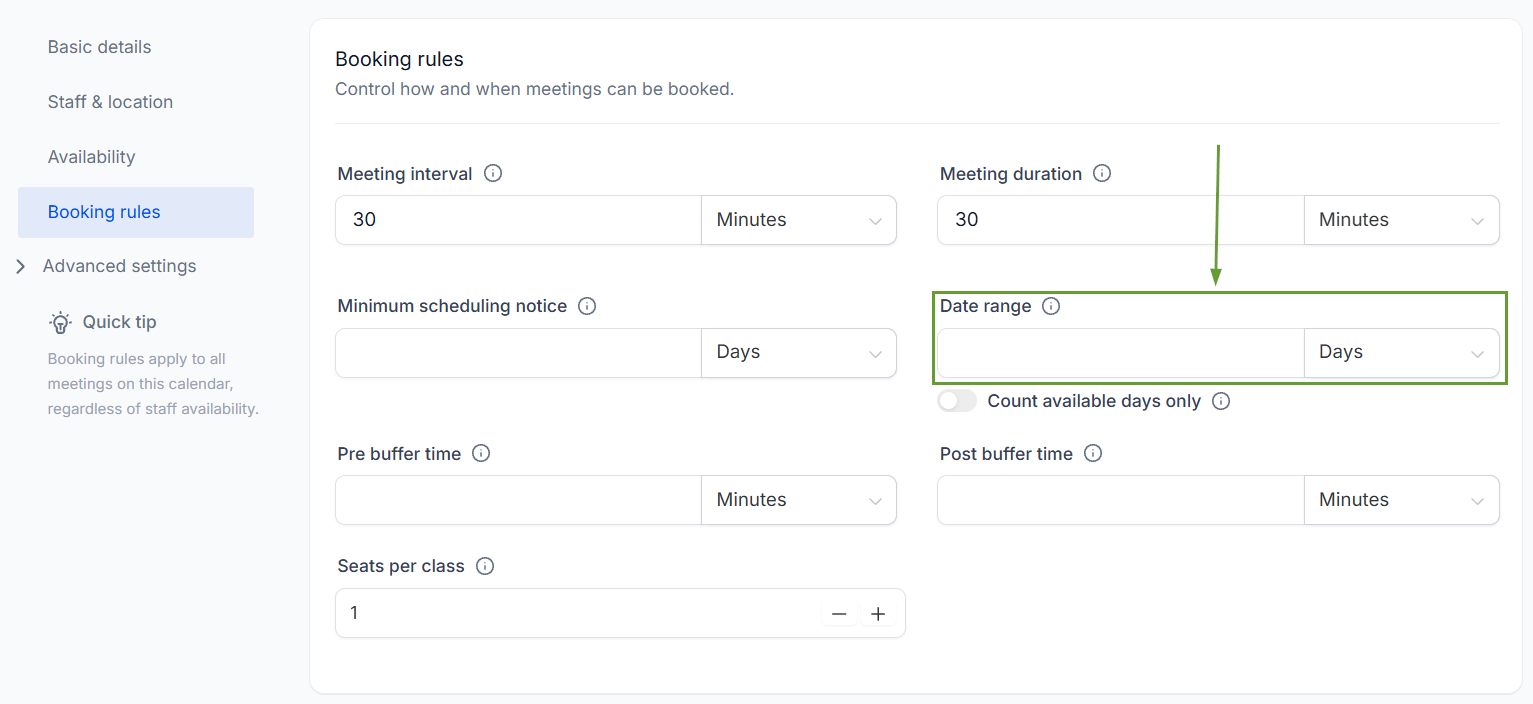
Toggle the “Count available days only” option on.
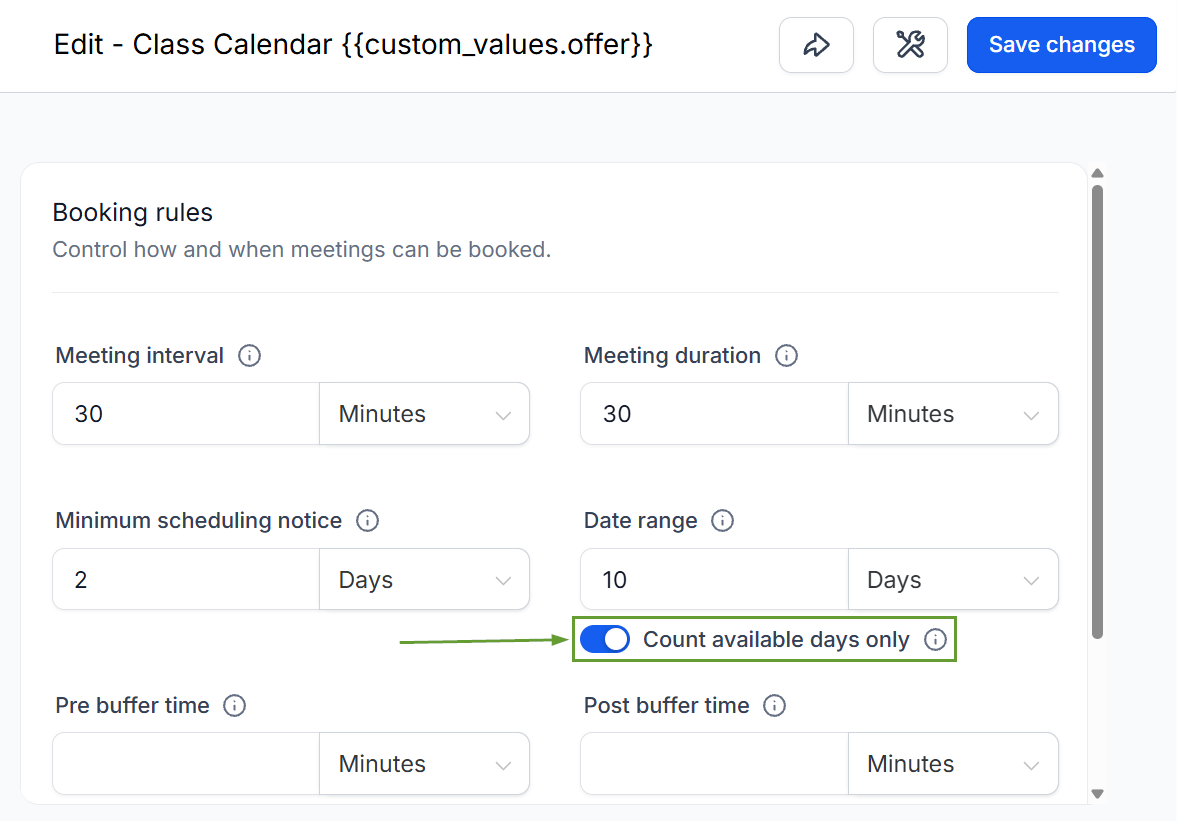
Save your changes, and you’re done.
⭐️Why Is This Feature Beneficial To Your Company?
Smarter Interaction: When enabled, the system skips days outside your availability schedule when counting the date range. It starts counting from the first work day after the minimum scheduling notice period ends.
Calendar Type Flexibility: The toggle is available on Meeting Calendars, Services, and Rentals. The available days count according to team or product availability as needed.
Date-specific Hours: Days added via date-specific hours count toward the window, and days blocked via date-specific hours are skipped.
This works with any schedule configuration, making it useful for any business that limits its working days, with minimum scheduling notice and a date range to ensure proper availability. We hope you enjoy it!