Stay Up To Date
We believe in keeping you in the loop with all the latest happenings in our courses and system. On this page, you'll find a comprehensive log of all the exciting changes, improvements, and additions we make to our courses and system. Whether it's a new feature, a course enhancement, or a system update, we've got you covered. Bookmark this page and check back regularly. We're committed to ensuring that your learning experience remains exceptional and that you have all the information you need to succeed.

New Features

New Updates

Resources & Tools

Important Updates
Here are some of the most recent updates we thought would be helpful to take note of
New Feature: Canva Integration in Media Storage
Canva is widely considered the most used and versatile tool for creating marketing materials. We’ve added a direct connection between Canva and Media Storage to eliminate the constant switching between platforms to design and upload assets. Let's learn how to use it!
⭐️How To Connect Your Canva Account For File Management?
Head to the Media Storage section and click Connect Canva.

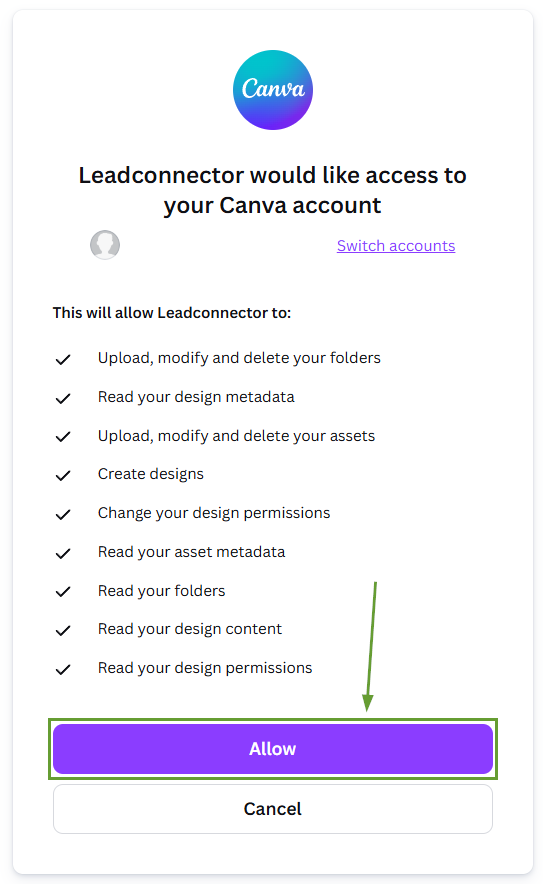
Complete the authentication to connect your Canva account.
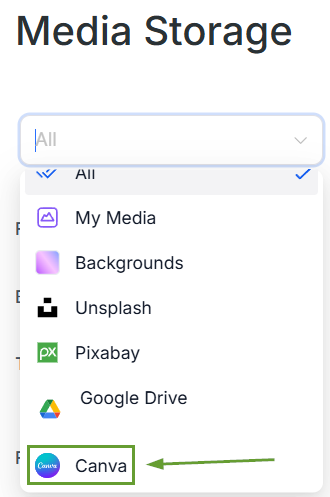
Use the media library selector in the top left corner to view only Canva files.
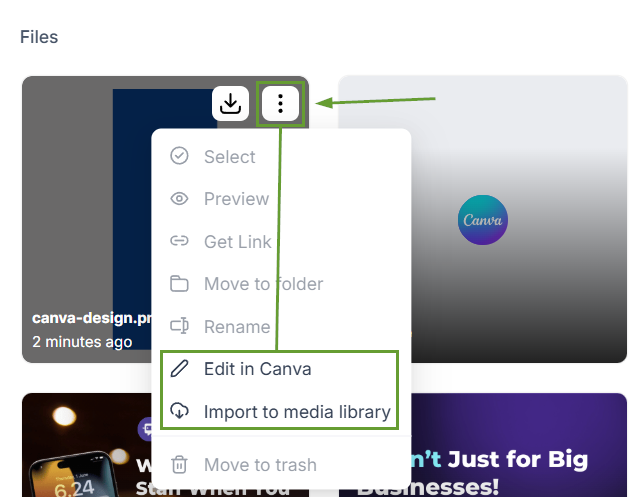
Import designs into My Media or edit them in Canva directly from your CRM.
⭐️Why Is This Feature Beneficial To Your Company?
Centralized Asset Management: This connection lets you integrate your Canva work directly into your media storage, eliminating tab switching, manual downloads, and version confusion.
Smart Design Tracking: Prevents duplicate Canva copies when editing from My Media or looking for projects, thanks to the automated sync.
Consistent Access: The installer gains full editing access while other users can view, search, download, and import projects from the connected Canva account.
This feature reduces friction when managing your marketing material, minimizing confusion and manual effort by giving you a direct option to import your projects before using them in funnels, emails, or posts. We hope you enjoy it!
