Stay Up To Date
We believe in keeping you in the loop with all the latest happenings in our courses and system. On this page, you'll find a comprehensive log of all the exciting changes, improvements, and additions we make to our courses and system. Whether it's a new feature, a course enhancement, or a system update, we've got you covered. Bookmark this page and check back regularly. We're committed to ensuring that your learning experience remains exceptional and that you have all the information you need to succeed.

New Features

New Updates

Resources & Tools

Important Updates
Here are some of the most recent updates we thought would be helpful to take note of
Improved Feature: Post Approval Flow in Social Planner
The Approval Flow in the Social Planner excluded clients and stakeholders without access to your CRM, which could be cumbersome. This update removes the need for logins entirely, using secure magic links to review, approve, or request changes outside the platform. Let's check this improvement out!
⭐️How Will These Changes Affect You?:
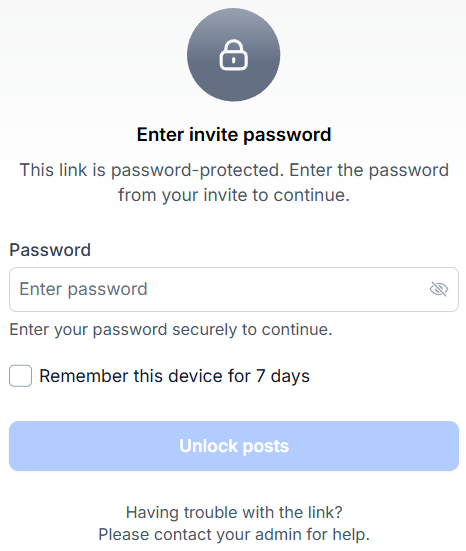
Magic Link Approvals: Generate a secure password-protected link for your posts that doesn’t require login and expires after 30 days, keeping approvals safe and controlled.
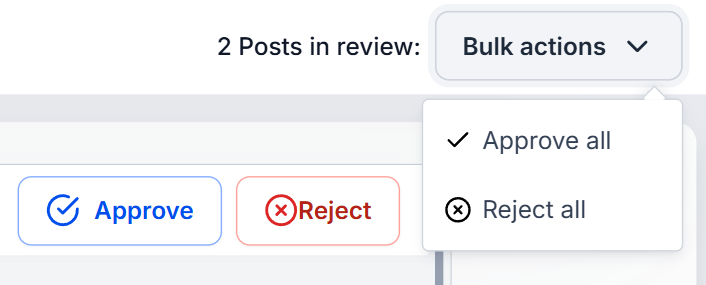
Bulk Actions: This format allows you to use bulk actions for approving or rejecting all posts at once, and leveraging the rich post preview for better decisions.
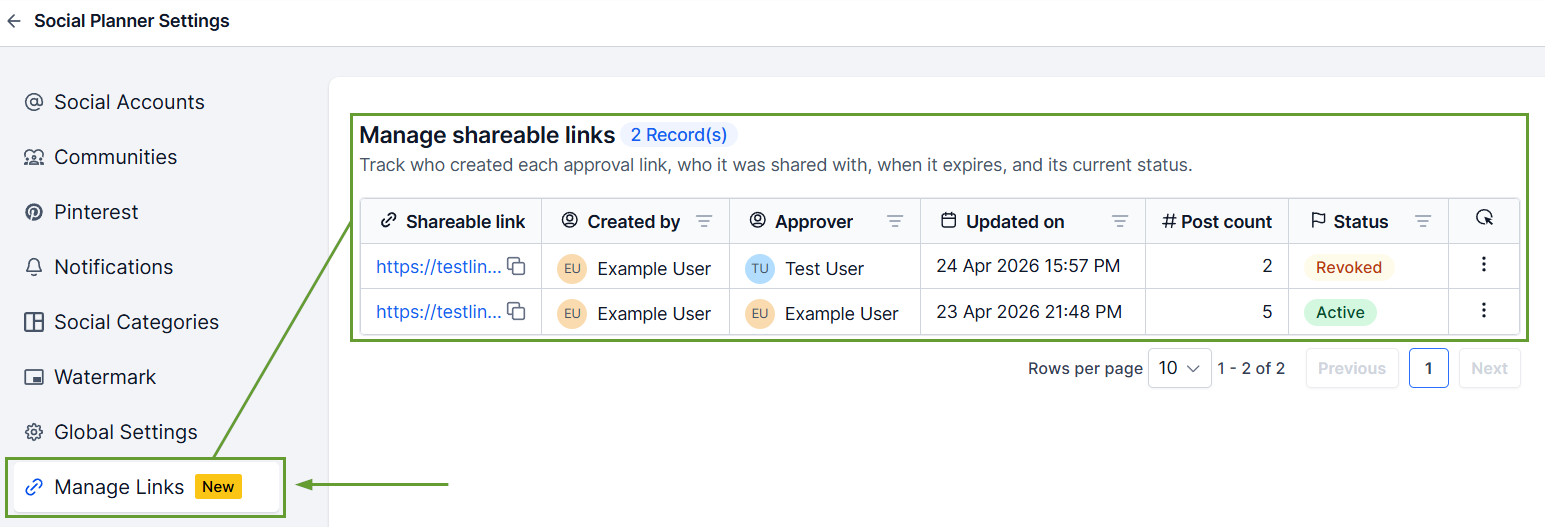
One-Stop Link Management: Track and control every approval link from a new Manage Links section where you can view the link status, regenerate or revoke access, and extend validity.
⭐️How To Generate A Shareable Link?
Let's learn how to generate and send a password access link for quick and easy approvals!
Navigate to the "Approval" tab under the “Content” section of your Social Planner and select the approver from the drop-down.
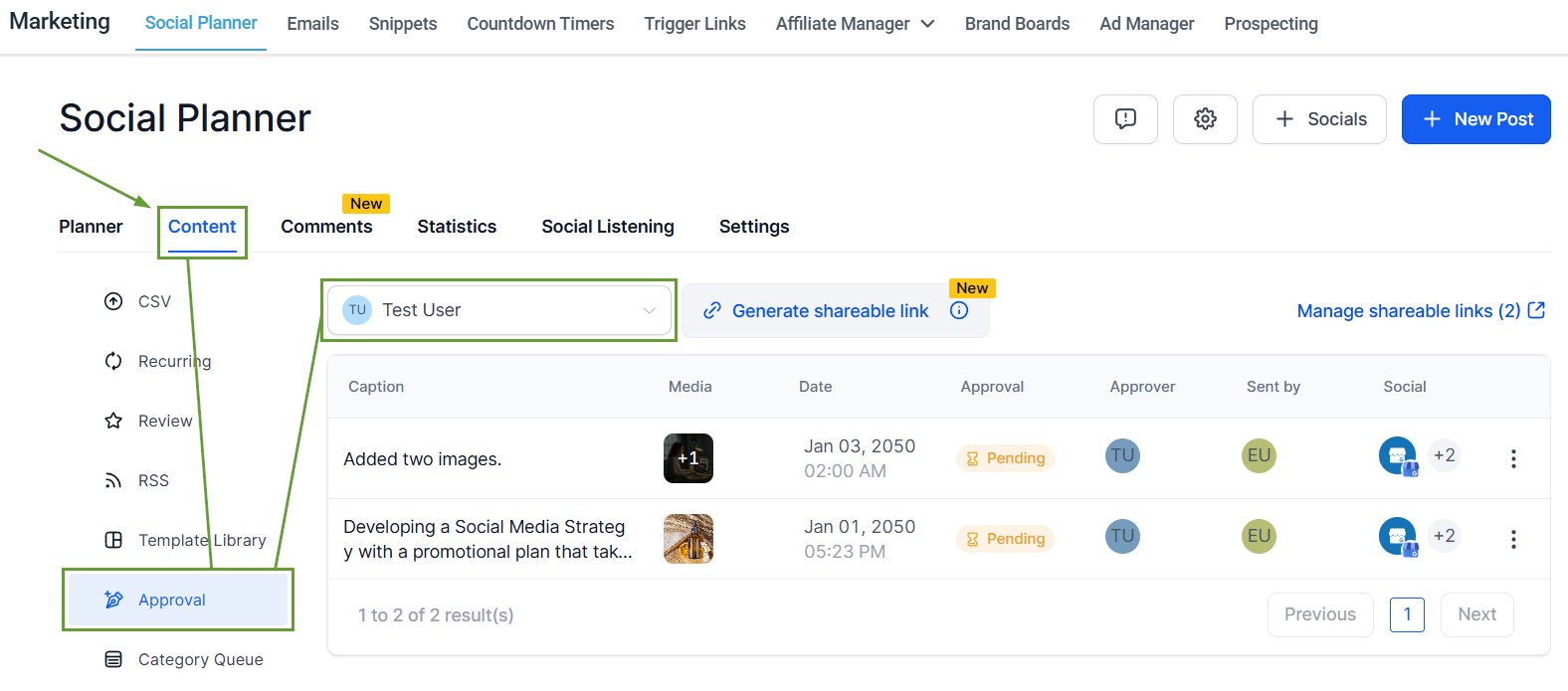
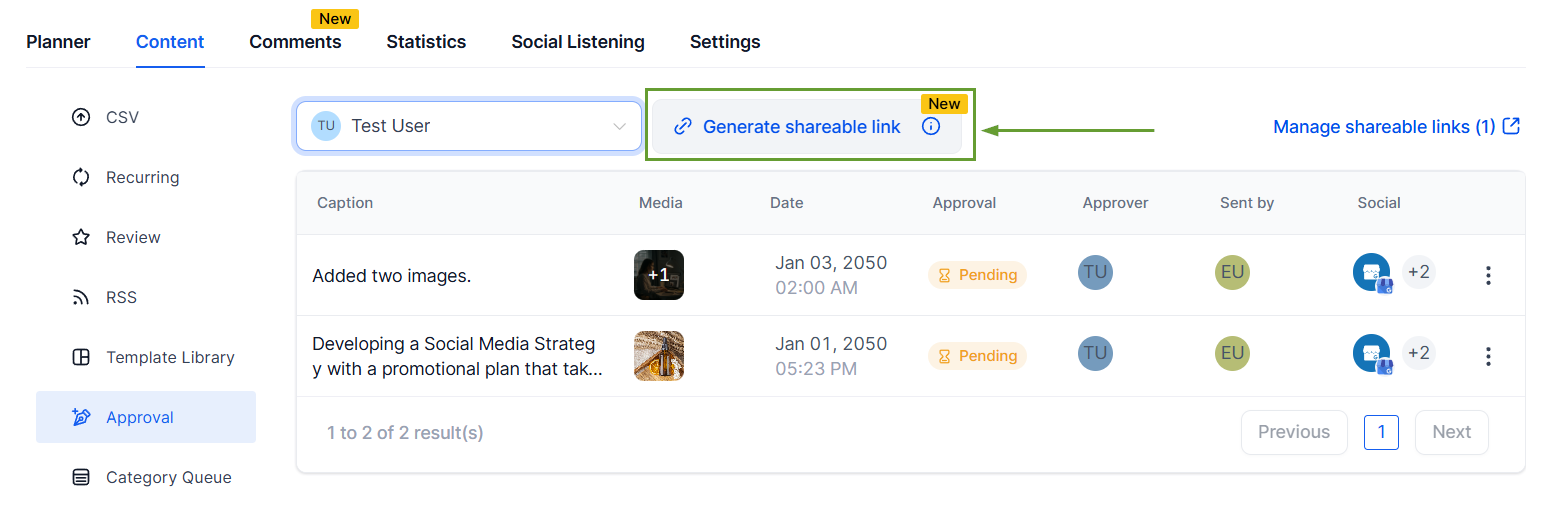
Once selected, click Generate shareable link.
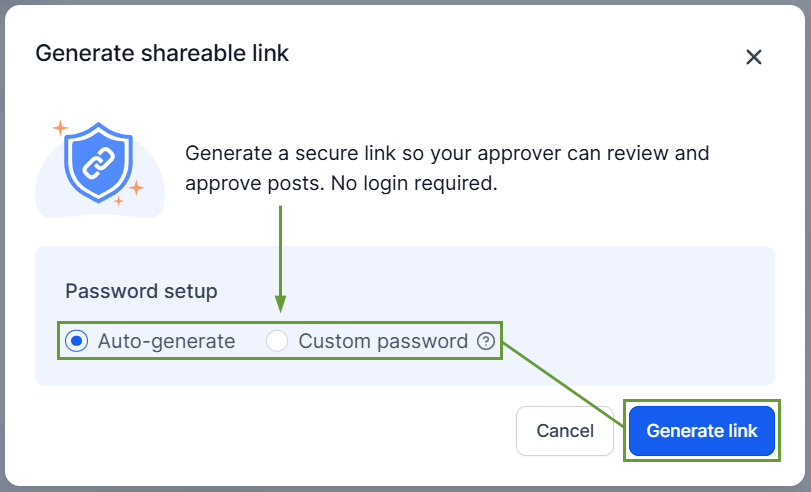
Select how to set a password, then click Generate link.
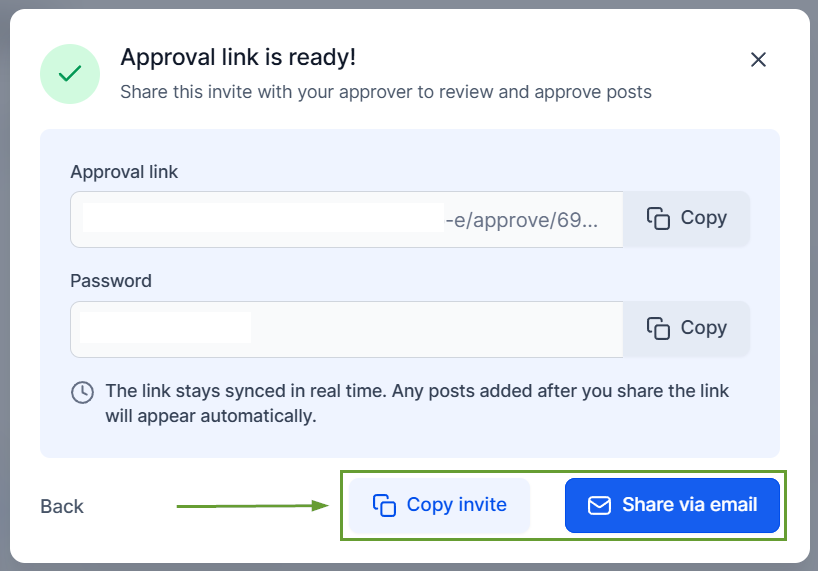
Copy the invite or share the invite via email.
This makes it easier than ever to collaborate with customers and stakeholders in the creative process, no more screenshots, emails, or back-and-forth. Just faster, cleaner collaboration. We hope you enjoy it!
